Sales
The complete sales cycle: quotation, sales order, delivery note, the ZATCA-compliant tax invoice, returns (credit notes) and debit notes — plus customer and salesman management.
Customers
Route: Sales › Customers — /commercial/customers
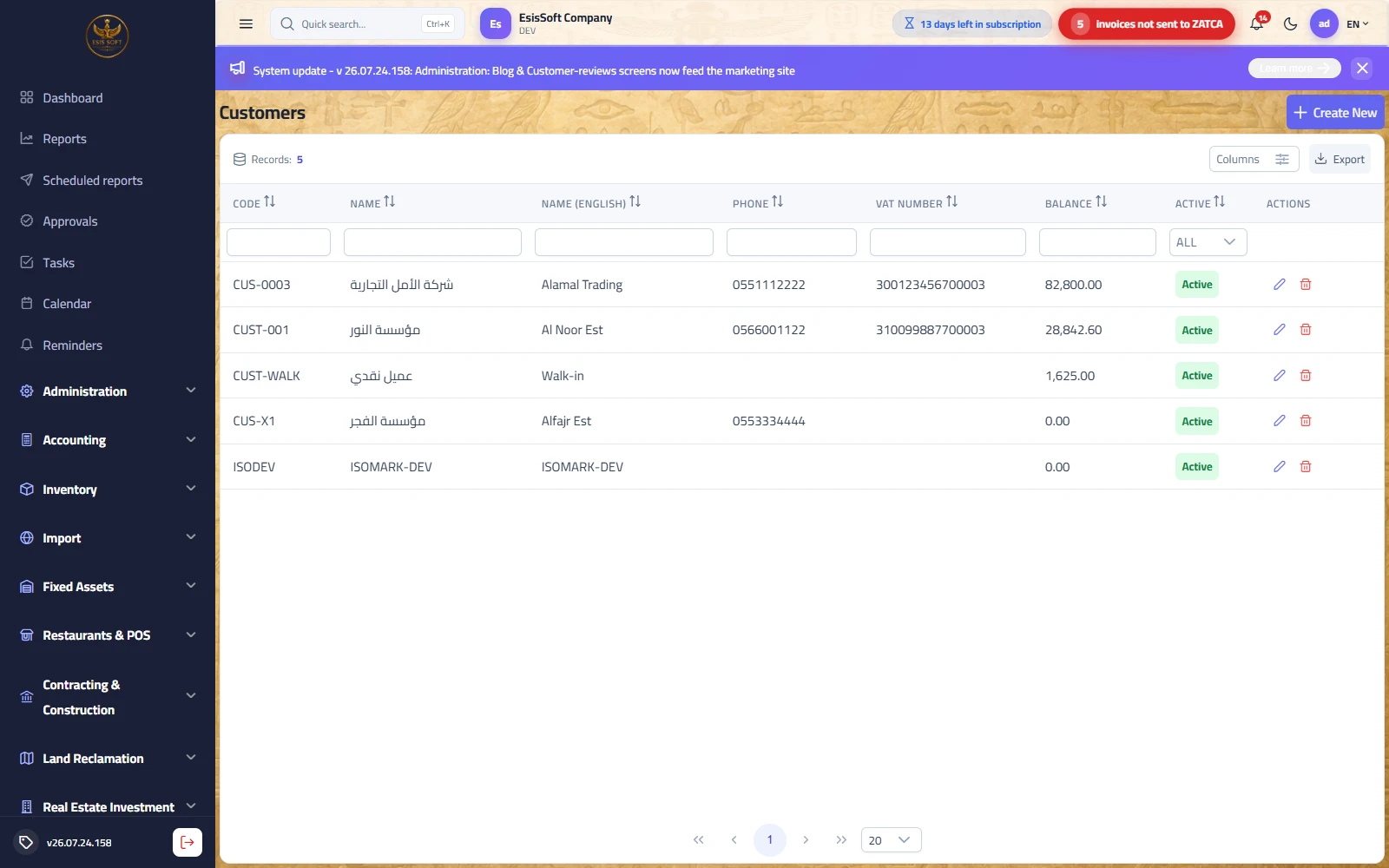
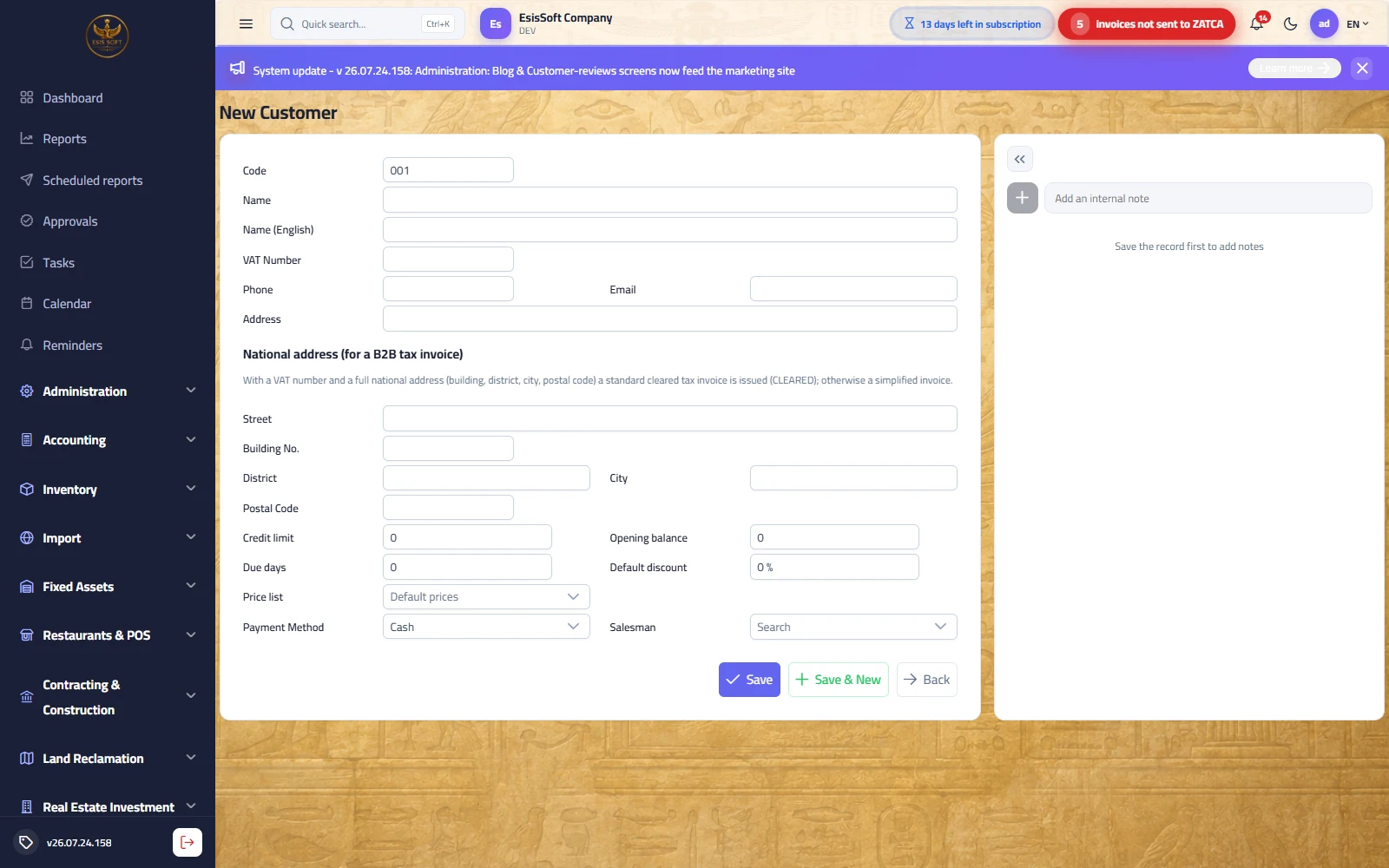
Purpose: the customer master card. Every sales document starts by picking a customer, and the card's defaults (payment method, salesman, price list, discount) are copied into each new document automatically.
Card fields
| Field | Description & validation |
|---|---|
| Code | Generated automatically for a new customer (read-only, stored in UPPERCASE). Set once at creation; must be unique. |
| Name (Arabic) | Required. The name shown throughout the system and on printed documents. |
| Name (English) | Optional — when left empty the Arabic name is used. |
| VAT Number | The customer's tax registration number (up to 20 characters). A valid KSA VAT number is 15 digits and starts and ends with 3 (e.g. 3XXXXXXXXXXXXX3); ZATCA rejects a B2B invoice whose buyer VAT is malformed. Leave empty for consumers (B2C). |
| Phone / Email / Address | Contact data; phone and address are printed on the invoice. |
| Street, Building No., District, City, Postal Code | The national address block. Building No. and Postal Code are numeric entry fields. Printed on the tax invoice and sent to ZATCA as the buyer address. |
| Credit limit | ≥ 0. When > 0 the system blocks posting any credit invoice that would push the running balance past this limit. 0 = unlimited. |
| Opening balance | The customer's balance when going live; included in the running balance shown in the list. |
| Due days | ≥ 0 — the agreed payment terms in days. |
| Default discount | 0–100 % suggested on documents. |
| Price list | Optional. When set, the customer's list prices override the item's default sale price on new documents (“Default prices” = no list). |
| Payment method | Cash / Credit — copied into every new invoice for this customer. |
| Salesman | Default salesman — auto-filled into new quotations, orders and invoices. |
| Active | Shown when editing. Inactive customers stay in history but should not be used on new documents. |
Buttons and side panel
- Save / Save & New / Back — the standard edit actions; Save & New clears the form and fetches the next code.
- Account Statement (edit mode) — opens the report center with this customer preselected and runs the statement.
- Record notes — the free-text notes panel beside the card keeps a per-customer note history.
FAQ
- Why did my customer's invoice come out simplified even though I entered the VAT number? The national address is incomplete — fill street (or address), building no., city and postal code, then invoice again.
- Where does the customer's account come from? Postings go to the receivable account configured in the commercial account settings; you don't create a GL account per customer manually.
- Can I change the code later? No — the code is set once at creation and is read-only afterwards.
- What does credit limit 0 mean? Unlimited credit — the credit-limit guard only fires when the limit is greater than zero.
Salesmen
Route: Sales › Salesmen — /commercial/salesmen
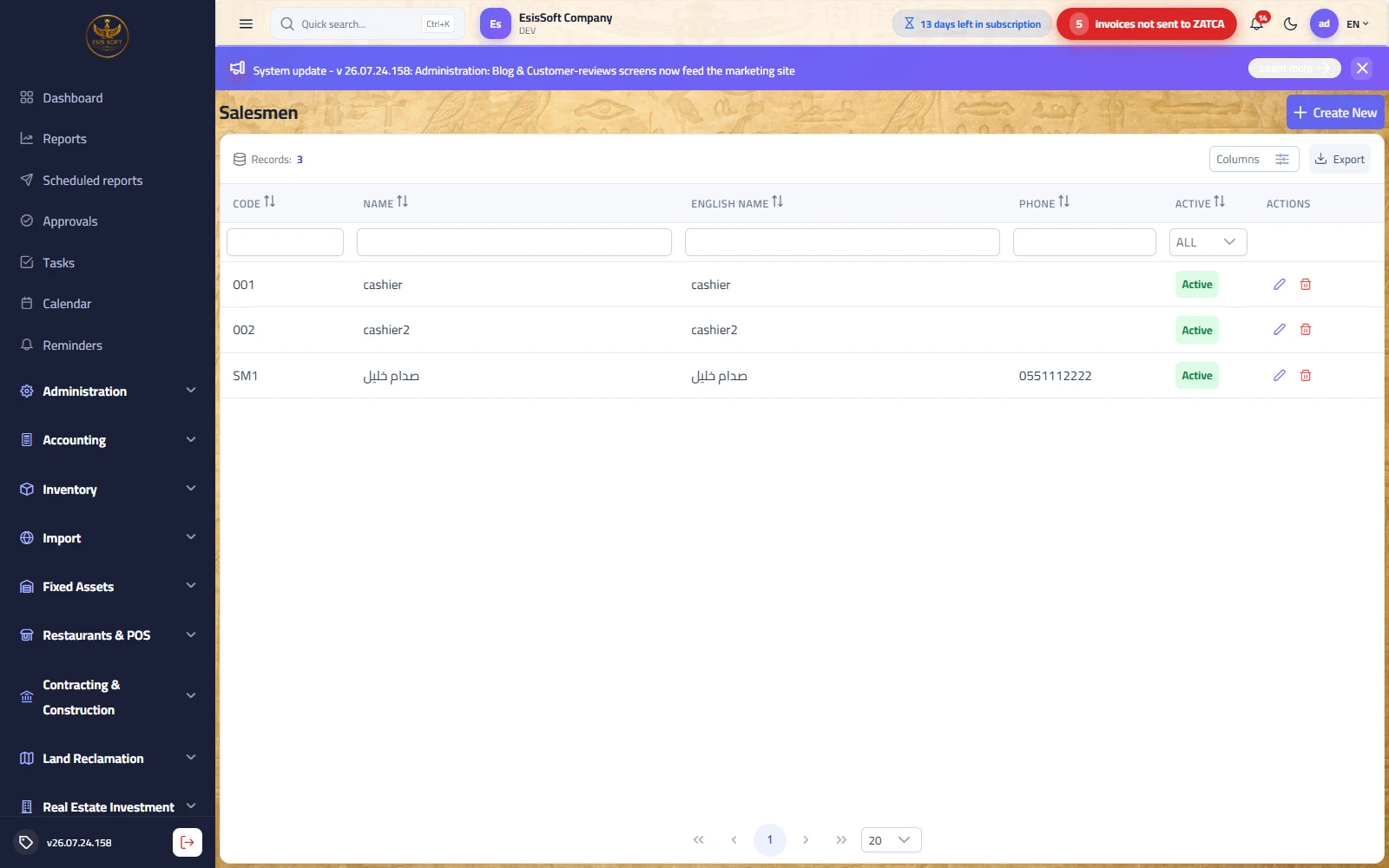
Purpose: define the sales reps you assign to documents. A salesman box exists on quotations, orders, delivery notes, invoices, returns and debit notes, giving you per-salesman sales figures in reports.
| Field | Description |
|---|---|
| Code | Auto-generated, read-only. |
| Arabic name | Required. |
| English name | Optional. |
| Phone | Optional (digits entry). |
| Active | Edit mode only. Inactive salesmen disappear from all document pickers but remain on historical documents. |
FAQ
- A salesman left the company — should I delete him? No; untick Active. His history stays intact and he vanishes from the pickers.
- Why doesn't a salesman appear in the invoice dropdown? He is marked inactive — only active salesmen are listed.
The document editor — shared mechanics
All sales documents share one editor layout: a toolbar, a header-fields block, an item line grid and a live totals strip. Learn it once — it behaves identically everywhere.
Toolbar and statuses
| Element | Behaviour |
|---|---|
| Status pill | Draft — fully editable; Approved / Posted — locked read-only. |
| New | Clears the editor and starts a fresh document (the next number is assigned at save). |
| Save | Stores the document as a draft — editable, deletable, no stock/GL effect yet. |
| Approve / Post | Saves and then locks the document. “Approve” (quotation, order, delivery note) only locks it and enables conversion; “Post” (invoice, credit note, debit note) additionally moves stock and writes the journal entry. |
| Print / Download | On locked documents: opens the bilingual A4 print preview, or saves it as PDF. Both actions also appear as row icons in each list. |
| View journal entry | On posted financial documents: shows the generated Dr/Cr entry in a dialog with a balanced/unbalanced indicator. |
Line grid
| Column | Behaviour |
|---|---|
| # | Line number. |
| Item | Searchable dropdown. Choosing an item fills its base unit and its sale price (or the customer's price-list price on invoices). |
| Unit | The item's base unit plus its alternative units (e.g. carton = 12). Selecting a unit re-prices the line with that unit's own price; stock always moves in base units (qty × factor). |
| Quantity | Up to 4 decimals; must be > 0 for the line to be saved. |
| Available | Read-only hint: the on-hand quantity of the item in the selected warehouse (on invoices: on-hand minus quantities reserved by approved sales orders). Turns red when the entered quantity exceeds it. Shows “—” for service items. |
| Unit price | Editable; prefilled from the item / price list. |
| Discount | One cell with a %/currency toggle button: enter a percentage or an amount — the two stay in sync, and the % stays sticky when the quantity or price changes. |
| VAT | A toggle showing the line's VAT amount and rate (default 15%). Click it to zero-rate the line (exempt); click again to restore the previous rate. |
| Line total | Qty × price − line discount (+ VAT when prices are entered net). |
| Trace (invoice only) | For items flagged with expiry/serials: opens the expiry & serial dialog. The tag icon is red while data is missing, green when complete. |
| 🗑 | Removes the line (drafts only). |
Totals strip
- Extra discount — a header-level discount with the same %/currency toggle. It is distributed over the lines proportionally to their net values (the last line absorbs any rounding remainder), so screen totals always equal server totals.
- Total discount — all line discounts + the extra discount.
- Subtotal — the net taxable base after all discounts (ex-VAT).
- VAT total and Grand total.
- Prices include VAT — a checkbox in the header. When ticked, entered prices are treated as VAT-inclusive and the tax is extracted from them; when clear, VAT is added on top.
Sales quotations
Route: Sales › Sales Quotations — /commercial/sales-quotations
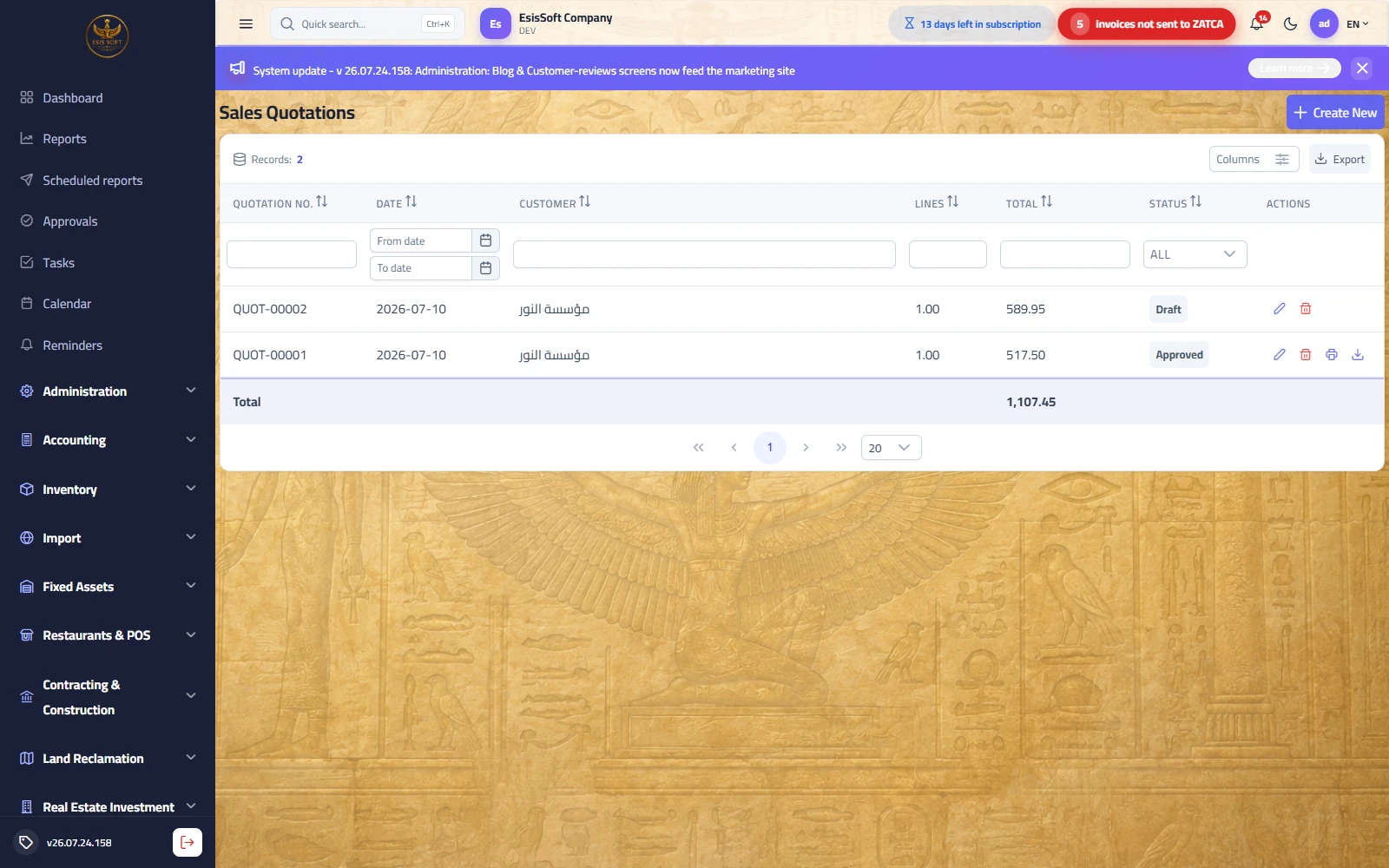
Purpose: a priced offer to the customer with an optional validity date — no effect on stock or accounts, ever. On acceptance, approve it and convert it to a sales order or directly to an invoice with one click.
Header fields
| Field | Notes |
|---|---|
| Date | Defaults to today. |
| Valid until | Optional expiry date, printed on the quotation sheet. |
| Customer | Required. Picking a customer auto-fills his default salesman. |
| Warehouse | Required (defaults to your user default warehouse) — drives the “Available” column. |
| Salesman / Notes / Prices include VAT | As in the shared editor. |
- Pick the customer and (optionally) the validity date.
- Add items with quantities and prices — the item's sale price is suggested and editable; apply line discounts and/or an extra discount.
- Save keeps it a draft; Approve locks it (status becomes Approved).
- On the approved quotation: Print / Download the bilingual PDF, or press Convert to Sales Order / Convert to Invoice — the new document opens prefilled with the customer, warehouse and all lines.
Worked example: 2 lines — 10 × 50.00 and 4 × 75.00, 10% discount on the second line, VAT 15%, prices net: gross 500.00 + 300.00 = 800.00; discount 30.00; subtotal 770.00; VAT 115.50; total 885.50.
FAQ
- Does a quotation reserve stock? No. The Available column is only an information hint.
- The customer accepted by phone — must I go through an order? No; “Convert to Invoice” raises the invoice straight from the quotation.
- Can I reuse an expired quotation? Yes — conversion is not blocked by the validity date; it is a commercial indication for the customer.
Sales orders
Route: Sales › Sales Orders — /commercial/sales-orders
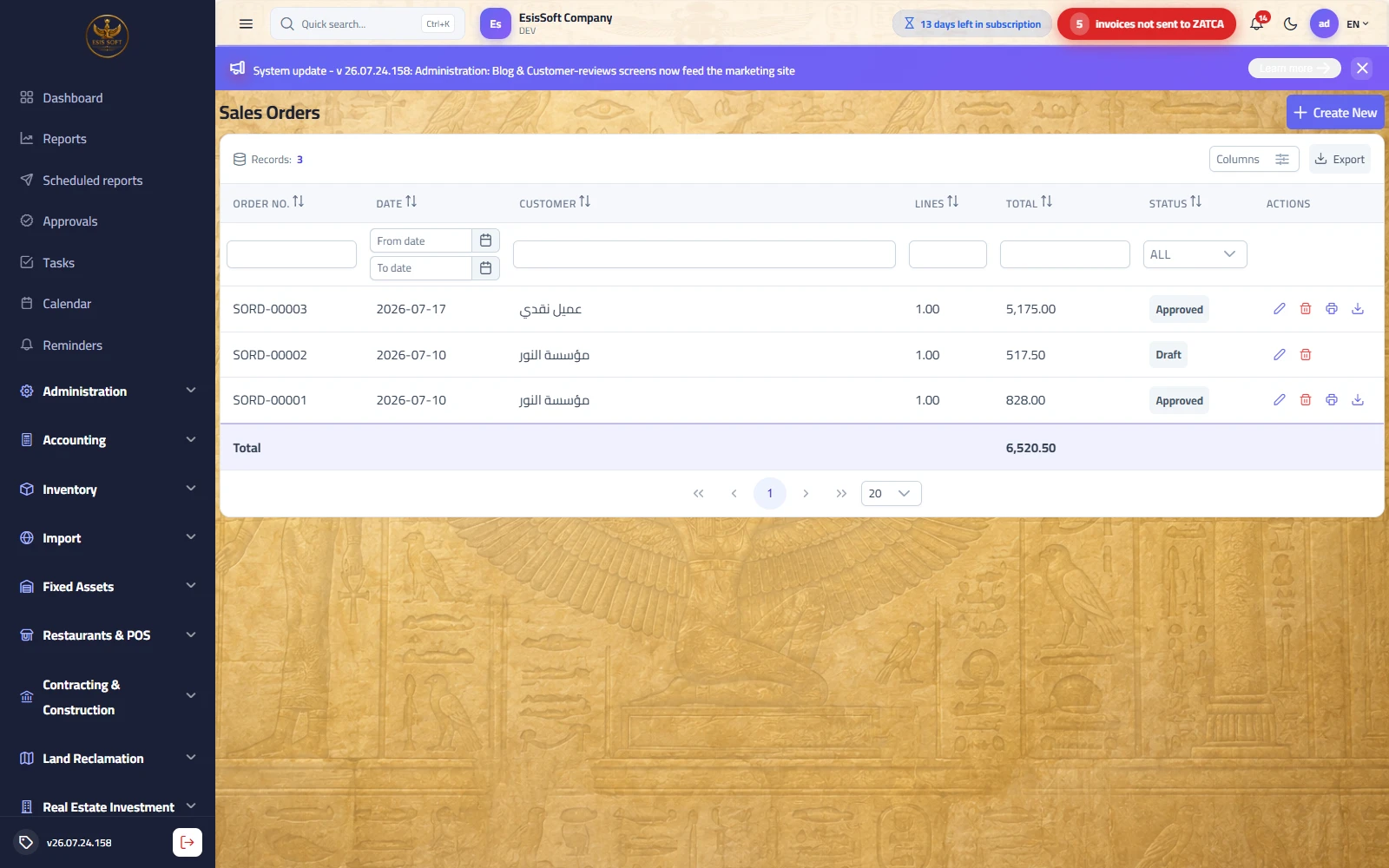
Purpose: lock in a confirmed customer order. Statuses are Draft → Approved; approving makes the order convertible to a delivery note or an invoice, and — importantly — reserves its quantities: the invoice editor's “Available” column shows on-hand minus what approved orders have already promised to other customers.
The header and line grid are identical to the quotation (date, customer, warehouse, salesman, notes, VAT-inclusive flag; no validity date). An order raised from a quotation stores the source quotation for traceability.
Partial delivery
- Approve the order, then press Convert to Delivery Note — the note opens with all order lines prefilled.
- For a partial shipment, reduce the quantities (or delete lines) before approving the delivery note.
- For the next shipment, convert from the same order again and keep only the remaining quantities — each conversion prefills the full order lines, so adjust them to what actually ships.
- Invoice each delivery (or the whole order at once) with Convert to Invoice.
Worked example: order of 100 × 20.00 with 5% extra discount, VAT 15%: gross 2,000.00; extra discount 100.00; subtotal 1,900.00; VAT 285.00; total 2,185.00. First delivery note: 60 units; second: 40 units — each becomes its own invoice.
FAQ
- Does an approved order move stock? No — it only reserves the quantities in the invoice availability hint. Stock physically moves when the invoice is posted.
- Can I convert one order to several invoices? Yes — repeat “Convert to Invoice” and edit the quantities each time.
- Where do I see that an order came from a quotation? The link is stored on the order at creation (traceability); the source appears in the document footer info.
Delivery notes
Route: Sales › Delivery Notes — /commercial/delivery-notes
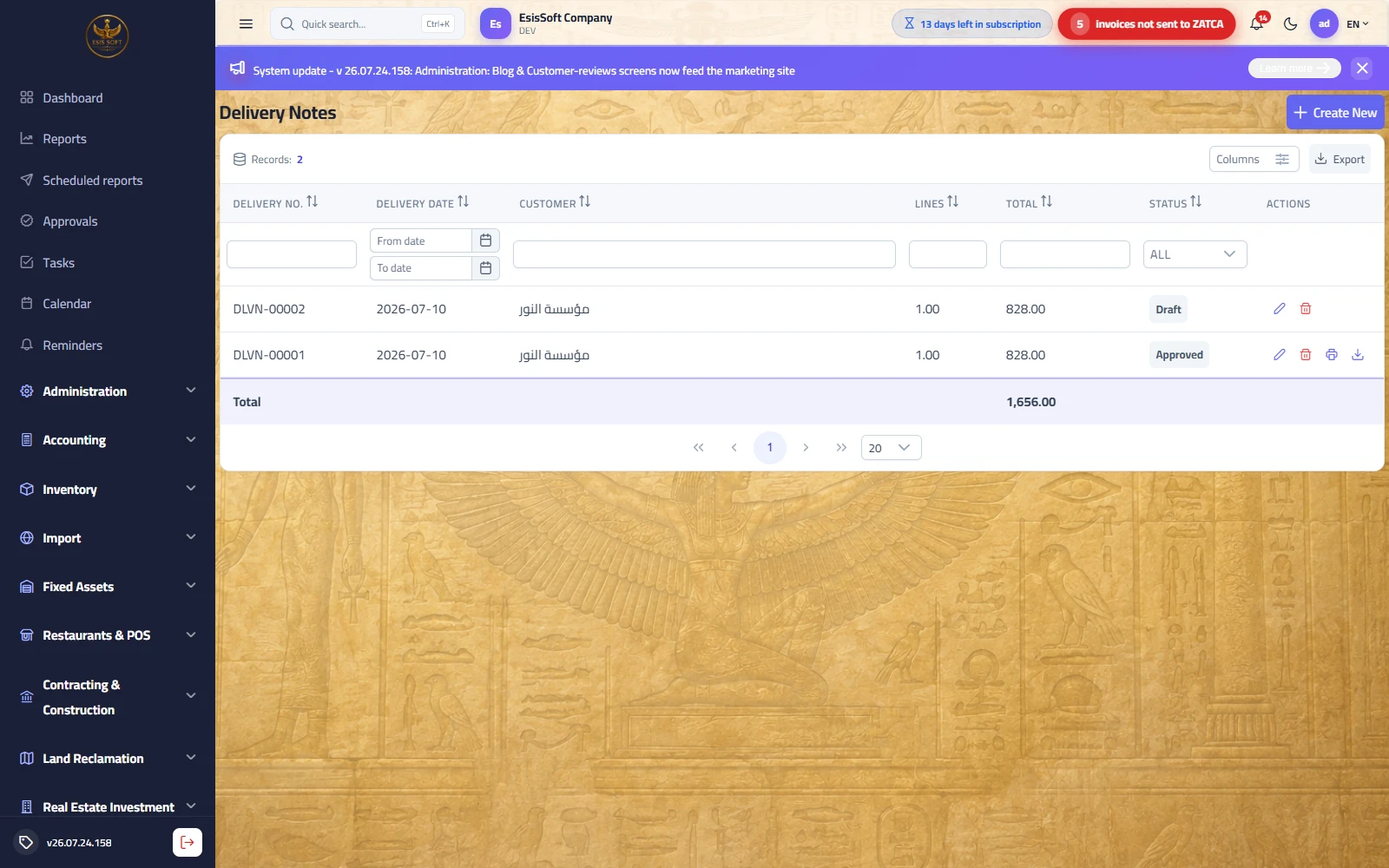
Purpose: the dispatch document that accompanies goods to the customer before invoicing — typically raised from an approved sales order (Convert to Delivery Note), or created directly. It documents what left, when, and for whom, and is the paper the driver and the customer sign.
Editor layout, fields and grid are the same as the sales order. Statuses: Draft (editable/deletable) → Approved (locked). An approved note offers Print / Download and Convert to Invoice, which prefills the invoice with the note's customer, warehouse and lines.
- Raise the note from an approved order (quantities prefilled) or add lines manually.
- Adjust quantities to what actually ships and Approve.
- Print two copies — one signed copy returns with the driver.
- When it's time to bill, open the approved note and press Convert to Invoice.
Worked example: delivery of 60 × 20.00, VAT 15%: subtotal 1,200.00; VAT 180.00; total 1,380.00 — figures shown for reference on the note; nothing is posted until the invoice.
FAQ
- Why didn't my stock drop after approving the note? By design — stock is issued at invoice posting, not at delivery approval.
- Can one delivery note serve several invoices? Convert produces one invoice per run; for split billing adjust the invoice lines after conversion.
- Can I delete an approved note? No — “An approved delivery note cannot be deleted.” Only drafts can be edited/deleted.
Sales invoices
Route: Sales › Sales Invoices — /commercial/sales-invoices
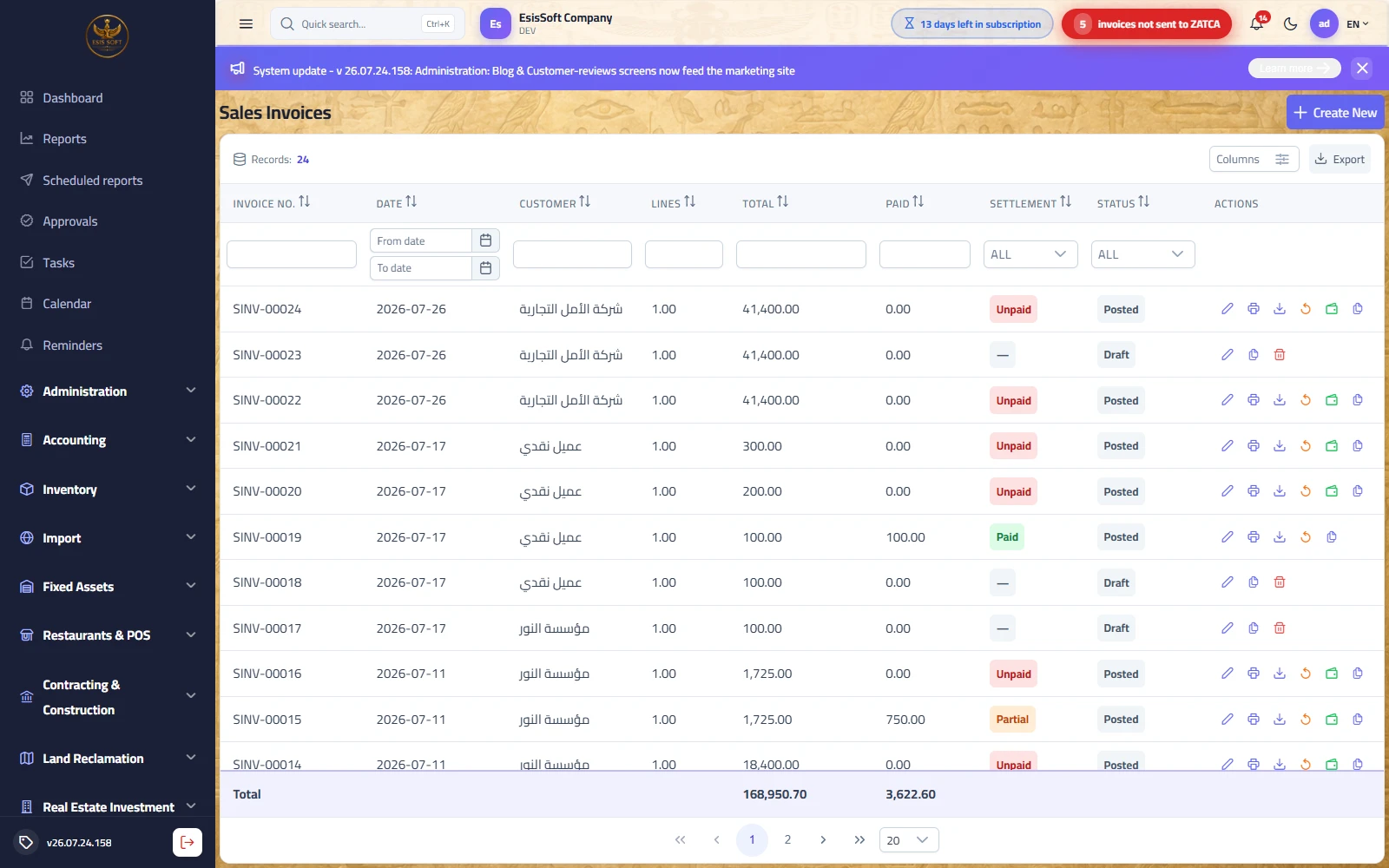
Purpose: the module's central document — the tax invoice (standard B2B or simplified B2C) compliant with ZATCA requirements. Posting it is the moment stock leaves the warehouse and revenue is booked.
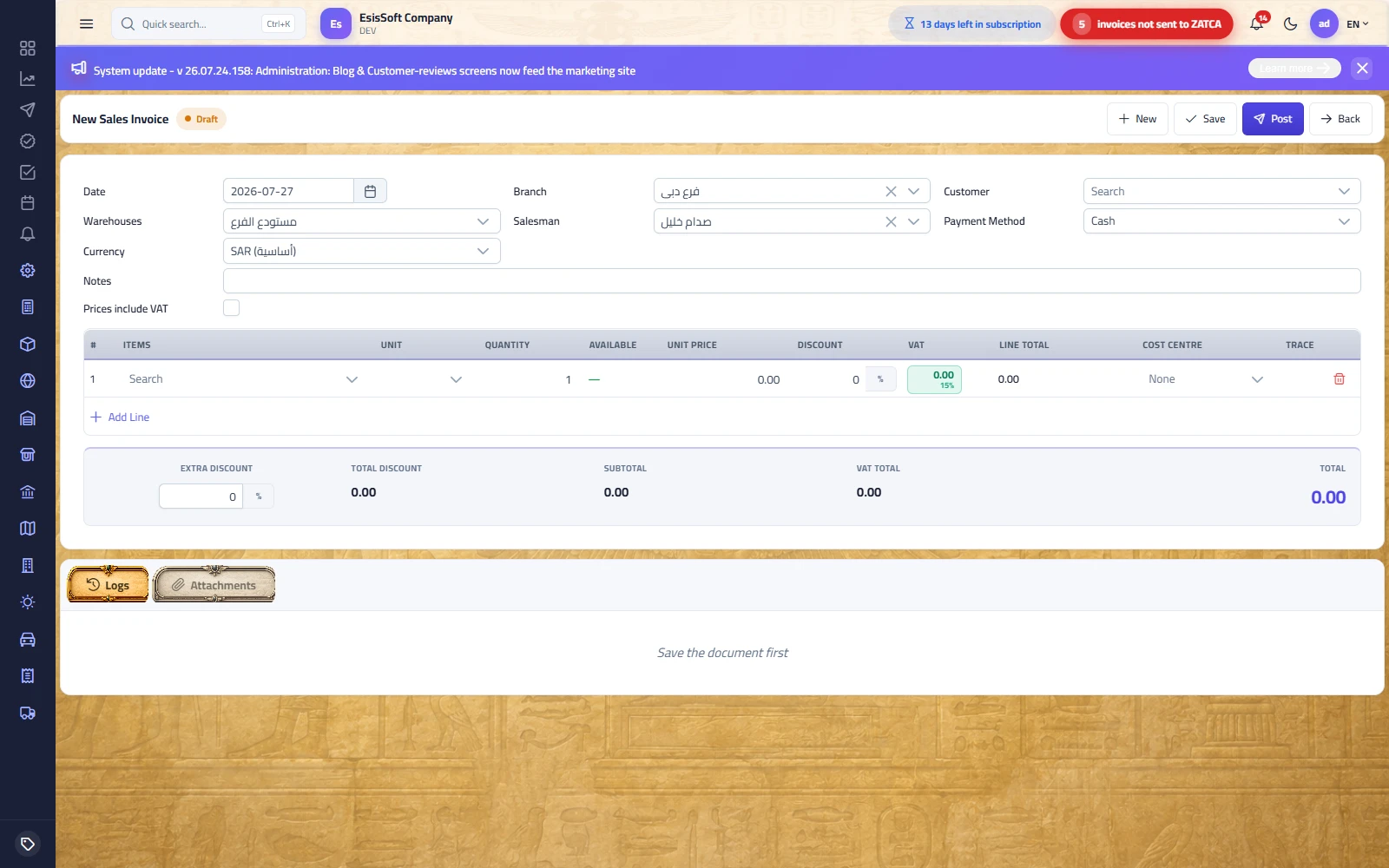
Header fields
| Field | Notes |
|---|---|
| Date | Invoice date; also determines which discount policies are in force. |
| Branch | The posting branch; locked automatically when your permissions scope you to a single branch. |
| Customer | Required. Picking a customer copies his defaults: payment method, salesman, price-list prices and the discount policies active on the invoice date. |
| Warehouse | Required (defaults to your user default). Drives the “Available” column and is where the stock is issued from. |
| Salesman | Optional; prefilled from the customer or your user defaults. |
| Payment method | Cash / Credit. Credit invoices are checked against the customer's credit limit at posting. |
| Currency & rate | The currency picker with the exchange rate — the journal entry is converted at this rate. |
| Notes / Prices include VAT | As in the shared editor. |
Creating and posting
- Pick the customer — or arrive prefilled from an approved quotation, order or delivery note (conversion), or from Copy of an existing invoice.
- Choose the warehouse and confirm the payment method.
- Add items. Watch the Available column (on-hand − reserved); it turns red if you sell more than is available.
- For items tracked by expiry/serials, open the Trace dialog on each line: pick the serial numbers from the in-stock registry (or type them — one per line; the count must equal qty × unit factor). The tag stays red until complete.
- Review the totals strip (line discounts, extra discount, VAT, net).
- Post. The system then, in order: checks the approval gate (large amounts may require a manager's approval), checks the credit limit (credit invoices), issues stock at weighted-average cost (blocked if insufficient), marks the serials Sold, writes the journal entry, and — if “Auto-send to ZATCA on posting” is enabled — signs and reports the invoice.
- Print the tax layout with the compliant QR code, or download as PDF.
Worked example — the full math
Invoice with 3 lines, prices net of VAT, 5% discount on line 1, extra discount 100.00, VAT 15%:
| Line | Qty × Price | Gross | Line disc. | Share of extra disc. | Taxable | VAT 15% |
|---|---|---|---|---|---|---|
| Item A | 10 × 50.00 | 500.00 | 5% = 25.00 | 38.78 | 436.22 | 65.43 |
| Item B | 3 × 200.00 | 600.00 | — | 48.98 | 551.02 | 82.65 |
| Item C | 5 × 30.00 | 150.00 | — | 12.24 | 137.76 | 20.66 |
| Totals | 1,250.00 | 25.00 | 100.00 | 1,125.00 | 168.75 | |
Totals strip: total discount 125.00, subtotal 1,125.00, VAT 168.75, grand total 1,293.75. The extra discount is spread over the lines in proportion to their nets; the last line absorbs the rounding remainder.
Generated journal entry (assume the goods cost 700.00 at weighted average):
| Account | Debit | Credit |
|---|---|---|
| Accounts receivable | 1,293.75 | |
| Sales revenue | 1,125.00 | |
| VAT output | 168.75 | |
| Cost of goods sold | 700.00 | |
| Inventory | 700.00 |
After posting — settlement and ZATCA
- Paid / Remaining chips show the settlement state; the list has a Settlement column (Paid / Partial / Unpaid).
- QuickPay (in the editor and as a list row action) collects a payment on the spot: amount (prefilled with the remainder), instrument (Cash / Bank transfer) and the cash box or bank account — it creates and posts a receipt in one step.
- The ZATCA box shows the e-invoicing state: “Not sent” with a Sign & send to ZATCA button, or the returned status with the scannable QR once accepted.
- View journal entry opens the generated Dr/Cr entry.
List row actions
| Action | Available when | Effect |
|---|---|---|
| ✏️ Edit / open | Always | Draft opens editable; posted opens read-only. |
| 🖨 Print / ⬇ Download | Posted | The bilingual tax sheet with the QR. |
| ↩ Unpost | Posted | Reverses the journal entry and the stock movement and returns the invoice to draft — after a confirmation. |
| 👛 QuickPay | Posted & not fully paid | Collect a payment against the invoice. |
| ⧉ Copy | Always | Opens a new draft prefilled with this invoice's header terms and lines (new number at save). |
| 🗑 Delete | Draft only | Deletes the draft; “A posted sales invoice cannot be deleted.” |
Validation errors & common mistakes
| Message / symptom | Cause & fix |
|---|---|
| Required-fields toast on Save | Customer, warehouse or lines missing — a line counts only when it has an item and quantity > 0. |
| Posting blocked: insufficient stock | You are selling more than is on hand in that warehouse. Receive stock first, transfer it in, or reduce the quantity. Remember alternative units multiply (2 cartons × 12 = 24 base units). |
| “Credit limit exceeded for …: balance would reach X against a limit of Y” | A credit invoice would push the running balance past the customer's limit. Collect a payment, sell cash, or raise the limit. |
| Serial-count error at post | Serialized lines must carry exactly qty × factor serial numbers, each of them In-Stock in the invoice warehouse. |
| “Only a draft sales invoice can be edited.” | Posted invoices are immutable — unpost first (if allowed) or correct with a credit/debit note. |
| Unpost refused | Two blockers: the invoice was reported to ZATCA (immutable by law — use a credit note), or it has posted receipts (remove/unpost those first). |
FAQ
- Where does the price come from? Customer price list first, then the item's sale price; the promotion engine applies the best active discount policy (item scope beats category beats all-items) as the line discount.
- Does a cash invoice collect the money automatically? No — “Cash” is the commercial term on the sheet. Use QuickPay right after posting to create-and-post the receipt in one click.
- Why does Available differ from the stock screen? The invoice hint subtracts quantities reserved by approved sales orders.
- Selling a service? Service items show “—” in Available and never move stock; only the revenue entry is posted.
Sales returns (credit note)
Route: Sales › Sales Returns — /commercial/sales-returns
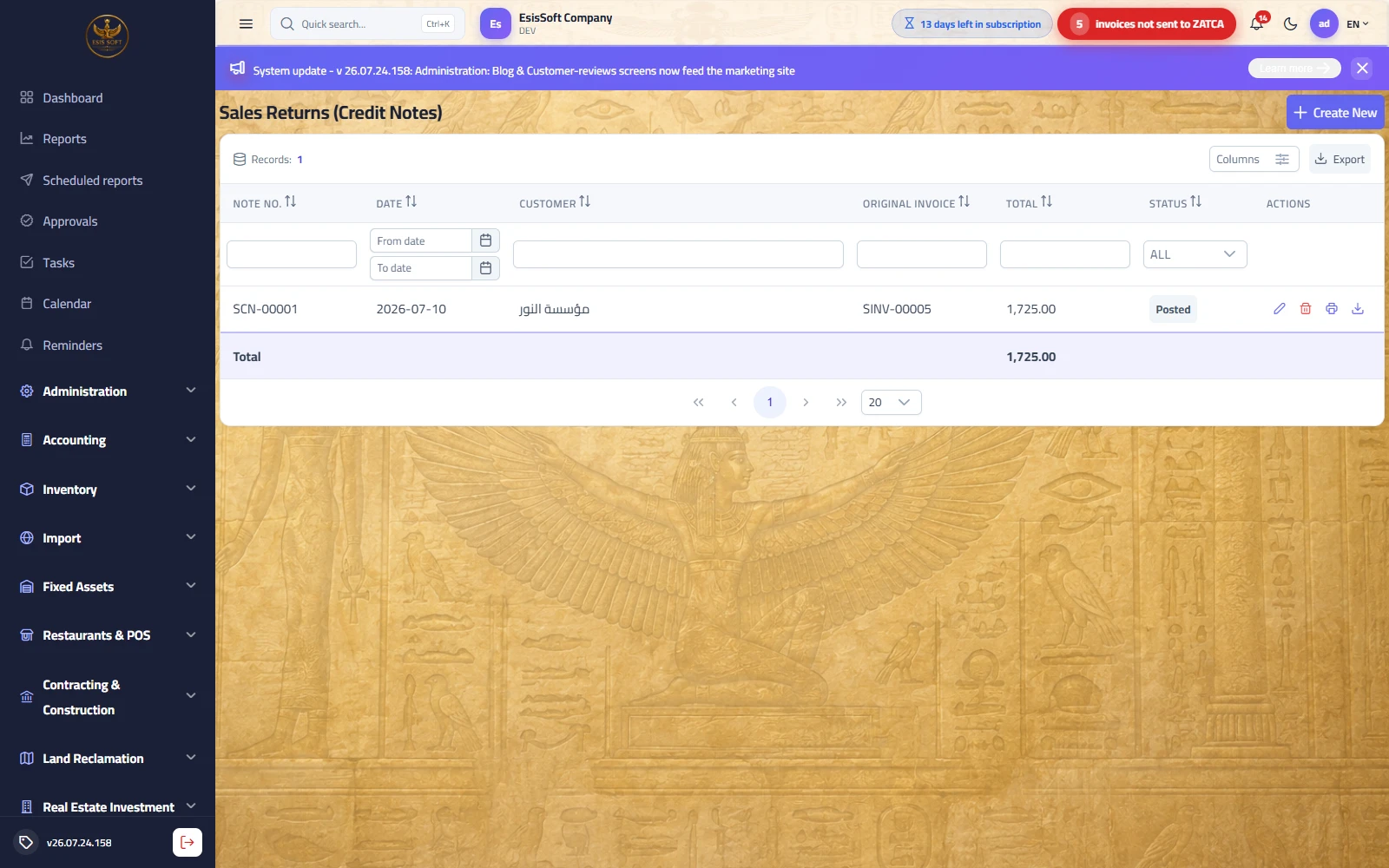
Purpose: full or partial return of sold goods. A return always references a posted sales invoice — it is the legal credit note (ZATCA type 381) linked to it.
Creating a return — import from the invoice
- Create a new return. The Original invoice box lists all posted invoices — pick one.
- The invoice's lines load in full and the customer, salesman and payment method are inherited.
- For a partial return: lower the quantities or delete the rows that are not coming back. For a full return: leave everything as loaded.
- Fill the Return reason (recommended — printed on the note), pick the branch and Post.
- On the posted note: Print / Download the credit-note sheet, view the journal entry, and Sign & send to ZATCA if auto-send is off.
Posting effect: the goods re-enter the warehouse at the item's current weighted-average cost, returned serial numbers flip back to In-Stock, and the reverse journal entry of the sale is written.
Worked example: return 2 × 200.00 from the invoice above (VAT 15%): subtotal 400.00, VAT 60.00, total 460.00; goods cost 220.00.
| Account | Debit | Credit |
|---|---|---|
| Sales revenue | 400.00 | |
| VAT output | 60.00 | |
| Accounts receivable | 460.00 | |
| Inventory | 220.00 | |
| Cost of goods sold | 220.00 |
FAQ
- Can I return more than was invoiced? Enter only what actually comes back; the note is your legal proof against the original invoice — keep quantities within it.
- The customer already paid — what happens to the money? The credit note reduces the receivable; settle the difference with a payment voucher or leave it as credit for the next invoice.
- Serialized items? The returned serials are named on the line and re-enter the serial registry as In-Stock.
- Which cost is used for the returned goods? The item's current weighted-average cost at return time, not the original invoice's cost.
Sales debit notes
Route: Sales › Sales Debit Notes — /commercial/sales-debit-notes
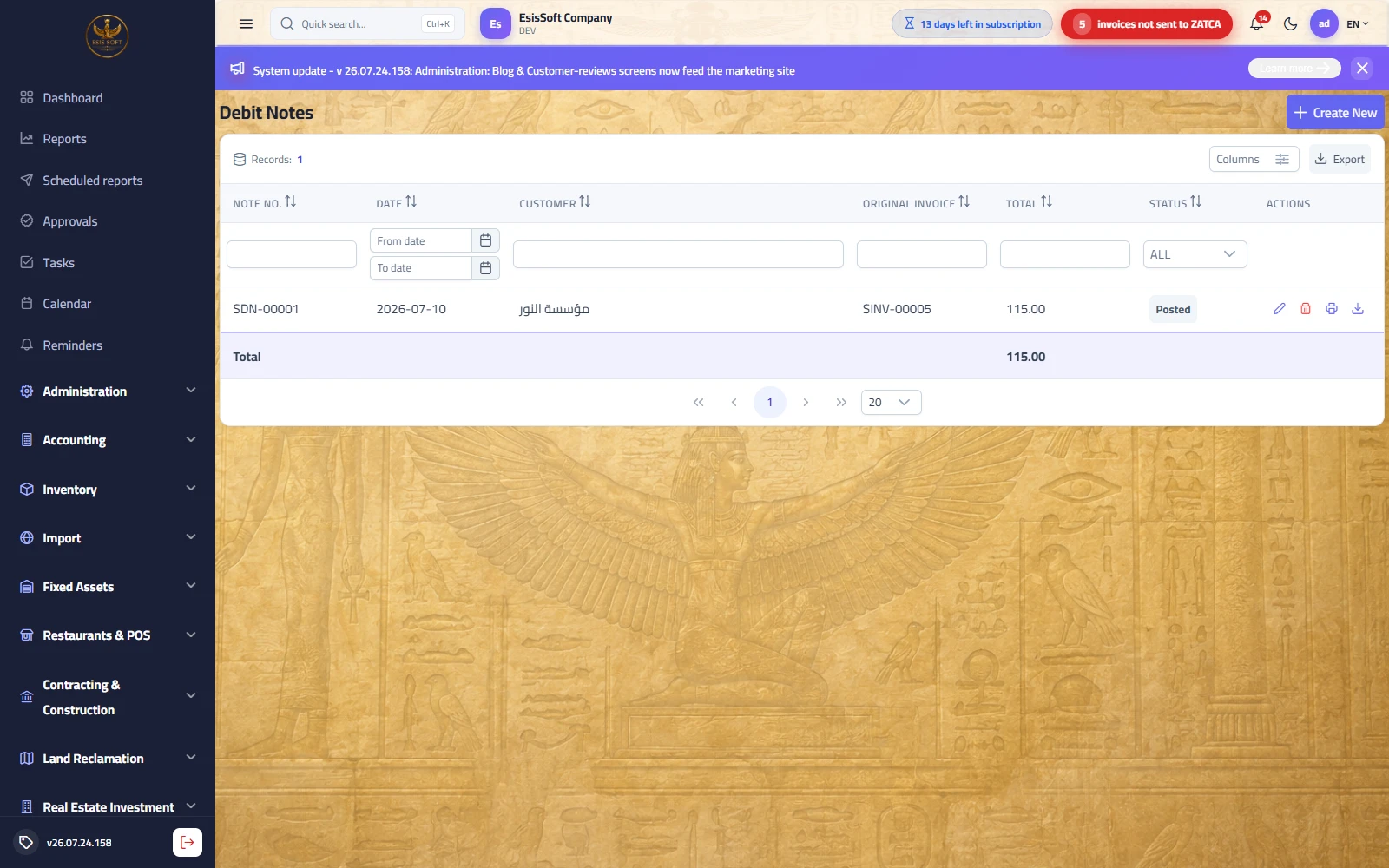
Purpose: charge the customer more after an invoice was issued — price difference, freight, penalty… It references a posted invoice (ZATCA type 383) but, unlike a return, moves no stock.
- Create a new debit note and pick the original posted invoice — the customer and reference are inherited, but the line grid starts empty.
- Add the additional-charge lines manually (e.g. a “Freight” service item), with VAT as applicable.
- Fill the reason, then Post — and send to ZATCA like an invoice.
Worked example: freight charge 200.00 + VAT 15% = 230.00. Journal entry: Dr Accounts receivable 230.00 / Cr Sales revenue 200.00 / Cr VAT output 30.00 — the same direction as a sale, with no inventory lines.
FAQ
- Debit note or a new invoice? Use a debit note when the charge belongs to an existing invoice (price correction, freight on that shipment); use a new invoice for a new sale.
- Why can't I add stock items that move quantity? Debit notes never move stock by design — they are a purely financial charge.
- Does it affect the customer's balance? Yes — posted debit notes add to the running balance (and to the credit-limit calculation).
Send invoices to ZATCA
Route: Sales › Send Invoices to ZATCA — /commercial/zatca-send
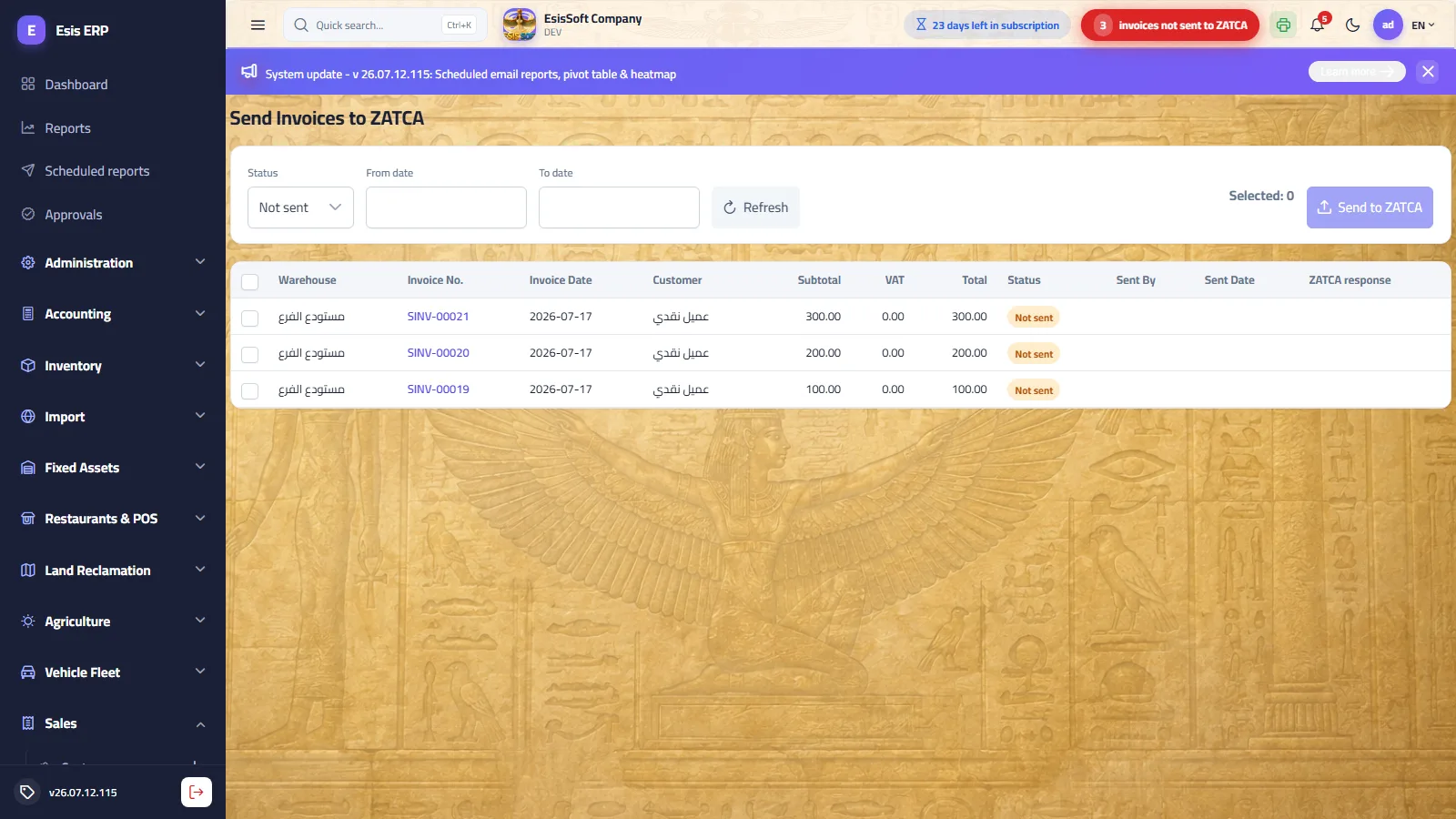
Purpose: the e-invoicing control room. Filter posted invoices by send status (default: Not sent) and date range, multi-select and submit them in one batch — the batch is signed and sent sequentially so the PIH hash chain stays intact.
Screen elements
| Element | Behaviour |
|---|---|
| Status filter | All / Sent / Not sent (default Not sent) + From/To date + Refresh. |
| Checkbox column | Only unsent rows are selectable; the header checkbox selects all sendable rows. The toolbar shows the selected count. |
| Send to ZATCA | Signs and reports every selected invoice. Success toast when all pass; otherwise “Some invoices could not be sent (n/m)” with the first error. |
| Grid columns | Warehouse, invoice no. (click to open the invoice), date, customer, subtotal, VAT, total, status, sent by, sent date, response. |
| Status badge | Green = accepted (shows the authority status), red/grey = not sent yet or last attempt failed. |
| Response button | Opens the raw ZATCA response (JSON) — the exact validation messages from the authority. |
ZATCA statuses
| Status | Meaning |
|---|---|
| Not sent | Posted locally, not yet reported. Send from here or from the invoice's ZATCA box. |
| CLEARED | Standard (B2B) invoice accepted and cleared by the authority. |
| REPORTED | Simplified (B2C) invoice reported successfully. |
| Error text | The attempt failed — the row keeps “Not sent”, the status/response holds the reason. Fix and resend. |
Fixing a rejection
- Open the Response dialog and read the validation messages (BR-… codes name the failing rule).
- Typical causes: incomplete buyer national address on a B2B invoice (add city/postal code/building no. to the customer card), a malformed buyer VAT number (15 digits, starts/ends with 3), or the company not yet onboarded (“complete the e-invoicing steps”).
- Fix the master data — the invoice itself is regenerated from current data at send time — then select the row and press Send to ZATCA again.
- If the invoice's own figures are wrong, do not try to edit it: issue a credit note (and a new invoice if needed).
FAQ
- Why is the batch sent one by one? Each invoice's hash chains to the previous one (PIH); parallel sending would break the chain.
- An invoice failed mid-batch — are the others lost? No; each result is individual. Fix the failed one and resend it alone.
- Can I unsend an invoice? No. Once accepted by ZATCA it is immutable — corrections go through credit/debit notes.
Discount policies and promotions
Path: Commercial → Master data → Discount policies & promotions — /commercial/discount-policies
What it does: The discount you agreed is written here once and the system applies it on every invoice, instead of a salesperson remembering — or forgetting — it: a named customer’s discount, a category’s seasonal discount, or a volume discount that starts at a threshold.
| Field | Description |
|---|---|
| Code and name | What the policy is called. |
| Customer | A named customer, or “all customers”. |
| Scope and target | All items, one category, or one item. |
| Minimum quantity | The threshold at which the discount starts — leave it at zero to apply always. |
| Discount % | The percentage. |
| From / to | The promotion’s window — leave both empty for a standing policy. |
Instalments and what is due
Path: Commercial → Document cycle → Due installments — /commercial/due-installments
What it does: A credit invoice gets an instalment schedule on its own card; this screen gathers every customer’s instalments so you can see today who owes what and how many days late they are.
| Field | Description |
|---|---|
| Generate the schedule | From the invoice card: how many instalments, every how many months, and the first due date — the schedule is built and can then be edited by hand. |
| As of date | Instalments due up to that day. |
| Overdue only | Limits the view to what has passed its date. |
| Customer, invoice, due date | Who, on which invoice, and when. |
| Amount, paid, remaining | The instalment’s value and what has been collected. |
| Days late | How long past its date. |
| Unscheduled | A credit invoice with no schedule yet — surfaced so it isn’t forgotten. |
Retail POS
Path: Commercial → Document cycle → Retail POS — /commercial/retail-pos
What it does: The cashier’s screen: scan a barcode or touch a tile, a basket on the side, payment in three taps. The invoice posts, stock comes off and the receipt is recorded in one step, and the slip prints on the thermal printer.
| Field | Description |
|---|---|
| Shift | Open with an opening float and close it — a setting may forbid selling without a shift, and closing is a supervisor permission. |
| Station and printer | The station fixes the till and the warehouse; the printer choice belongs to this device. With the print agent down, printing falls back to the browser. |
| Search, tiles, model grid | Scan a barcode, search by name or code, or touch a tile — with a size/colour grid for apparel. |
| Basket | Quantity, discount and line total, then subtotal, VAT and total. |
| Customer | A walk-in by default, and a real customer whenever any of it goes on credit. |
| Payment | Cash, or a split payment (cash + card/transfer) with the remainder on credit. |
| Hold and resume | Park a basket to serve another customer, then bring it back. |
| Exchange | Pick the original invoice, mark what comes back, approve it as an immediately posted credit note, then collect only the difference. |
| X report | Mid-shift: invoice count, day total, collected and outstanding — without closing. |
| Z report and drawer reconciliation | At close: expected in the drawer against cash counted, and the variance over or short. |
Sending invoices to the Egyptian Tax Authority (ETA)
Path: Commercial → E-invoicing → Send invoices to ETA — /commercial/eta-send
What it does: Posted invoices are signed and submitted to Egypt’s e-invoicing platform, and the authority returns a Long ID and a status that are stored on the invoice.
| Field | Description |
|---|---|
| Invoice list | Posted but unsent invoices, and what was sent with its status. |
| Sign and send selected | Signs your selection and submits it in one batch. |
| Long ID | The authority’s number for the invoice once accepted. |
| Status | Accepted, rejected or in progress — with the authority’s message on a rejection. |
Frequently asked questions
How do I create a sales invoice?
Open Sales › Sales Invoices › New, choose the customer, add item lines with quantity and price, set VAT and any discount, then Save and Post to record the revenue.
Can I edit or delete a sales invoice?
You can edit a draft invoice freely. Once posted, edits are locked; you reverse or issue a credit note instead of deleting, keeping accounting integrity.
How is VAT / ZATCA handled on invoices?
VAT is calculated per line from the item's tax rate, and posted invoices generate a ZATCA-compliant e-invoice automatically when ZATCA Phase 2 is enabled.
How do customer payments link to invoices?
Record a receipt voucher against the customer; you can allocate it to one or more open invoices to settle their outstanding balance.