Inventory
Items, warehouses and balances: item cards with units and barcodes, stock counts and adjustments, inter-warehouse transfers, and serial-number tracking. Inventory is valued by the weighted-average cost method, and every quantity change comes from a posted document — balances are never edited directly.
Items
Route: Inventory › Items — /commercial/items
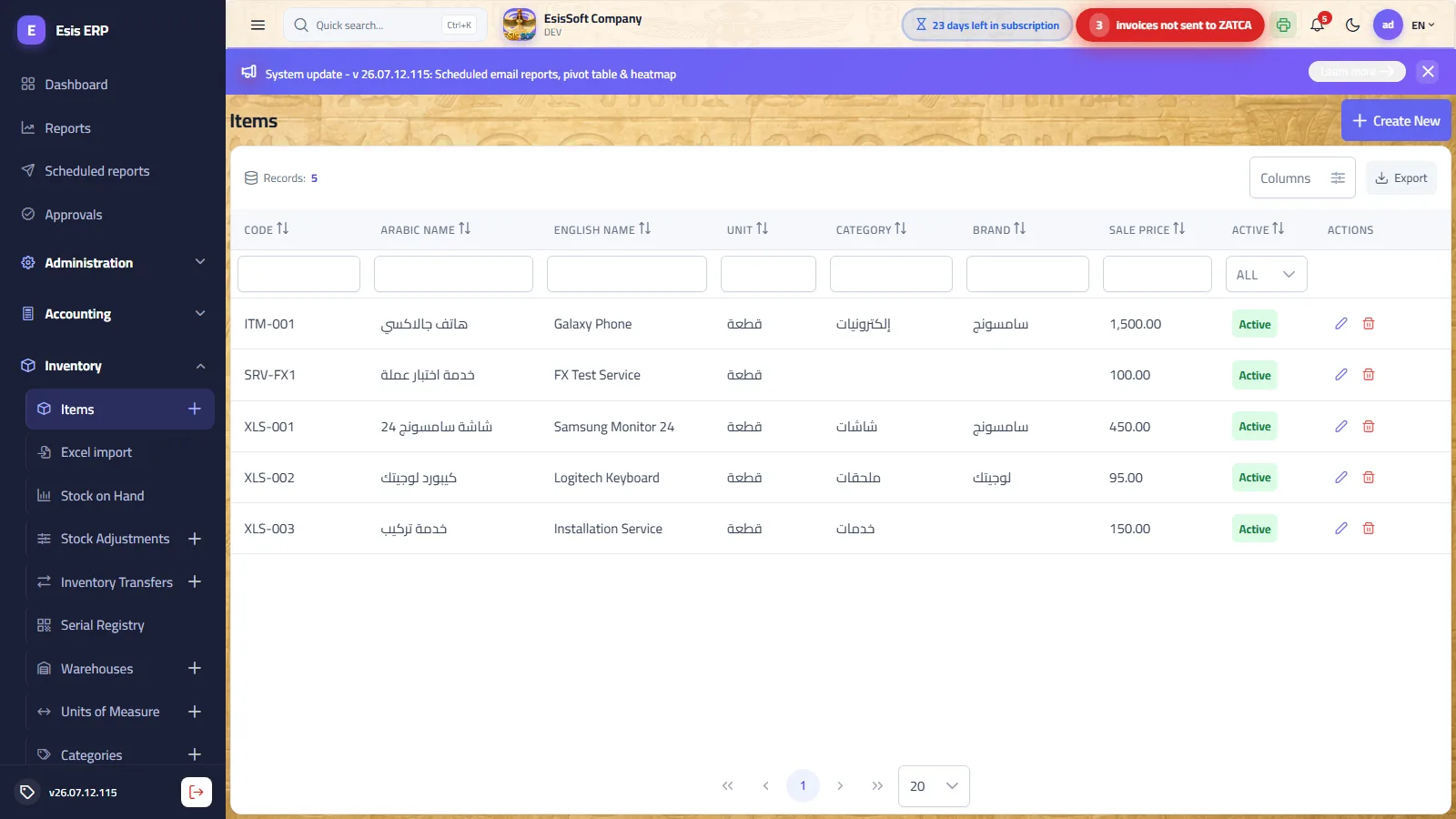
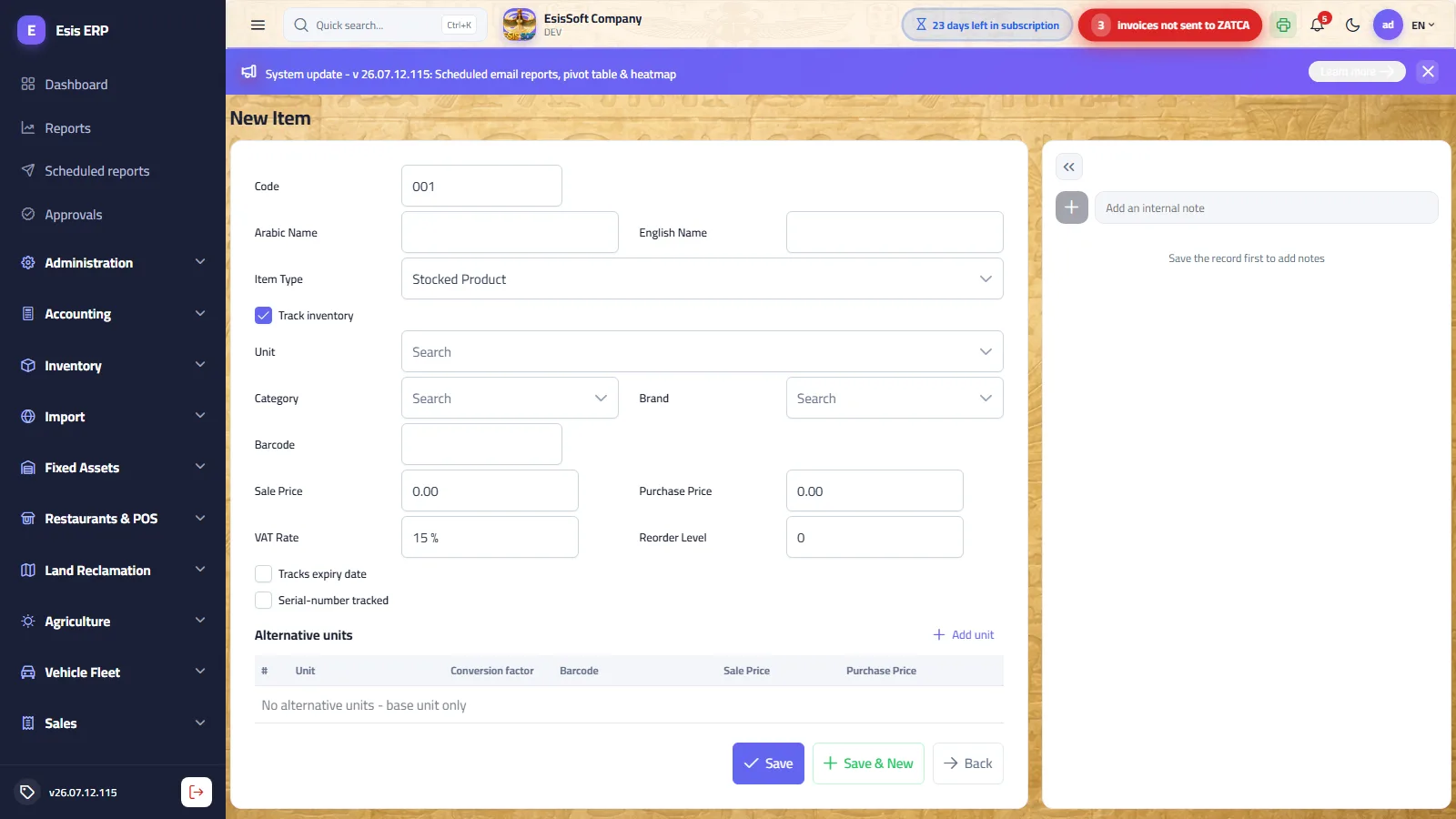
Purpose: the item master is the heart of the commercial system. Every purchase, sale, transfer and adjustment line points to an item card, so create the card correctly before the first document that uses it. Use this screen whenever you add a new product or service, change prices or VAT, or add a larger selling unit (carton, dozen…).
The item list
The list shows: code, Arabic name, English name, base unit, category, brand, sale price and the active flag. Like every list in KEMTOVA ERP you can search, filter columns, hide/show columns and export. Row actions: edit (pencil) and delete (trash, with confirmation). The Create button opens a blank card with the next automatic code.
Item card — all fields
| Field | Description |
|---|---|
| Code | Assigned automatically from the numbering series and read-only. A duplicate code is rejected on save (“Item code … already exists”). |
| Arabic Name | Required. The main display name on documents and lists. |
| English Name | Optional; if left empty the Arabic name is used for it automatically. |
| Item Type | Stocked Product or Service. Services (labor, delivery, maintenance…) never touch stock. |
| Track inventory | Shown for products only. When checked (the default) every document movement updates the item's warehouse balance. |
| Unit | Required. The base (smallest) unit of measure — piece, kg, liter… All stock balances are kept in this unit. |
| Category | Optional classification used for filtering and reports. |
| Inventory account | Optional. The chart-of-accounts account that carries this item's value in every stock document (purchase, sale, delivery, return, adjustment, production). It overrides the category's account and the general Inventory account in Account Settings. Leave it empty to inherit — set it only for an item that genuinely needs its own account. Only postable sub-accounts are accepted, and a change applies to future postings without touching posted entries. |
| Brand | Optional manufacturer / trademark, also for filtering and reports. |
| Barcode | The barcode of the base unit. Scanning it on a document selects the item in the base unit. |
| Sale Price | Default selling price of the base unit (up to 4 decimals). Proposed automatically on sales lines; can be overridden per document within your permissions. |
| Purchase Price | Default buying price of the base unit. Proposed on purchase lines and used to prefill the unit cost of stock-adjustment increases. |
| VAT Rate | Percentage 0–100, default 15%. Applied automatically on document lines (use 0 for zero-rated or exempt items). |
| Reorder Level | Minimum desired quantity. When the balance falls below it, the item is flagged in the On-hand screen. |
| Tracks expiry date | Check for perishables — receiving documents will capture an expiry date and issue follows FEFO (first-expired, first-out) in the serial picker. |
| Serial-number tracked | Check for items followed piece-by-piece (phones, appliances…). Receipts must record one serial per unit and sales pick the serials sold — see the Serials register. |
| Active | Shown when editing. Un-check to retire an item: it stops appearing in document pickers but its history stays intact. |
| Notes | The side pane stores free-text notes attached to this item card. |
Alternative units — factors, barcodes and prices
Under Alternative units you add every larger unit the item is bought or sold in. Each row has: the unit, the conversion factor (how many base units it contains), its own barcode, its own sale price and its own purchase price. Press Enter to walk cell-to-cell and add rows quickly.
Worked example — a beverage sold by piece and by carton of 12:
| Unit | Factor | Barcode | Sale price | Purchase price |
|---|---|---|---|---|
| Piece (base) | 1 | 6281000000017 | 2.50 | 1.80 |
| Carton | 12 | 6281000000024 | 27.00 | 19.20 |
How it behaves: stock is always kept in pieces. Selling 1 carton deducts 12 pieces;
buying 5 cartons adds 60 pieces. Scanning barcode 6281000000024 on an invoice
brings the item in carton at 27.00, while scanning 6281000000017 brings it
in piece at 2.50. Notice the carton sale price (27.00) does not have to equal
12 × 2.50 = 30.00 — bulk units usually carry a discount.
Stock by warehouse
When you edit a stocked item, a read-only table shows its current quantity, average cost and value in every warehouse — a quick balance check without leaving the card.
Actions
Save returns to the list, Save & New saves and opens a fresh card with the next code, Back leaves without saving. Saving requires the Arabic name and the base unit; otherwise the missing fields are listed in a message.
Common mistakes
- Choosing the wrong base unit. Balances live in the base unit; if you make “carton” the base and later need to sell pieces, you would need fractional quantities. Always pick the smallest unit as the base.
- Deleting an alternative-unit row that documents already used. Old documents keep their data, but the barcode stops scanning and the unit disappears from pickers. Prefer adding a new row over deleting.
- Duplicate barcodes across items. The scanner will pick whichever item matches first — keep barcodes unique per item/unit.
- Turning on serial tracking after the item already has movements. Existing quantities have no serials, so counts and the serial register will disagree. Set the flag before the first receipt.
FAQ
- How do I change an item's cost? You don't type it — cost is the weighted average computed from receipts. It changes when you post a purchase at a new price, or when you post a stock-adjustment increase with the correct unit cost. The “Purchase Price” field is only a default for new document lines, not the cost itself.
- Why can't I delete an item that has movements? Its transactions reference it, and the system protects history — deletion is refused. Un-check Active instead; the item vanishes from pickers but reports still work.
- Can one item have two barcodes for the same unit? One barcode per unit row. If a product ships with two printed codes, add a second unit row with factor 1 carrying the other barcode.
- Where do special prices per customer come from? From the Price lists and Discount policies screens in the Sales module — the item card holds only the default prices.
On-hand stock
Route: Inventory › On-hand — /commercial/on-hand
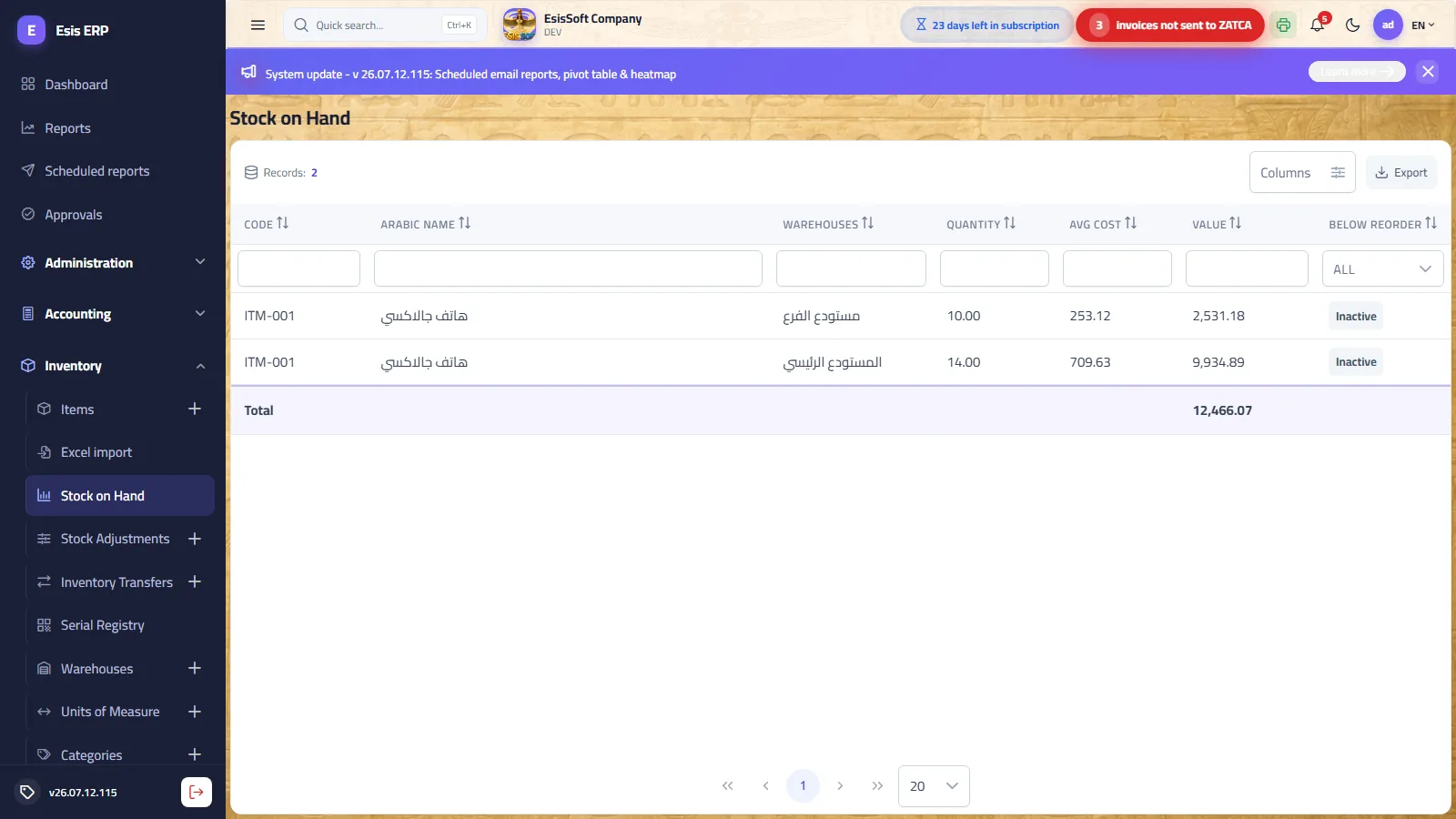
Purpose: a live, read-only view of every stocked item's balance in every warehouse. Open it before a stocktake, when a customer asks “do you have it?”, or to review the total value of your inventory.
| Column | Meaning |
|---|---|
| Code / Name | The item (one row per item per warehouse). |
| Warehouse | Where this balance sits. |
| Quantity | Current on-hand quantity in the item's base unit. |
| Avg Cost | Current weighted-average cost per base unit. |
| Value | Quantity × average cost. The column is totaled at the bottom — your inventory valuation. |
| Below Reorder | Flagged when the quantity has fallen under the item's reorder level — your restocking worklist. |
Use the table's search and column filters to narrow by warehouse, category or item, and Export to take the list to Excel — for example as a count sheet before a stocktake.
FAQ
- The balance is wrong — can I edit it here? No. This screen is read-only by design; every change must come from a document. Post a stock adjustment with the difference.
- Why is the average cost 0? When a balance reaches zero the average cost resets to 0; it is rebuilt by the next receipt.
- Why doesn't a service item appear? Services and items with “Track inventory” un-checked have no balances.
- How do I run a full stocktake? Export this screen as the count sheet, count physically, then enter the differences as a stock adjustment — see the step-by-step in the next section.
Stock adjustments
Route: Inventory › Stock Adjustments — /commercial/stock-adjustments
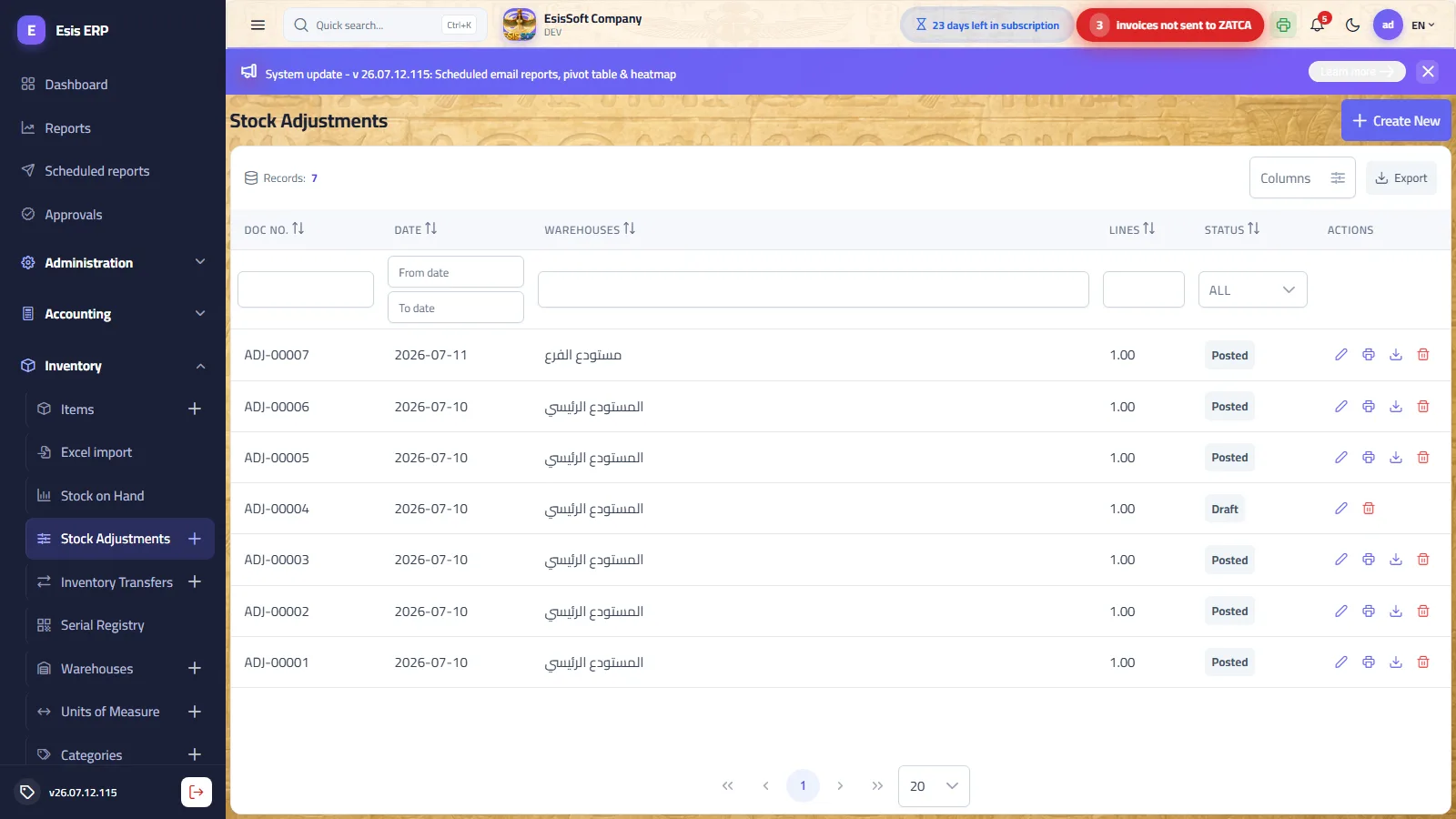
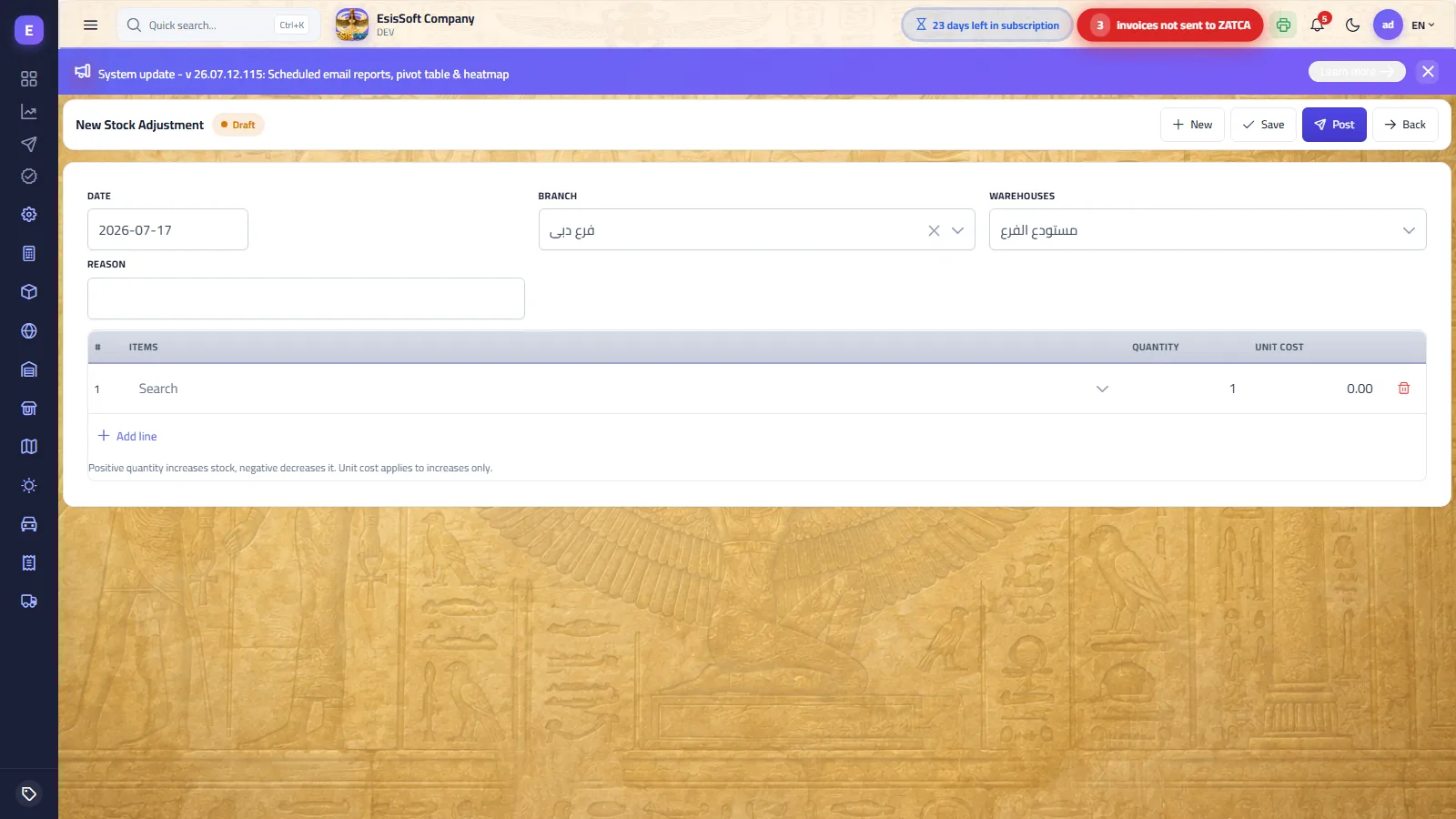
Purpose: align book balances with reality — count differences after a stocktake, damage, loss, expiry write-offs, or entering opening quantities for a new item. The list shows document number, date, warehouse, line count and status (Draft / Posted) with print and delete actions per row.
Header fields
| Field | Description |
|---|---|
| Date | Adjustment date (defaults to today). Determines the fiscal period of the journal entry. |
| Branch | The branch the entry is posted to. Prefilled from your default branch and locked when your permissions cover exactly one branch. |
| Warehouse | Required. The warehouse whose balances are adjusted. Prefilled from your default warehouse. |
| Reason | Free text — “Annual count 2026”, “Damaged in storage”… printed on the document. |
Lines
| Column | Description |
|---|---|
| Item | Searchable item picker (stocked items). |
| Quantity | Signed: a positive quantity increases stock, a negative quantity decreases it. One document can mix surplus and shortage lines. |
| Unit Cost | Prefilled with the item's purchase price when you pick it. It is used for increases only — decreases always go out at the item's current average cost, whatever you type here. |
Press Enter to move between cells and append rows. A line without an item or with quantity 0 is ignored on save.
Actions and statuses
- Save keeps the document as a Draft — editable, deletable, no effect on stock.
- Post applies every line to the warehouse balance and locks the document (Posted = read-only, cannot be deleted).
- After posting the toolbar offers Print, Download (PDF) and View journal entry.
- New clears the editor and starts a fresh document with the next number.
Validation: the warehouse and at least one valid line are required. Posting a decrease larger than the on-hand balance is blocked: “Not enough stock: on hand X, requested Y.”
Posting effects
- Stock: increases fold the entered unit cost into the weighted average; decreases go out at the current average cost. Each line writes an inventory transaction (AdjustmentIn / AdjustmentOut) into the item's movement history.
- Accounting: the net value change is auto-posted as a journal entry between the Inventory account and the Inventory Adjustment account (both configured in the Commercial settings → accounts). If these accounts are not configured, stock still updates but no journal entry is created.
Worked example — count shortage
The annual count finds 3 units of item “Water 330ml” missing. The card shows an average cost of 25.00. Enter one line:
| Item | Quantity | Unit Cost |
|---|---|---|
| Water 330ml | −3 | (ignored for decreases) |
On post, stock drops by 3 and the value out is 3 × 25.00 = 75.00. The automatic journal entry:
| Account | Debit | Credit |
|---|---|---|
| Inventory Adjustment (expense) | 75.00 | |
| Inventory | 75.00 |
A surplus works the other way round: a positive quantity at cost debits Inventory and credits the adjustment account.
Full stocktake — recommended procedure
- Stop warehouse movements (receipts and deliveries) during the count.
- Export the On-hand screen filtered by the warehouse — this is your count sheet with book quantities.
- Count physically and write the actual quantity next to each item.
- Create one adjustment per warehouse: for every difference add a line with quantity = actual − book (negative for shortage, positive for surplus; for surpluses enter the real unit cost).
- Review, then Post. On-hand now matches the physical count and the net difference sits on the adjustment account for management review.
Common mistakes
- Typing the target balance instead of the difference. The quantity is the change, not the new balance. Book 10, counted 7 → enter −3 (not 7).
- Expecting the unit cost to affect a decrease. It never does — decreases are valued at the current average automatically.
- Leaving documents in Draft. A draft changes nothing; balances move only on Post.
- Trying to fix a posted adjustment by deleting it. Posted documents cannot be deleted — post a new adjustment with the opposite quantities instead.
FAQ
- How do I enter opening balances for a new item? Post an adjustment with a positive quantity and the real unit cost — that cost becomes the starting average.
- Can I adjust several warehouses in one document? No — one warehouse per adjustment. Create one document per warehouse.
- Why was no journal entry created? Either the net value change was zero, or the Inventory / Inventory Adjustment account codes are not configured in the Commercial settings.
- Can I correct an item's average cost without changing quantity? Post a small paired adjustment (out then in at the correct cost) — or ask your administrator; the average is otherwise system-maintained.
Inventory transfers
Route: Inventory › Inventory Transfers — /commercial/inventory-transfers
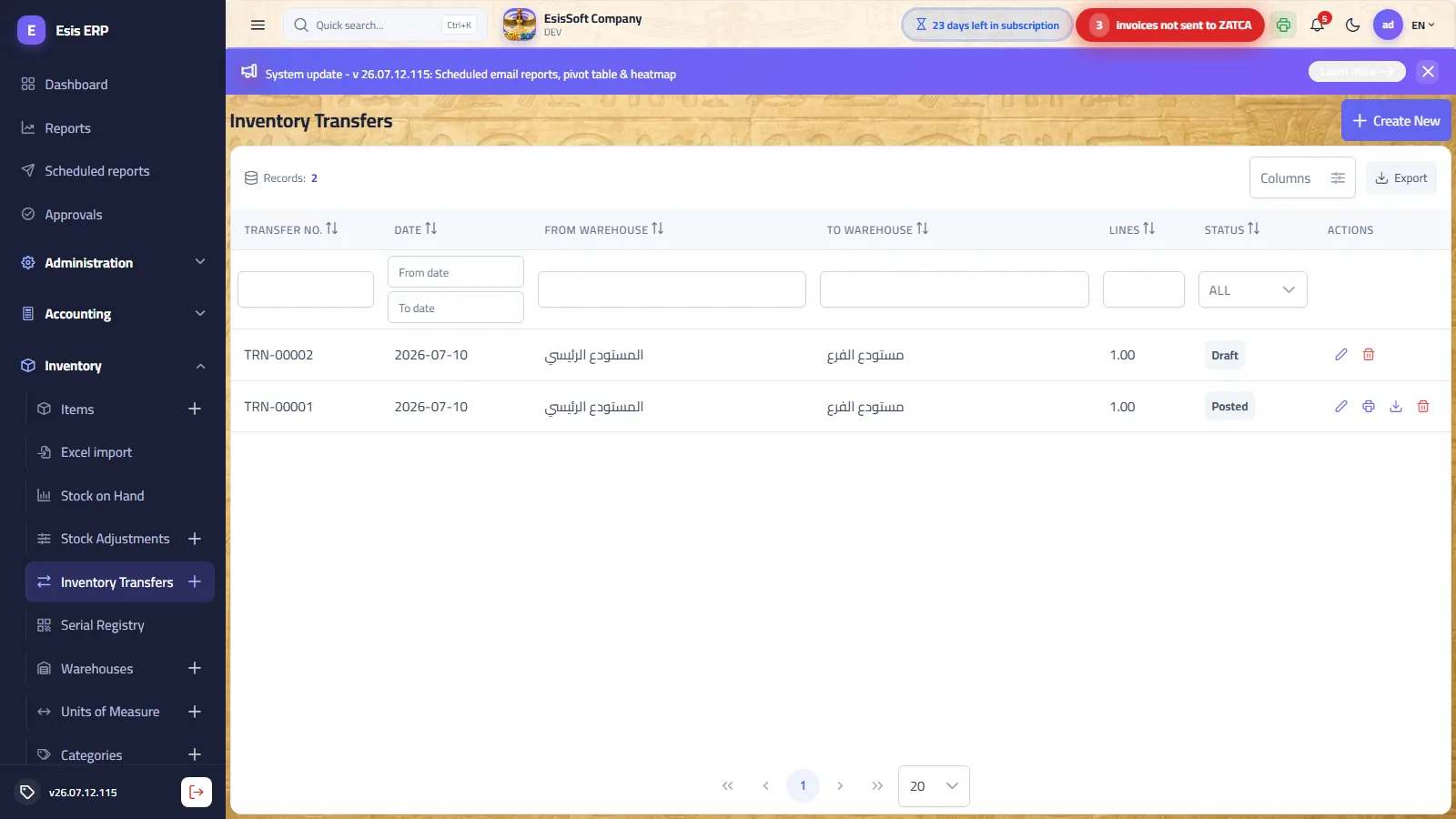
Purpose: move quantities between warehouses — replenishing a branch from the main store, loading a salesman's van, or consolidating stock. The list shows transfer number, date, both warehouses, line count and status.
Fields
| Field | Description |
|---|---|
| Date | Transfer date (defaults to today). |
| From Warehouse | Required. The source. Prefilled from your default warehouse. |
| To Warehouse | Required. The destination — must differ from the source (“Source and destination warehouses must differ”). |
| Notes | Free text printed on the transfer note. |
| Lines | Item + quantity (in the base unit, must be > 0). Enter-navigation adds rows. |
Actions and posting effects
- Save keeps a Draft (no stock effect); drafts can be edited or deleted.
- Post issues each line out of the source at the item's current average cost there — going below zero is blocked — and receives it into the destination at that same unit cost, so total inventory value is preserved.
- Posted transfers are read-only and offer Print / Download; they cannot be deleted.
Worked example — transfer 50 units
Transfer 50 units of “Water 330ml” from Main Store to Branch Store. Before: Main holds 120 units at avg cost 10.00; Branch holds 20 units at avg cost 12.00.
| Warehouse | Before | Movement | After |
|---|---|---|---|
| Main Store | 120 @ 10.00 = 1,200 | −50 @ 10.00 = −500 | 70 @ 10.00 = 700 |
| Branch Store | 20 @ 12.00 = 240 | +50 @ 10.00 = +500 | 70 @ 10.57 = 740 |
The destination's average is recomputed: (240 + 500) ÷ 70 ≈ 10.57. Total value 1,440 before and after — nothing gained, nothing lost.
Common mistakes & FAQ
- “Not enough stock” on post: the source warehouse doesn't hold the quantity — check On-hand; maybe the goods were received into a different warehouse.
- Wrong direction? There is no “unpost” — create a second transfer back from the destination to the source.
- Is there an in-transit state? No — posting moves stock instantly; until you post, nothing moves.
- Does a transfer change prices? No. It only moves quantity and cost; sale prices are untouched.
Serials register
Route: Inventory › Serials — /commercial/serials
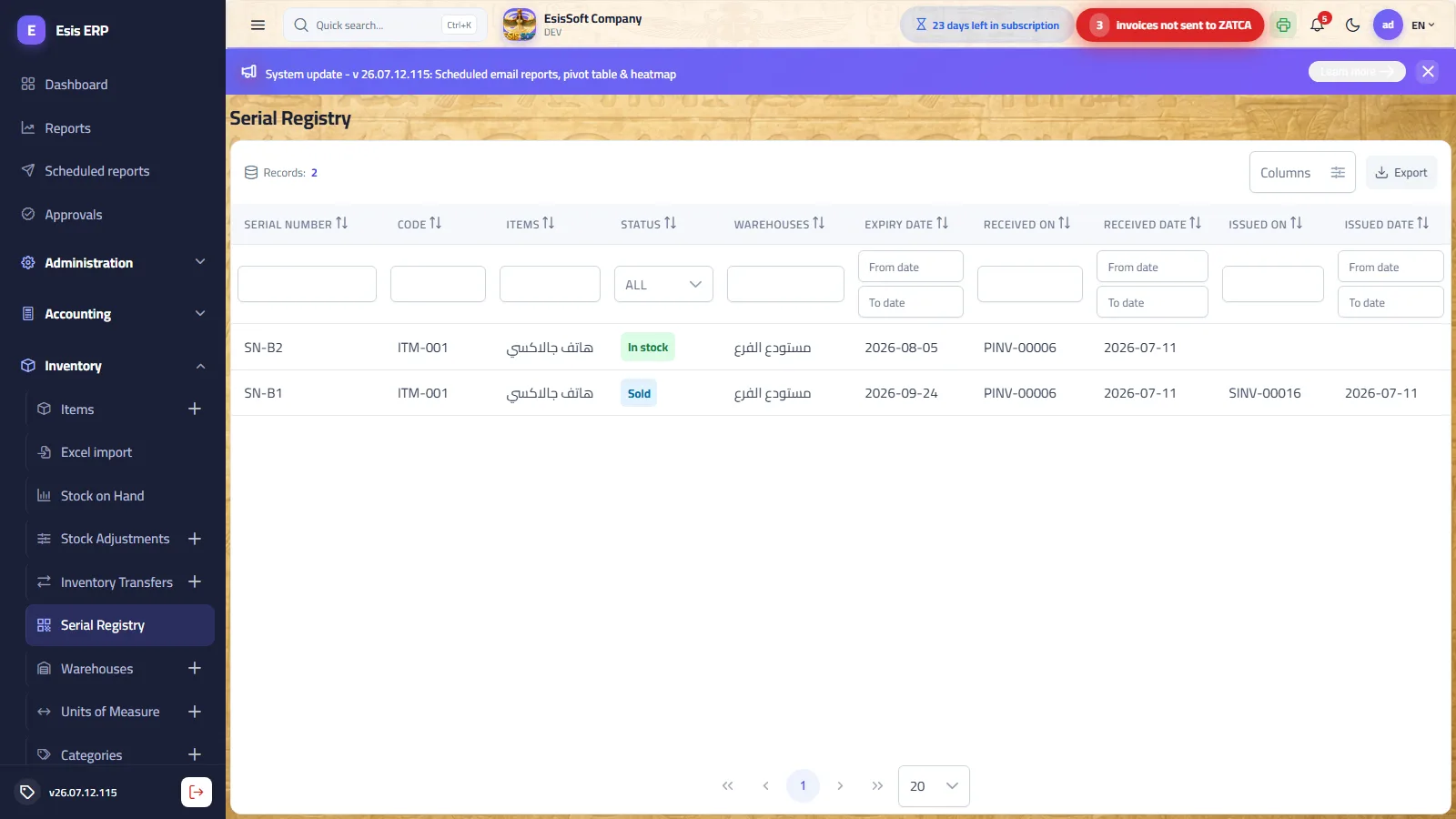
Purpose: a read-only lifecycle registry for every serial number of serial-tracked items (phones, appliances…): where each unit came from, where it is now, and which document took it out — the backbone of warranty service. Search any serial to answer “when did we sell this exact device, and on which invoice?”
| Column | Meaning |
|---|---|
| Serial number | The unique serial of one physical unit. |
| Item code / name | The item card it belongs to. |
| Status | In stock, Sold, or Returned to supplier. |
| Warehouse | Where the unit sits (for in-stock serials). |
| Expiry date | For expiry-tracked items; issue proposals follow FEFO (first expired, first out). |
| Received on / date | The purchase/receipt document that brought the serial in. |
| Issued on / date | The sales/return document that took it out (empty while in stock). |
Lifecycle rules (enforced automatically)
- Receiving requires exactly one serial per unit received; a serial that is already registered cannot be received again (duplicate blocked with its current status shown).
- Selling requires the serial to be in stock in the same warehouse as the document; a never-received or already-sold serial is rejected.
- A customer return re-activates only a serial that was actually sold; a return to supplier requires the serial to be in stock.
- A purchase cannot be unposted while one of its serials has already been sold.
FAQ
- The same serial exists on two physical boxes — what now? The system accepts it only once. Give the second unit a distinguishable serial (e.g. suffix) or have the supplier correct the labels.
- Why doesn't my item ask for serials? The Serial-number tracked flag on the item card is off. Turn it on before receiving new stock.
- Can I edit a serial here? No — the register is read-only; serials are written by the documents themselves.
Warehouses
Route: Inventory › Warehouses — /commercial/warehouses
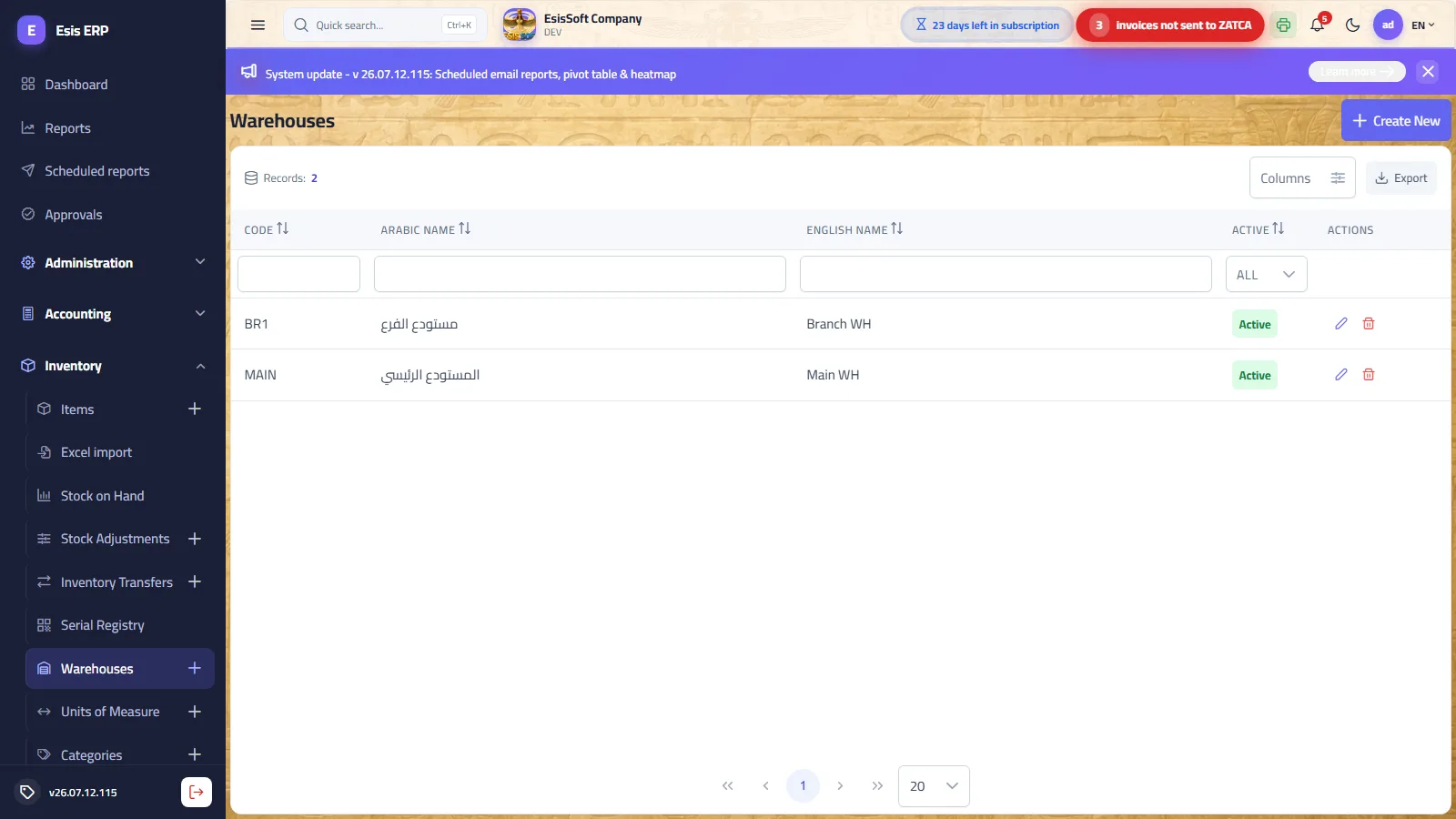
Purpose: define storage locations (main store, branch store, van…). Every stock movement belongs to exactly one warehouse, so create warehouses before entering any stock document.
| Field | Description |
|---|---|
| Code | Automatic, read-only; duplicates are rejected. |
| Arabic / English name | Arabic name required; shown in every warehouse picker. |
| Active | Editing only — deactivate a closed location instead of deleting it. |
| Notes | Side pane for free-text notes. |
FAQ
- Why can't I delete a warehouse? It has stock movements or balances referencing it. Deactivate it instead — history is preserved.
- How do I close a warehouse that still has stock? Transfer everything out first, verify On-hand shows zero, then deactivate.
Units of measure
Route: Inventory › Units — /commercial/units
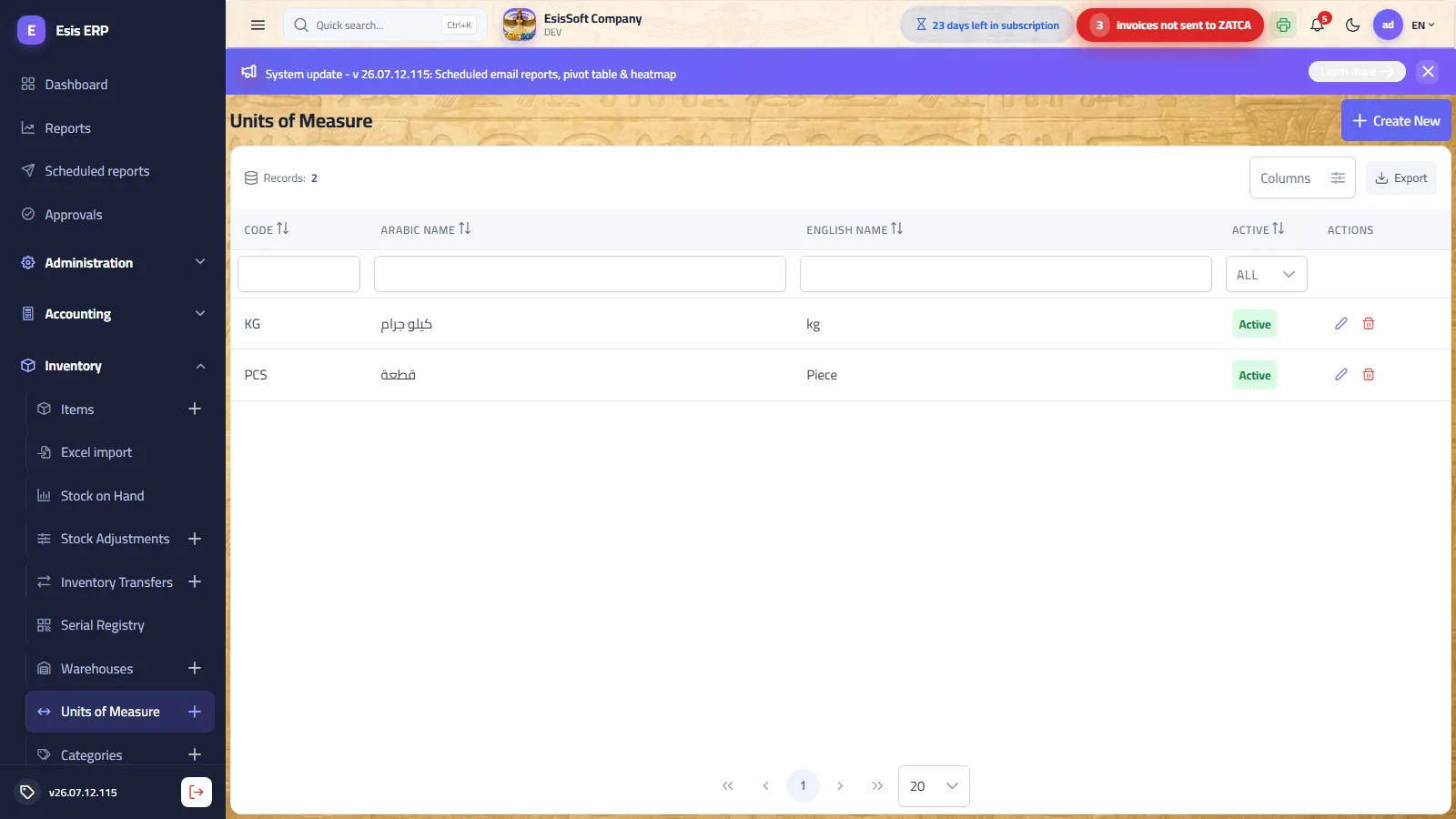
Purpose: the shared list of units (piece, carton, kg, liter…) with automatic code and bilingual names. Item cards reference these units as the base unit and as alternative units — the conversion factor lives on the item card, not here, so “carton” can mean 12 for one item and 24 for another.
| Field | Description |
|---|---|
| Code | Automatic, read-only. |
| Arabic / English name | Arabic required; shown on documents and printouts. |
| Active | Editing only — retire unused units. |
FAQ
- Why can't I delete a unit? “This unit is used by items and cannot be deleted.” Deactivate it, or first repoint the items that use it.
- If I rename a unit, do old documents change? The name is a label — displays and new prints show the new name; stored quantities are unaffected.
Categories & brands
Route: Inventory › Categories / Brands — /commercial/categories, /commercial/brands
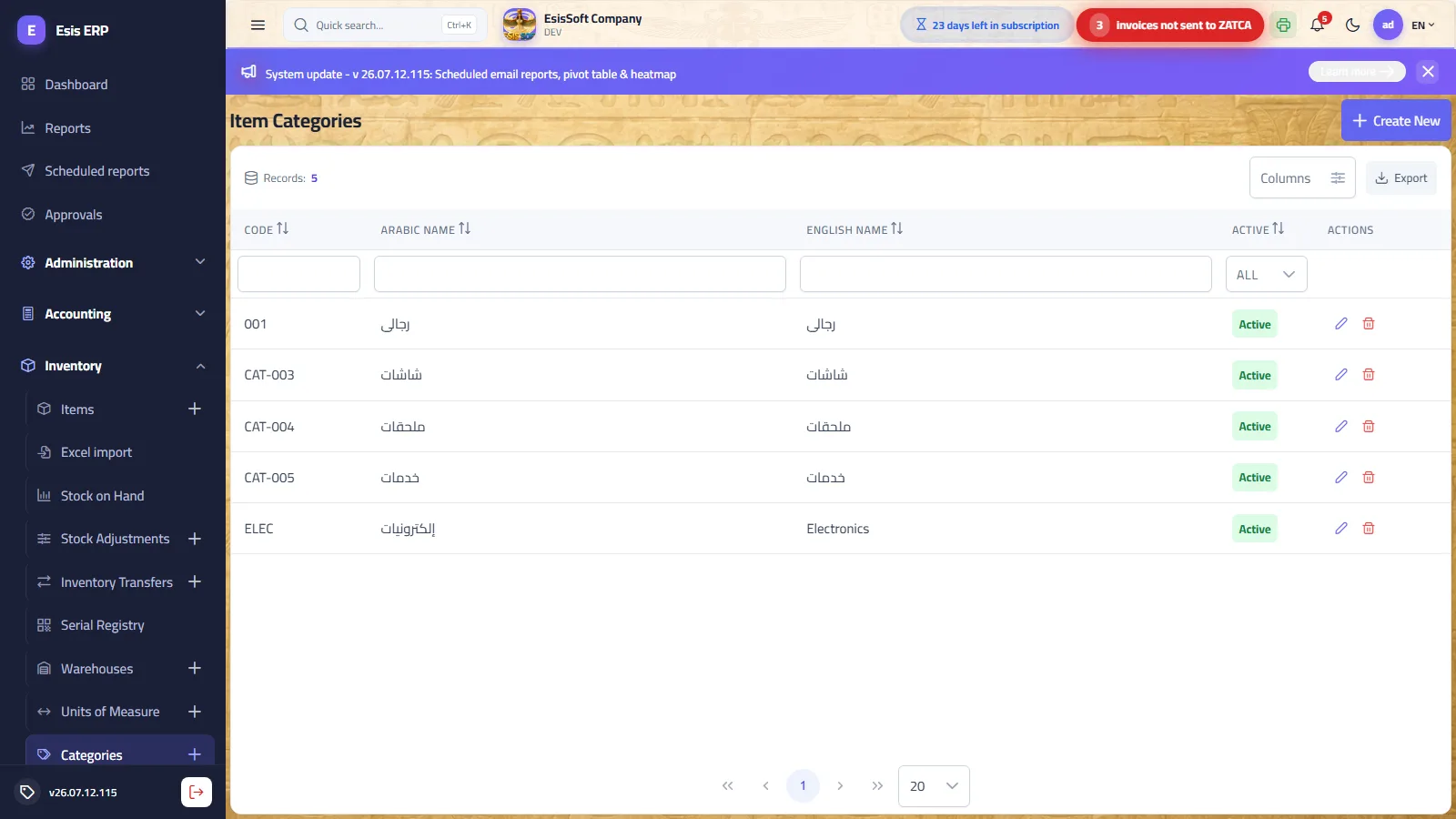
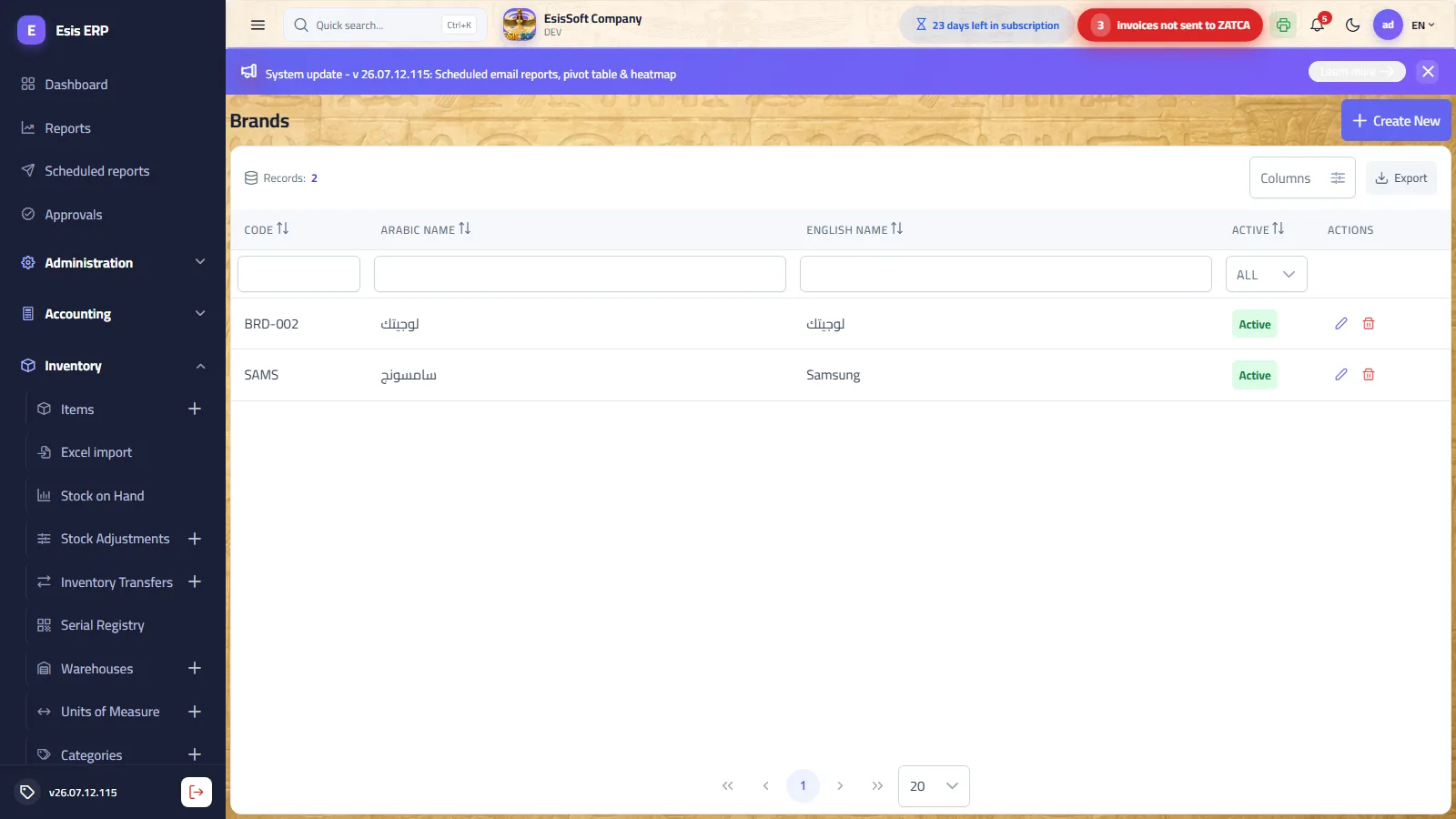
Purpose: classify items for filtering and reporting: category groups by nature (food, electronics…), brand by manufacturer. Both are simple master screens with the same layout: automatic code + Arabic name (required) + English name + active flag + notes pane, with Save / Save & New / Back.
Inventory account on the category
The category screen has an optional Inventory account: every item in the category posts its value to that account instead of the general inventory account in Account Settings, in every stock document. This is the right way to separate raw materials from finished goods in a factory: a “Raw materials” category on its account and a “Finished goods” category on its own, so an item enters and leaves one account through purchasing, production and sales and both balances stay true. Precedence: the item's own account from its card (if set) → the category account → the general account. Only postable sub-accounts are accepted, and a change applies to future postings only.
FAQ
- Why can't I delete a category or brand? “…used by items and cannot be deleted.” Move its items to another value first, or deactivate it.
- Are category and brand required on the item? No — both are optional, but filling them makes list filters and sales/purchase reports far more useful.
Item attributes
Path: Commercial → Master data → Item attributes — /commercial/item-attributes
What it does: Size, colour, grade and their values — defined once here, then used across every model to generate its variants, so you never retype “red” item by item.
| Field | Description |
|---|---|
| Attribute | Its Arabic and English name — size, colour, grade. |
| Values | The attribute’s values, in order. |
| Code | The value’s short code — it goes into the variant’s code and barcode. |
Item label printing
Path: Commercial → Master data → Item label printing — /commercial/item-labels
What it does: Pick the label template, the items and how many labels each needs, then preview and print — a whole shelf, or one item after its price changed.
| Field | Description |
|---|---|
| Label template | From the print-template designer, document type “item label”. With none designed yet, a temporary default is shown. |
| Category, model, search | Narrow the list — or search by code, name or barcode. |
| Items with a barcode only | Hides those without one. |
| Barcode source | The item’s barcode, or its code where it has none. |
| Symbology | EAN-13 for retail, digits only; Code 128 takes any code. |
| Label size and per page | Width and height in millimetres, digit size, and whether digits print under the bars. |
| Label count | Per item — with the total and the page count shown before you print. |
| Generate barcodes | Issues barcodes for items lacking one, using the prefix from settings. |
Electronic scales
Path: Commercial → Master data → Electronic scales — /commercial/scales
What it does: A department scale prints a label whose barcode exists on no item card. Here you define how that barcode is read back, and from here you download the item catalogue that gets loaded onto the scale.
| Field | Description |
|---|---|
| Code, name, department | What the scale is and where it stands. |
| Barcode prefix | The digits every label this scale prints begins with (2–4 digits starting with 2). In practice, its identity. |
| Item-code digits and value digits | How the thirteen digits split: prefix + item code + value + check digit. |
| Value digits carry | A weight or a price — which decides what the number means at the till. |
| Decimal places | Where the point falls: 3 means 01500 = 1.500 kg, 2 means 00750 = 7.50. |
| Sample label | Built live from your settings so you see it before saving. |
| Scale catalogue | The “sold by weight” items with their PLU numbers — download a scale file to load, or a review file to read. |
| Items left out | What was excluded and why. |
Importing from Excel
Path: Commercial → Master data → Excel import — /system/excel-import
What it does: Loading items, customers and suppliers in one go from a file instead of opening the add screen a hundred times — three steps: download the template, fill it, run it.
| Field | Description |
|---|---|
| Data type | Items, customers or suppliers. |
| 1 Download the template | A file with the columns ready, opening in Excel with Arabic intact. |
| 2 Choose the filled file | .xlsx, .xls and .csv are accepted — first row headings, the rest data. |
| 3 Run the import | Existing codes are updated, new ones added. |
| Inserted / updated / failed | The tally, then a table of the row and its error text. |
Batch tracking
Path: Inventory → Tracking → Batches — /commercial/item-batches
What it does: One item can arrive in consignments that differ from each other: a different expiry, an actual length, a size and thickness. Marking the item “tracks batches” makes every receipt carry what distinguishes it, and cost becomes a batch-level fact rather than an item-level one.
| Field | Description |
|---|---|
| Batch number | Typed, or left blank for the system to issue on posting. |
| Production and expiry dates | And from them the “days left” and the “expired” tag. |
| Length, width, thickness, size | The actual properties of what arrived — for sheets, pipes and anything measured rather than counted. |
| Supplier and receiving document | Where the batch came from and on what document. |
| Received quantity, balance, stock value | What arrived, what is left, and at what value. |
| Batch movement | Every receipt and issue against it, with the document and the balance after. |
| Block and unblock | A blocked batch cannot be issued from — a quarantine without a deletion. |
| Split into offcuts | A sheet was cut: the batch splits into pieces with their sizes, and the remainder in the parent is shown. |
Frequently asked questions
How do I add a new item?
Open Inventory › Items › New. The code is generated automatically (or entered manually per your numbering setting); fill name, unit, tax and prices, then Save.
How do I adjust stock?
Use a Stock Adjustment to correct on-hand quantities after a count, choosing the warehouse and the reason; posting updates inventory and its valuation.
How is item cost calculated?
KEMTOVA ERP maintains a moving average cost per item, updated automatically whenever you post purchases or adjustments.
Can I manage multiple warehouses?
Yes. Stock is tracked per warehouse, and transfers move quantities between warehouses without affecting total on-hand value.