Purchasing
The full procurement cycle: internal requisition, purchase order, goods receipt, purchase invoice and returns — plus supplier management and balances.
Concepts shared by all purchasing documents
Every purchasing document uses the same editor pattern. Learn it once and every screen below behaves the same way.
Document lifecycle and statuses
| Status | Meaning | What you can do |
|---|---|---|
| Draft | The document is saved but has no effect on stock or accounting. | Edit freely, save again, delete, or approve/post it. |
| Approved (requisition, order, goods receipt) | The document is locked and becomes eligible as a source for the next document in the cycle. | Print / download it, convert it forward. It can no longer be edited or deleted. |
| Posted (purchase invoice, purchase return) | The stock movement and the automatic journal entry have been booked. | Print / download, view the journal entry, raise a return; the invoice can be un-posted from the list. |
Automatic document numbers
Numbers are assigned by the system on first save and are never typed by hand:
| Document | Prefix | Example |
|---|---|---|
| Purchase requisition | PREQ- | PREQ-00012 |
| Purchase order | PORD- | PORD-00025 |
| Goods receipt | GRN- | GRN-00108 |
| Purchase invoice | PINV- | PINV-00341 |
| Purchase return | PRET- | PRET-00007 |
The document toolbar
| Button | Shown when | What it does |
|---|---|---|
| New | Always | Clears the editor and starts a fresh document (the next number is assigned when you save). |
| Save | Draft | Saves the draft and returns to the list. No stock or accounting effect. |
| Approve / Post | Draft | Saves first, then locks the document (Approve) or books stock + journal entry (Post). |
| Print / Download | Approved / Posted | Opens the shared bilingual A4 print sheet; Download saves it as a file. |
| Convert to … | Approved / Posted | Opens the next document in the cycle with everything prefilled (see each screen). |
| View Journal Entry | Posted (invoice, return); also on the goods receipt | Shows the automatic Dr/Cr entry the document generated. A goods receipt itself generates no entry — the entry appears on the purchase invoice. |
| Back | Always | Returns to the list without further changes. |
The line grid — entry mechanics
- Enter key navigation: Enter moves cell → cell; on the last cell of the last row it adds a new row automatically, so a whole document can be typed without the mouse.
- Item select: a searchable dropdown. Choosing an item fills its base unit and its purchase price from the item card (an already-typed price is kept).
- Unit select: the item's base unit plus its alternative units. Choosing an alternative unit applies that unit's own purchase price and its conversion factor — stock always moves in base units (quantity × factor).
- Discount cell: one box with a %/currency toggle button. Enter either a percentage or an amount; the other representation is derived and kept in sync. A percentage stays “sticky” when you later change quantity or price.
- VAT cell: a toggle button showing the VAT amount and rate (default 15%). Clicking it turns VAT off (rate 0) for that line; clicking again restores the previous rate.
- Prices include VAT: when this header checkbox is on, typed prices are treated as VAT-inclusive and the tax is extracted out of them instead of added on top.
The totals strip
| Row | How it is computed |
|---|---|
| Extra discount | A header-level discount (%, or amount via the toggle) distributed proportionally across the lines; the last line absorbs the rounding remainder so the totals always match the server. |
| Total discount | Sum of all line discounts + the resolved extra discount. |
| Subtotal | Net value excluding VAT, after all discounts. |
| VAT total | Sum of line VAT (extracted when prices include VAT, added when net). |
| Total | Subtotal + VAT total. |
Suppliers
Route: Purchasing › Suppliers — /commercial/suppliers
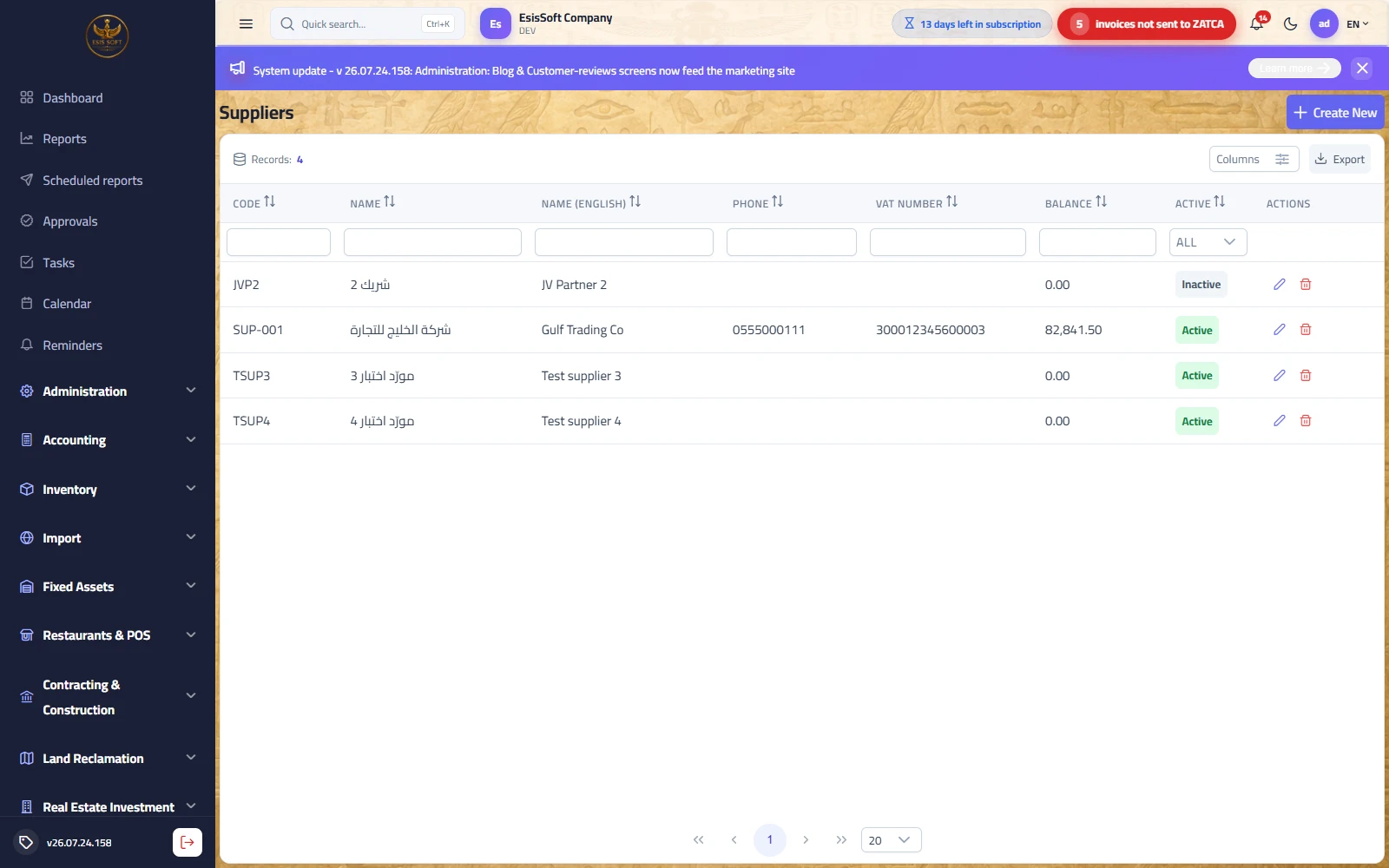
Purpose: the master file of everyone you buy from. Every purchase order, goods receipt, invoice and return points at a supplier from this list, and the supplier's balance builds up from posted invoices, returns and payment vouchers.
When to use it: before recording the first purchase from a new vendor, or whenever contact/tax data changes.
Supplier card fields
| Field | Required | Notes |
|---|---|---|
| Code | Auto | Assigned from the supplier code sequence when the card opens; read-only — it cannot be changed later. |
| Name (Arabic) | Yes | The primary display name used across documents and lists. |
| Name (English) | No | If left empty it is saved as a copy of the Arabic name. |
| VAT Number | No | The supplier's tax registration; printed on documents. |
| Phone / Email / Address | No | Contact data. |
| Active | — | Shown only when editing. An inactive supplier stays in history but should not be used for new documents. |
Actions
- Save / Save & New / Back — the standard edit actions; “Save & New” saves and opens a fresh empty card for rapid entry.
- Account Statement (edit mode only) — jumps to the report center with this supplier preselected and the supplier statement already run.
- List row actions: edit (pencil) and delete (trash, with confirmation).
List columns
Code, Name (Arabic), Name (English), Phone, VAT Number, Balance (built from posted transactions), Active.
Validation & common mistakes
- Saving without the Arabic name shows a “required fields” notification listing what is missing.
- Deleting a supplier that already has documents is blocked by referential integrity — deactivate the supplier instead.
FAQ
- Where do I set an opening balance? Not on the card — record it through the accounting module (opening/journal entry on the supplier's account) so it appears in the balance and statement.
- Why is the code read-only? Codes come from a central sequence to guarantee uniqueness; they identify the supplier in reports and can never collide.
- How is the Balance column computed? From posted purchase invoices minus posted returns and payment-voucher allocations; use the Account Statement for the detailed movement.
Purchase requisitions
Route: Purchasing › Purchase Requisitions — /commercial/purchase-requisitions
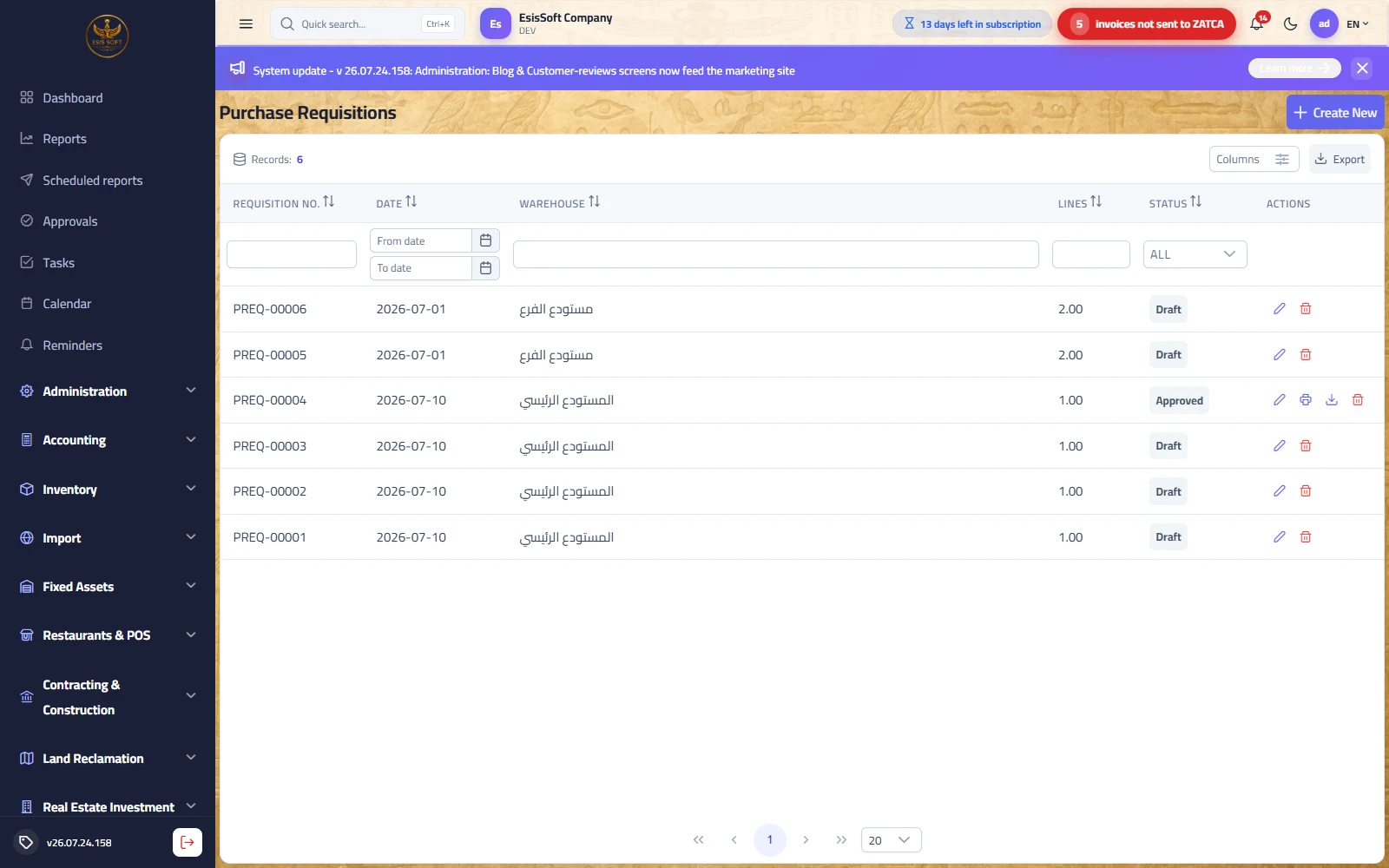
Purpose: an internal request from departments or warehouses for needed items — deliberately without supplier or prices. Once approved it converts into a purchase order for a chosen supplier.
When to use it: when the person who knows what is needed is not the person who chooses where to buy it. Small companies can skip it and start at the purchase order.
Fields
| Field | Required | Notes |
|---|---|---|
| Date | Yes (defaults to today) | The request date. |
| Warehouse | No | The destination warehouse; your default warehouse is prefilled automatically on a new document. |
| Notes | No | Free text. |
| Lines: Item + Quantity | ≥ 1 line | Only item and quantity — no unit price, discount or VAT on a requisition. |
Workflow
- Fill the date and (optionally) the warehouse, then list the items and quantities. Add Line or the Enter key adds rows.
- Save keeps it as a Draft that can still be changed, or press Approve directly — it saves and locks in one step.
- Open the approved requisition and press Convert to Purchase Order — a new order opens with the warehouse and the lines prefilled.
Statuses
Draft → editable/deletable. Approved → locked; shows Print, Download and Convert to Purchase Order. There is no stock or accounting effect at any stage of a requisition.
Validation & common mistakes
- At least one line with an item and quantity > 0 is required; empty rows are ignored on save.
- An approved requisition cannot be edited — if it was approved by mistake, create a corrected requisition (there is no un-approve).
FAQ
- Why can't I enter prices? By design: the requester states needs, the buyer negotiates prices at the purchase-order stage.
- What does converting actually copy? The warehouse and the item lines with their quantities; the order then suggests each item's purchase price (editable) and 15% VAT.
- Can one requisition feed several orders? The Convert button prefills a new order each time it is pressed, so yes — trim the lines in each order to split the request among suppliers.
Purchase orders
Route: Purchasing › Purchase Orders — /commercial/purchase-orders
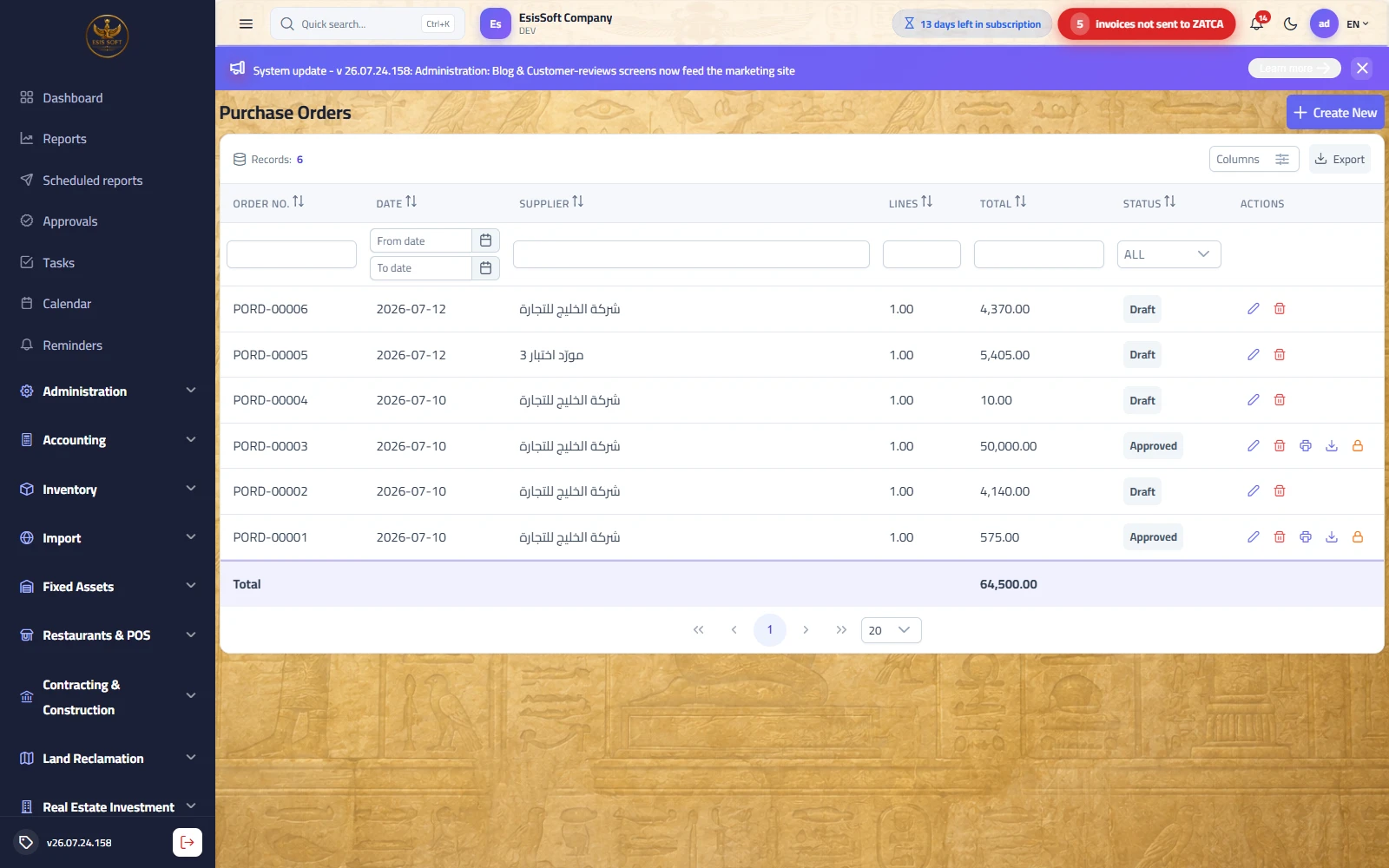
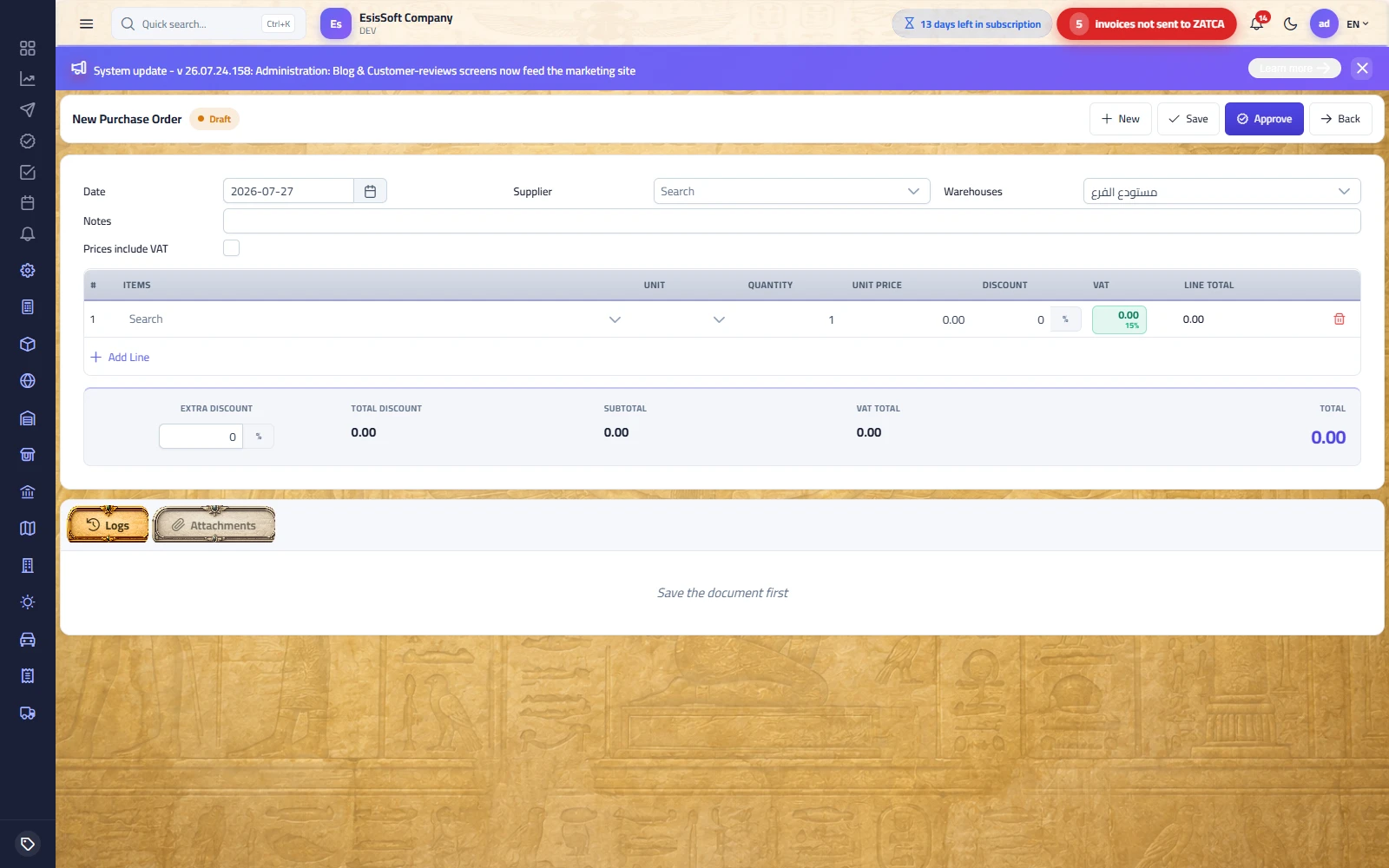
Purpose: the formal commitment to the supplier for agreed items, quantities and prices. A purchase order has no accounting or stock effect — effects start at the purchase invoice.
Header fields
| Field | Required | Notes |
|---|---|---|
| Date | Yes (defaults to today) | Order date. |
| Supplier | Yes | Searchable dropdown of the supplier file. |
| Warehouse | Yes | Destination warehouse; your default warehouse is prefilled. |
| Notes | No | Free text, printed on the order. |
| Prices include VAT | — | Checkbox — see the shared concepts section. |
Line grid columns
#, Item, Unit, Quantity, Unit Price, Discount (%/amount toggle), VAT (toggle), Line Total, delete. Choosing an item suggests its purchase price from the item card; choosing an alternative unit applies that unit's own price and conversion factor.
Steps
- Pick the supplier and warehouse, or arrive here via Convert to Purchase Order on an approved requisition (warehouse + lines prefilled).
- Enter items, quantities and the agreed prices/discounts; watch the live totals strip.
- Save to keep a Draft, or Approve to lock it. Print/Download the approved order and send it to the supplier.
- When goods arrive: Convert to Goods Receipt. When the supplier's invoice arrives: Convert to Purchase Invoice (either can come first).
Statuses
Only two: Draft (editable) and Approved (locked, convertible). Receipt/invoice progress is tracked on the receipt and invoice documents themselves.
Worked example — order header math
Order PORD-00025 for supplier “Alpha Supplies”, prices exclusive of VAT:
| # | Item | Qty | Unit price | Discount | Net | VAT 15% | Line total |
|---|---|---|---|---|---|---|---|
| 1 | Steel bracket | 50 | 13.00 | — | 650.00 | 97.50 | 747.50 |
| 2 | Wooden panel | 20 | 40.00 | 5% = 40.00 | 760.00 | 114.00 | 874.00 |
Totals strip: Total discount 40.00 · Subtotal 1,410.00 · VAT total 211.50 · Total 1,621.50. This order is continued through receipt and invoicing in the full worked example below.
Validation & common mistakes
- Supplier, warehouse and at least one valid line (item + qty > 0) are required — a notification lists whatever is missing.
- An approved order cannot be edited or deleted; only drafts can.
- Forgetting to press the discount toggle: the same box is % or amount — check the small toggle button before typing “40” meaning currency while the mode is %.
FAQ
- Why did stock not change after approving the order? By design — an order is a commitment only. Stock and accounting move when the purchase invoice is posted.
- Where does the suggested price come from? From the purchase price stored on the item card (per unit). Overtype it with the agreed price; the item card is not changed by the order.
- Can I invoice without a goods receipt? Yes — “Convert to Purchase Invoice” directly on the order; the receipt step is optional.
Goods receipts
Route: Purchasing › Goods Receipts — /commercial/goods-receipts
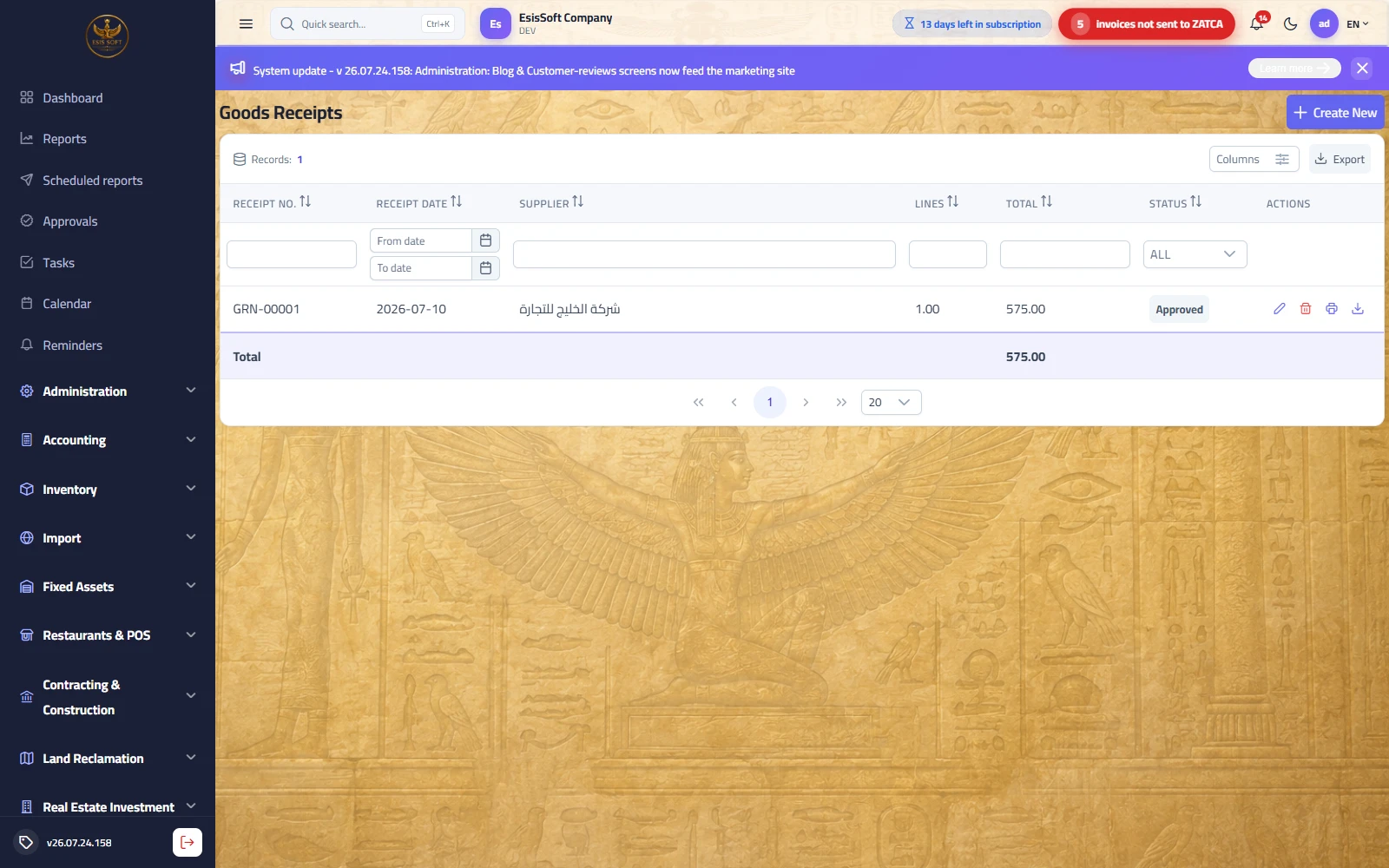
Purpose: document what physically arrived at the warehouse — usually before the supplier's invoice. It records the received quantities and values as a fulfillment paper against the order, and it becomes the source the purchase invoice is imported from.
Fields
| Field | Required | Notes |
|---|---|---|
| Receipt date | Yes (defaults to today) | The day the goods arrived. |
| Supplier | Yes | Prefilled when raised from an order. |
| Warehouse | Yes | Prefilled from the order or from your default warehouse. |
| Notes | No | Free text. |
| Prices include VAT + full priced grid | — | Same grid as the order: Item, Unit, Quantity, Unit Price, Discount, VAT, Line Total, plus the extra-discount totals strip. |
Partial receipt — step by step
- Open the approved purchase order and press Convert to Goods Receipt — supplier, warehouse and all lines arrive prefilled with the ordered quantities.
- Reduce each quantity to what actually arrived. Example: ordered 50 + 20, arrived 60% → set 30 and 12. Line discounts recompute automatically (a 5% discount stays 5%).
- Delete lines that did not arrive at all, then Approve.
- When the rest arrives, press Convert to Goods Receipt on the order again and keep only the remaining quantities (20 and 8) on the second receipt.
Actions
Draft: New, Save, Approve, Back. Approved: Print, Download, Convert to Purchase Invoice, View Journal Entry (empty until the invoice posts), Back. List rows: edit, delete (draft only), print/download (approved only).
Validation & common mistakes
- Supplier, warehouse and at least one valid line are required.
- “An approved goods receipt cannot be deleted” — deletion is only possible while it is a draft.
- Do not receive the full ordered quantity when only part arrived — the invoice imported from the receipt would then overstate the delivery.
FAQ
- Why is there no stock movement after approval? See the warning above — the invoice posting books quantity and value together.
- Can I create a receipt without an order? Yes — open a new goods receipt and fill everything manually; the order link is optional.
- The order shows prices — can I change them on the receipt? Yes, the receipt grid is fully editable while draft; the invoice will import whatever the receipt says.
Purchase invoices
Route: Purchasing › Purchase Invoices — /commercial/purchase-invoices
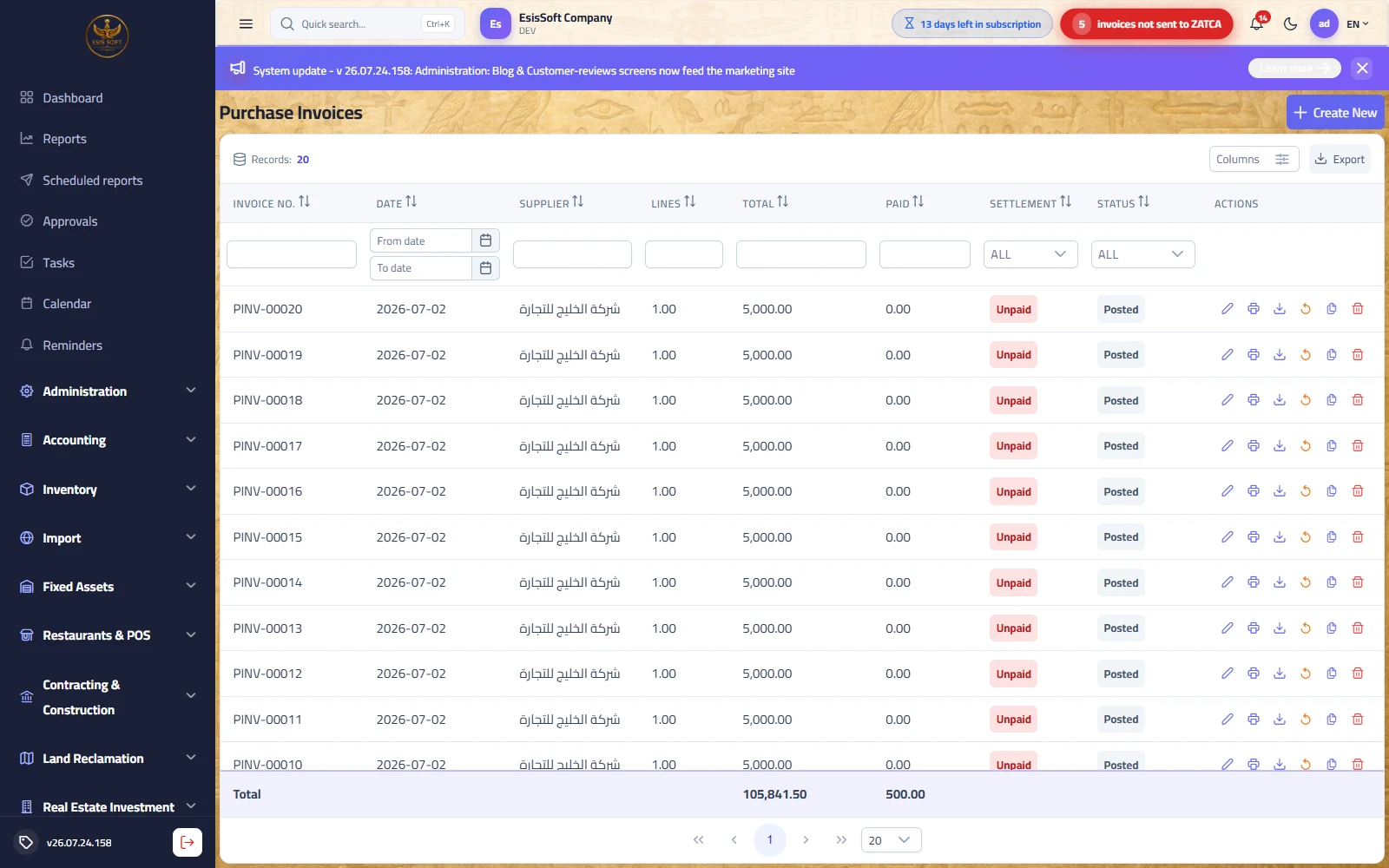
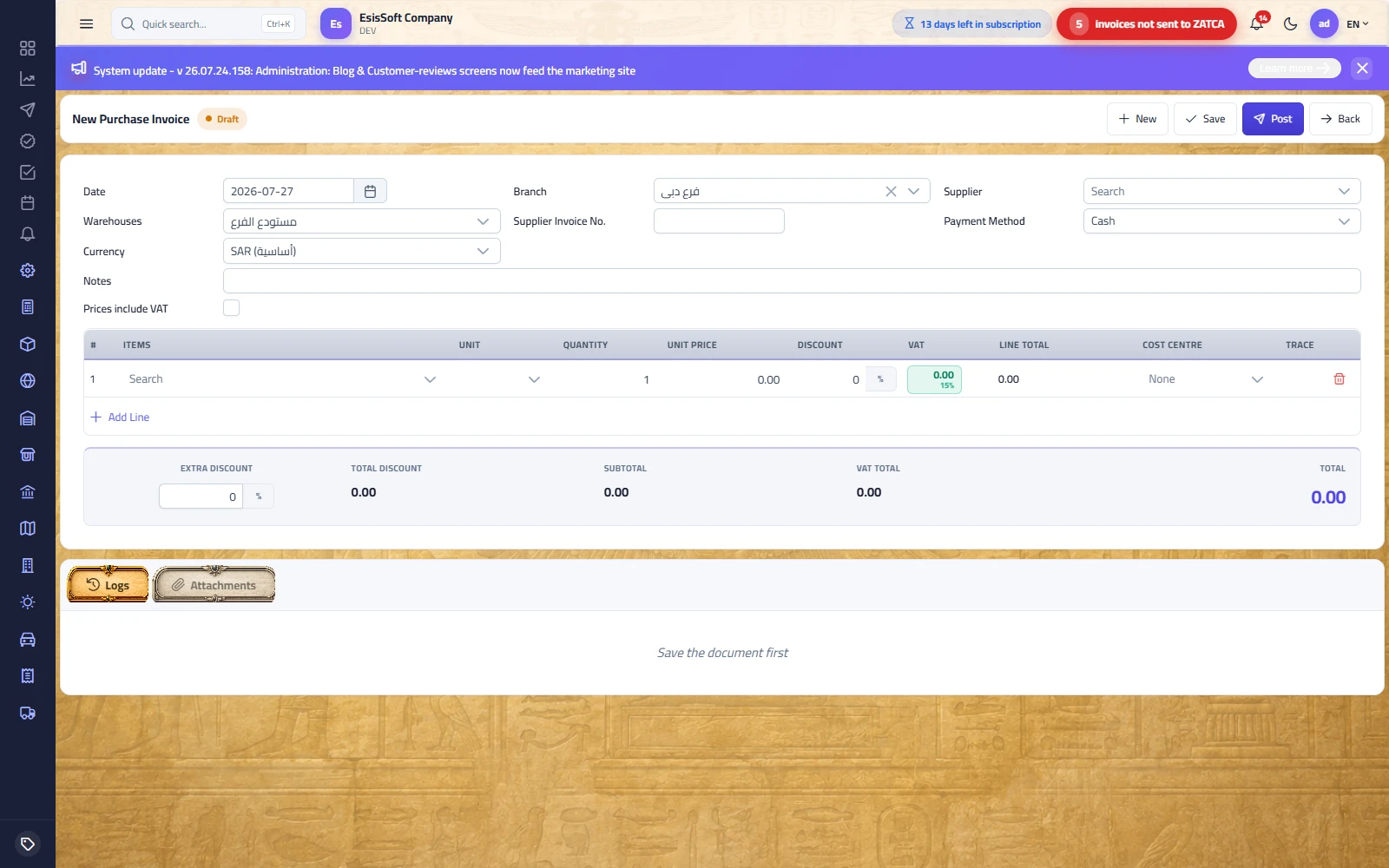
Purpose: the document that makes everything real: posting it receives the goods into stock at weighted-average cost and books the automatic journal entry (purchase + input VAT + supplier payable).
Header fields
| Field | Required | Notes |
|---|---|---|
| Date | Yes (defaults to today) | Posting date of the stock movement and journal entry. |
| Branch | Auto | Prefilled with your default branch; locked when your permission scope allows exactly one branch. |
| Supplier | Yes | Searchable dropdown. |
| Warehouse | Yes | Where the goods stock in. |
| Supplier Invoice No. | No | The number printed on the supplier's own invoice — your matching reference. |
| Payment Method | Yes (Cash/Credit) | Informational classification; actual settlement is recorded through supplier payment vouchers (see FAQ). |
| Currency + Exchange rate | No | Foreign-currency invoices post the journal entry at the entered rate; leave empty for base currency. |
| Notes | No | Free text. |
| Prices include VAT | — | See the shared concepts section. |
Line grid — including traceability
Same priced grid as the order plus a Trace column. For items flagged with expiry tracking or serial numbers, a tags button appears: red = data missing, green = complete. It opens an overlay where you enter:
- Expiry date — required at receipt for expiry-tracked items.
- Serial numbers — one per line; the count must equal quantity × unit factor (a live counter shows entered/required).
Creating and posting
- Pick the supplier and enter the supplier's invoice number and date.
- Import the lines: use Convert to Purchase Invoice on an approved order or goods receipt (supplier, warehouse and priced lines prefilled), use Copy on an existing invoice, or type the lines directly.
- Adjust quantities/prices to match the supplier's paper invoice; complete trace data on flagged items.
- Choose the payment method and (if needed) the currency and rate.
- Post. If an approval rule is active and the total exceeds its limit, an approval request is created instead and the invoice posts after it is approved.
Posting effect — journal entry
| Account (from Purchasing settings) | Debit | Credit |
|---|---|---|
| Inventory | Subtotal (net of all discounts) | — |
| Input VAT | VAT total | — |
| Accounts Payable (supplier) | — | Invoice total |
Stock: every inventory-tracked line enters the warehouse in base units (quantity × unit factor) at a unit cost of line net value ÷ base quantity — so line discounts, the extra discount and VAT-inclusive pricing all flow correctly into the weighted-average cost. Serialized items are registered in the serial registry at this moment. Non-stocked (service) items post the entry without a stock movement.
After posting — settlement
The editor shows Paid / Remaining chips. The list adds Paid and a Settlement status per invoice: Unpaid, Partial, Paid (drafts show “—”). Amounts come from posted supplier payment vouchers allocated to this invoice — posting a cash invoice does not create a payment voucher automatically; record it on the Payment Vouchers screen and allocate it.
Unpost (undo posting)
- Available from the list on posted invoices (undo icon). It reverses the journal entry, takes the received stock back out at its ledger cost, deletes the received serials, and returns the invoice to Draft.
- Blocked when the invoice has posted payments allocated (remove them first), when a received serial was already sold, or when removing the stock would drive the item negative (it was already consumed/sold).
Validation & common errors
| Message / symptom | Cause | Fix |
|---|---|---|
| Required-fields notification | Supplier, warehouse or lines missing. | Complete the highlighted fields. |
| “Only a draft purchase invoice can be edited.” | Trying to change a posted invoice. | Unpost it first (if allowed), edit, then re-post. |
| Trace button stays red / posting rejected | Missing expiry date, or serial count ≠ quantity × factor. | Open the Trace overlay and complete the data. |
| “…has posted payments — remove them first.” | Unposting an invoice with allocated payments. | Unpost/delete the payment voucher allocation, then unpost the invoice. |
| Invoice does not post, an approval request appears | The amount exceeds an active approval rule limit. | Wait for the approver; the document posts after approval. |
FAQ
- What exactly does “Cash” do? It classifies the invoice and prints on the document; the ledger still credits Accounts Payable. Record the actual cash payment as a supplier payment voucher and allocate it to the invoice — the settlement status then becomes Paid.
- I received the goods on two receipts — how do I invoice? Either one invoice per receipt (Convert on each), or a single manual invoice matching the supplier's combined bill.
- Why did the item cost change after posting? Weighted average: see the full worked example below for the exact arithmetic.
- Can I copy last month's invoice? Yes — the Copy row action opens a new draft with the same supplier, warehouse and lines; only the number and date are new.
Full worked example — order → 60% receipt → invoices → cost
One continuous example with real numbers, following order PORD-00025 from the purchase-orders section. Starting stock: Steel bracket 100 pcs @ 10.00 (value 1,000.00); Wooden panel 28 pcs @ 35.00 (value 980.00).
Step 1 — the approved order
50 × Steel bracket @ 13.00, and 20 × Wooden panel @ 40.00 with 5% discount. Total 1,621.50 (see the order section). No stock, no journal entry.
Step 2 — goods receipt for 60%
Only 60% arrives. Convert the order to a goods receipt and cut the quantities to 30 and 12:
| Item | Qty | Price | Discount | Net | VAT 15% | Line total |
|---|---|---|---|---|---|---|
| Steel bracket | 30 | 13.00 | — | 390.00 | 58.50 | 448.50 |
| Wooden panel | 12 | 40.00 | 5% = 24.00 | 456.00 | 68.40 | 524.40 |
| Totals | 846.00 | 126.90 | 972.90 | |||
Approve GRN-00108 — the document locks; stock is still unchanged.
Step 3 — purchase invoice for the received 60%
On the receipt press Convert to Purchase Invoice → PINV-00341 arrives prefilled with the same figures (subtotal 846.00, VAT 126.90, total 972.90, Credit). Post it:
| Account | Debit | Credit |
|---|---|---|
| Inventory | 846.00 | — |
| Input VAT | 126.90 | — |
| Accounts Payable — Alpha Supplies | — | 972.90 |
Weighted-average recalculation (unit cost = line net ÷ base qty: bracket 390÷30 = 13.00; panel 456÷12 = 38.00):
| Item | Old stock | + Received | New value ÷ new qty | New cost |
|---|---|---|---|---|
| Steel bracket | 100 @ 10.00 = 1,000.00 | 30 @ 13.00 = 390.00 | 1,390.00 ÷ 130 | 10.6923 |
| Wooden panel | 28 @ 35.00 = 980.00 | 12 @ 38.00 = 456.00 | 1,436.00 ÷ 40 | 35.90 |
Step 4 — the remaining 40% arrives and is invoiced
Second receipt then second invoice for 20 brackets and 8 panels: subtotal 564.00 (260.00 + 304.00), VAT 84.60, total 648.60. After posting, the bracket cost becomes:
(130 × 10.6923 + 20 × 13.00) ÷ 150 = (1,390.00 + 260.00) ÷ 150 = 1,650.00 ÷ 150 = 11.00
which is exactly the classic check: old stock 100 @ 10 plus total purchase 50 @ 13 → new cost 11.00. This 11.00 is the cost deducted on the next sale for accurate gross profit.
Step 5 — supplier balance
Alpha Supplies now owes-side balance: 972.90 + 648.60 = 1,621.50 credit, visible in the supplier list Balance column and the statement, until payment vouchers settle it.
Purchase returns
Route: Purchasing › Purchase Returns — /commercial/purchase-returns
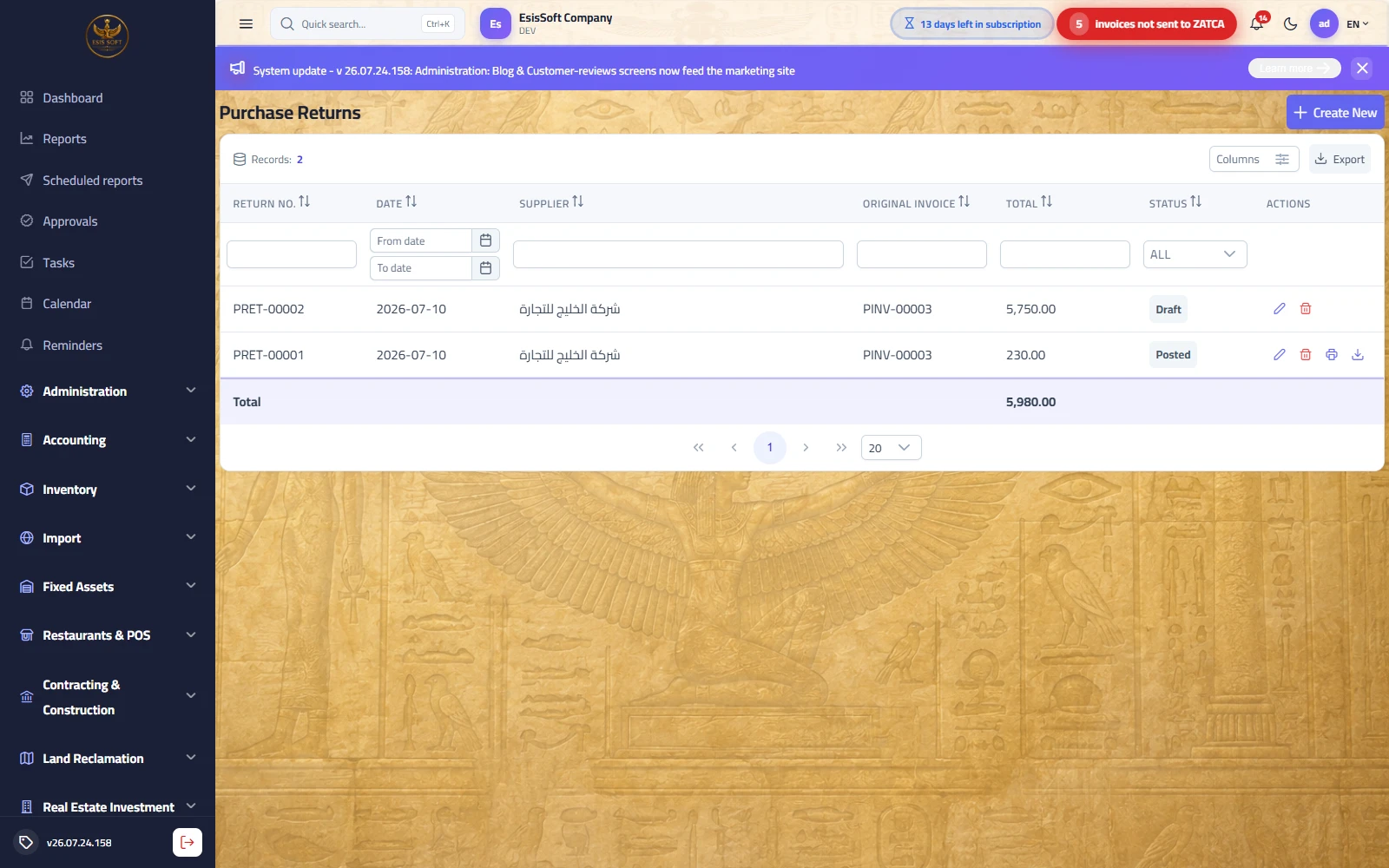
Purpose: return goods to a supplier (damaged, off-spec, over-delivered…). A return is always raised against a posted purchase invoice — the supplier and warehouse are inherited from it and cannot be changed.
Fields
| Field | Required | Notes |
|---|---|---|
| Date | Yes (defaults to today) | Return date. |
| Branch | Auto | Default branch; locked for single-branch scopes. |
| Original Invoice | Yes | Searchable list of posted purchase invoices; read-only after the first save. |
| Supplier | Read-only | Shown automatically from the chosen invoice. |
| Reason | No | Why the goods go back (printed on the return). |
| Payment Method | Yes (Cash/Credit) | Inherited from the invoice; adjustable. |
| Notes / Prices include VAT | No | As on the invoice. |
Partial return — step by step
- Create the return from the posted invoice (pick it in Original Invoice, or press the return button on the posted invoice itself) — all its lines load with full quantities and prices.
- Trim: delete the lines that stay, and reduce the quantity on the returned lines. Example: return 2 damaged panels of the 12 invoiced — 2 × 40.00 − 5% = 76.00 net, VAT 11.40, total 87.40.
- Enter the reason, then Post.
Posting effect
| Account | Debit | Credit |
|---|---|---|
| Accounts Payable (supplier) | Return total (87.40) | — |
| Inventory | — | Subtotal (76.00) |
| Input VAT | — | VAT (11.40) |
Stock leaves the warehouse (base units × factor) at the line's net unit value; serialized units are retired from the serial registry; the supplier balance drops by the return total.
Validation & common mistakes
- “A purchase return can only be raised against a posted purchase invoice” — draft invoices cannot be returned; post the invoice first.
- Original invoice + at least one valid line are required.
- Posting is blocked if the warehouse no longer holds the returned quantity (already sold/transferred) — the stock cannot go negative.
- A posted return cannot be edited or deleted.
FAQ
- Does the return refund cash? No money moves by itself — it reduces the supplier's payable balance. Any cash refund is recorded as a separate voucher in payments.
- Can I return more than was invoiced? The lines load with the invoiced quantities as a ceiling in practice — returning more than remains in stock is blocked, and returning more than invoiced misstates the payable; keep quantities within the original invoice.
- Which serials do I enter? Exactly the serial numbers of the units going back — they are retired so they can no longer be sold.
- What is the effect on item cost? The goods leave at the return's net unit value; the remaining stock keeps its weighted-average cost.
Requests for quotation
Path: Commercial → Document cycle → Requests for quotation — /commercial/rfqs
What it does: A requisition says what is needed and a purchase order says what was bought — between them sits the one step where the price is actually decided. Without it a buyer simply writes a supplier and a price into the order, and nobody can answer the question an auditor really asks: who else was asked, and what did they say?
| Field | Description |
|---|---|
| From the requisition | Lines are pulled from a requisition or added by hand — item, specification, quantity and warehouse. |
| Invited suppliers | Who will be asked to quote. |
| Closing date | Anything arriving after it is marked “late” — a fact, not a verdict. |
| Issue the RFQ | Locks the lines: changing what was asked after issuing turns every quote on the table into an answer to a different question. |
| Quotes received | Unit price, discount, VAT, lead days, payment terms, validity and the supplier’s reference. |
| Comparison and award | Green is the cheapest price for that line, blue is what you picked — and every price is clickable. |
| Coverage, spread, split saving | How many lines a quote covered, the price spread, and what awarding line by line saves. |
| Award and raise purchase orders | One purchase order per winning supplier, at that supplier’s own prices. |
Return to supplier — by expiry
Path: Commercial → Document cycle → Return to supplier — /commercial/purchase-returns/expiry
What it does: Instead of a storekeeper hunting for batches nearing expiry and then digging out their invoices, the screen lists batches that still have stock and expire within a window you set, together with their original invoice and price, and raises the returns in one press.
| Field | Description |
|---|---|
| Within (days) | How close to expiry to look. |
| Batch and its balance | What is actually left in the warehouse. |
| Original invoice and price | Where it came from and at what price — so the return goes back at its purchase price, not an estimate. |
| Return quantity | Editable line by line. |
| Selected, value, document count | What you are about to create, before you create it. |
| Create the returns | One return document per original invoice. |
Supplier discount notes
Path: Commercial → Document cycle → Supplier discount notes — /commercial/supplier-discount-notes
What it does: A supplier grants a discount after the purchase — on goods still sitting with you. The note takes the discount off the supplier’s account and lowers the cost of what remains in your warehouse, so nothing stays valued at a cost that is no longer true.
| Field | Description |
|---|---|
| Supplier, date, reason | Who, when and why. |
| Load remaining items | Pulls this supplier’s items that still have a balance — with the remaining quantity, unit cost and the value of what is left. |
| Discount % and amount | Line by line, or one blanket percentage applied to all. |
| Totals | Item count and the total discount. |
| Update item purchase price | Sets the item’s reference purchase price to the post-discount cost, so the next purchase invoice fills in with it. |
| Post and unpost | Posting takes the discount off the supplier’s account; unposting puts everything back — including the old price. |
Frequently asked questions
How do I record a purchase invoice?
Open Purchasing › Purchase Invoices › New, select the supplier, add received items with cost, taxes and discounts, then Save and Post to update payables and inventory.
Do purchases update stock automatically?
Yes. Posting a purchase invoice for stocked items increases on-hand quantity and recalculates the item's average cost.
How do I pay a supplier?
Create a payment voucher against the supplier and allocate it to open purchase invoices to reduce the outstanding payable balance.
Can I track purchase returns?
Yes, issue a purchase return to reverse received quantities and the related payable, keeping stock and accounting in sync.