Report Center
All system reports in one place on a unified engine: pick a report, set its criteria, view on screen or export to Excel / PDF — all bilingual with your company header and logo. Any report can also be emailed automatically on a schedule.
Using the Report Center
Route: Reports — /reports
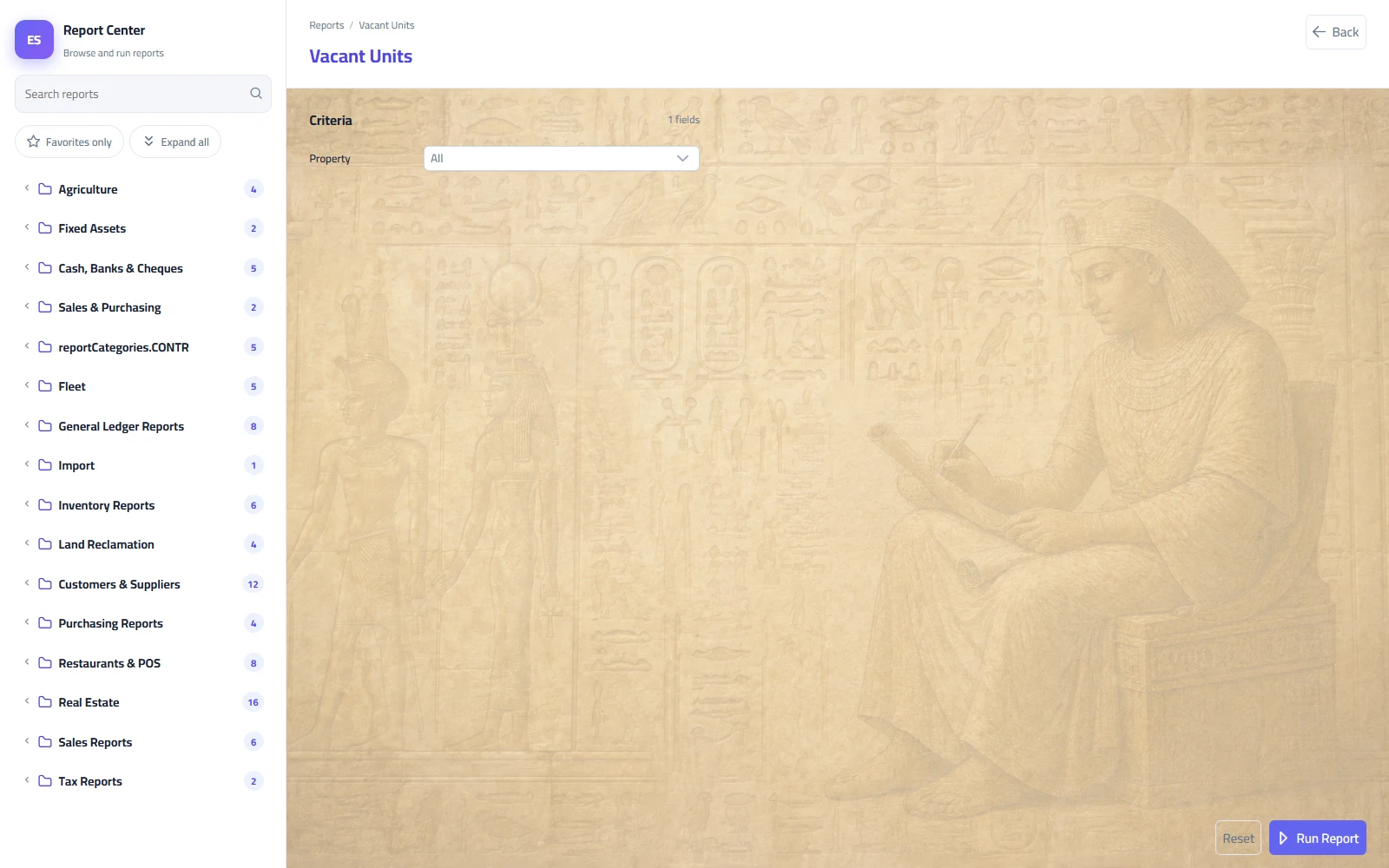
Screen layout
The Report Center opens full screen (the app sidebar and top bar are hidden so the report gets the whole width). The back button in the title band returns you to the application.
| Area | What it does |
|---|---|
| Category folders (side panel) | Reports grouped by module — each folder shows a count of its reports and collapses/expands with a click. While you are searching, all folders stay open so matches are always visible. |
| Search box | Filters the list live as you type. It matches both the Arabic and the English report name, so either language finds the report. |
| Favorite star ★ | Click the star next to any report to mark it a favorite. The favorites-only toggle then shows just your starred reports — ideal for the handful you run daily. |
| Main pane | The selected report's criteria form and, after running, the result sheet — no page navigation needed. |
Running a report — the general flow
- Pick a report from the module-grouped list (or search by name).
- Fill the criteria: period, account, customer/supplier, warehouse… — pickers support type-to-search; required fields must be filled before the report will run.
- Click Run — the result renders as a print-style document sheet with your company letterhead.
- Use Excel to export the data, Print to print or save as PDF, or Back to adjust the criteria and run again.
- Reset clears every criteria value and the current result when you want to start fresh.
Criteria (parameter) types
| Type | How it works | Examples |
|---|---|---|
| Date | A calendar picker. Date pairs (from / to) bound the period; leaving them empty usually means "no limit on that side". | From date, To date, As-of date |
| Lookup list (type-to-search) | A drop-down whose options come live from the server. It shows a first page of options; type part of the code or name (Arabic or English) and the list re-searches the whole database as you type. | Account, Customer, Supplier, Warehouse, Fiscal year |
| Fixed-choice list | A drop-down with a small fixed set of values. | Cheque status (in custody / deposited), shipment stage |
| Number | A plain numeric value. | "Within (days)" on the near-expiry report |
The system remembers for you
- Last criteria per report: the values you last ran each report with are saved to your user account (not just this browser) and come back pre-filled on your next visit — even a lookup choice beyond the list's first page redisplays correctly.
- Last report: refreshing or reopening
/reportslands you back on the report you last ran. - Deep links: every report has a shareable address like
/reports/CustomerStatement. Screens elsewhere in the system use this too — the Statement button on a customer or supplier card opens the Report Center with that party pre-selected and the report already run.
FAQ
| Question | Answer |
|---|---|
| I can't find a report by searching. | Search matches the report name in Arabic or English — try a shorter fragment, and make sure the favorites-only filter is off. |
| The lookup list doesn't show the customer I need. | The list initially shows only a first page. Type part of the code or name — the search runs on the server across all records. |
| Do my saved criteria follow me to another computer? | Yes — criteria and the last-run report are stored per user account in the database. Favorites, however, are per browser. |
Worked example: a customer statement for Q2
Suppose you need what a customer owes and every movement on their account for the second quarter (April–June).
- Open Reports and, under Sales & Purchasing, choose Customer Statement.
- In Customer (required) type a few letters of the name or the code — pick the customer from the live results.
- Set From date = 01/04 and To date = 30/06 of the year in question.
- Click Run. The sheet shows your letterhead, the title, a criteria strip ("Customer: … • From: … • To: …") and the movement table.
Reading the columns
| Column | Meaning |
|---|---|
| Date | The document date, in chronological order. |
| Document / Type | The source document number and its kind — sales invoice, receipt voucher, return, journal entry… |
| Debit | Amounts that increase what the customer owes you (invoices). |
| Credit | Amounts that decrease the debt (payments received, returns, credit notes). |
| Balance | The running balance after each row: previous balance + debit − credit. The balance on the last row is what the customer owes at the end of the period. |
FAQ
| Question | Answer |
|---|---|
| Is there a faster path from the customer's card? | Yes — the Statement button on the customer (and supplier) card opens this report with the party pre-filled and already run. |
| What does a negative closing balance mean? | The customer has paid more than was invoiced in the covered range — an advance or an over-payment. Check the period start: movements before the from-date are outside the table. |
Report catalog
The catalog below mirrors the side-panel folders exactly. New reports are added with system updates and appear automatically — the side panel is always the live list.
General Ledger reports (GL)
| Report | Criteria | What it gives you |
|---|---|---|
| Trial Balance | Fiscal year (optional) | Every posting account with total debit, total credit and balance — the monthly review baseline. |
| General Ledger | Account (required), from/to date | One account's movement entry by entry: document, date, description, debit, credit and running balance. |
| Cash Flow Statement | From/to date | Cash movement grouped by activity — operating, investing, financing — with inflow, outflow and net per item. |
| Chart of Accounts | Account type, postable only | The account tree: code, name, type, level, parent and whether it accepts postings. |
| Journal Daybook | From/To date, account | Every posted journal line with its account, description, debit, credit and the module that generated it. |
| Cost Centre Ledger | Cost centre, From/To date | Movement of each cost centre across accounts with debit, credit and net — to measure the cost of an activity or project. |
| Income Statement | From/To date | Revenue and expenses, each positive in its own section; the difference is the period result. |
| Balance Sheet | As of | Assets, liabilities and equity. The current period result is listed as its own equity line — it only moves to retained earnings at year closing, and without it the sheet cannot balance. |
Customers & Suppliers (PARTY)
Statements, balances, trial balances and ageing. Balance convention: a customer is a debtor (invoices raise the balance, receipts reduce it) and a supplier is a creditor (invoices raise what you owe, payments reduce it) — so a positive supplier balance means "we owe them".
| Report | Criteria | What it gives you |
|---|---|---|
| Customer Balances | As of, hide zero balances | Each customer's balance with opening, debit and credit, plus the credit limit and a flag when it is exceeded. |
| Supplier Balances | As of, hide zero balances | What you owe each supplier after returns and payments. |
| Customer Trial Balance | From/To date | Per customer: opening balance, period debit and credit, closing balance. |
| Supplier Trial Balance | From/To date | The same for suppliers. |
| Payables Ageing | As of | What you owe suppliers bucketed into 0-30, 31-60, 61-90 and 90+ days — to prioritise payment. |
| Customer Payments Report | From/To date, customer | Which receipt settled which invoice and for how much, and what remains on that invoice. |
| Supplier Payments Report | From/To date, supplier | The same for payment vouchers and purchase invoices. |
| Customers Data | Active only | The customer register: name, VAT number, phone, city, salesman, credit limit and due days. |
| Suppliers Data | Active only | The supplier register with their core details. |
Cash, Banks & Cheques (CASH)
| Report | Criteria | What it gives you |
|---|---|---|
| Cheque Register | From/To due date, type, status | Every cheque, received and issued, in one register with its status (portfolio / deposited / collected / bounced / issued / cleared / cancelled) and the days left to maturity. |
| Cash / Bank Statement | Account (required), From/To date | Movement of a cash box or bank account, in and out, with a running balance — taken from posted journal entries. |
| Cash & Bank Balances | As of | The balance of every cash box and bank account on one page, with total in and out. |
Inventory Reports (INV)
These read the stock movement ledger written alongside every posted document, not the documents themselves — so the figures are the book balance itself.
| Report | Criteria | What it gives you |
|---|---|---|
| Item Card | Item (required), From/To date, warehouse | Every movement on the item: type, document, warehouse, in, out and unit cost, with a running quantity and value balance. |
| Stock by Warehouse | Warehouse, category, hide zero | One row per (item × warehouse) with quantity, average cost and stock value. |
| Stock Valuation | Category, warehouse | One row per item with total quantity, value at cost and at sale price, and the potential profit on clearing it. |
| Items Below Reorder Level | Warehouse, category | What has fallen below its reorder level, the shortfall and its estimated cost — a ready-made purchase list. |
| Stagnant Items | No issue since, warehouse | Stock still on hand with nothing issued since the cut-off, with its value and how many days it has sat idle. |
| Stock Movement Summary | From/To date, warehouse, category | Per item: opening balance, total in and out for the period, and closing balance. |
Fixed Assets (ASSET)
| Report | Criteria | What it gives you |
|---|---|---|
| Fixed Asset Register | Category, status | Every asset with cost, salvage value, useful life, accumulated depreciation, net book value, status and location. |
| Asset Depreciation | From/To date, category | The depreciation charged on each asset each month, with the accumulated figure and the net book value after it. |
Tax Reports (TAX)
These split each line by its own VAT rate rather than the document total — which is what a return actually needs when taxable and exempt items share one invoice.
| Report | Criteria | What it gives you |
|---|---|---|
| Taxed / Untaxed Sales | From/To date | Per month: taxable sales, output VAT, exempt sales, net and total with VAT — after subtracting returns. |
| Taxed / Untaxed Purchases | From/To date | The same on the purchase side with input VAT. Output less input VAT is what is actually payable. |
Sales Reports (SALES)
All of these report the net figure: posted invoices less sales returns. Drafts never count, and quantities are normalised to the base unit so a carton is never added to a piece.
| Report | Criteria | What it gives you |
|---|---|---|
| Net Daily Sales | From/To date, warehouse, salesman | One row per day: invoice count, sales, returns, then net before VAT, discount, VAT and the final net. |
| Monthly Sales | From/To date, warehouse, salesman | The same figures rolled up by month — for comparing months and reading the trend. |
| Sales by Customer | From/To date, customer, salesman | Net per customer with gross profit and margin % and each customer's share of total sales. |
| Sales by Item | From/To date, category, warehouse | Net quantity and value per item, with estimated cost, gross profit and share %. |
| Customer Sales by Item | From/To date, customer, category | One row per (customer × item): exactly what each customer bought and for how much. |
| Salesmen Sales & Collections | From/To date, salesman | Per salesman: invoice and customer counts, sales, returns and net, plus what was actually collected against what is still outstanding. |
Purchasing Reports (PURCH)
Built on the same rule: posted documents only, less purchase returns.
| Report | Criteria | What it gives you |
|---|---|---|
| Net Daily Purchases | From/To date, warehouse, supplier | One row per day with purchases, returns, discount, VAT and net. |
| Monthly Purchases | From/To date, warehouse, supplier | The same figures rolled up by month. |
| Purchases by Supplier | From/To date, supplier | Net per supplier and its share — how dependent you are on each one. |
| Item Purchases by Supplier | From/To date, supplier, category | One row per (item × supplier) with average purchase price and last purchase date — for negotiating and comparing offers. |
Sales & Purchasing (COMM)
| Report | Criteria | What it gives you |
|---|---|---|
| Customer Statement | Customer (required), from/to date | The customer's movement with documents and a running balance — for reconciliations and collection. |
| Supplier Statement | Supplier (required), from/to date | The same statement for a supplier — what you owe and have paid. |
| Receivables Ageing | As-of date (optional) | Every customer's open balance split by age bucket: current (not yet due), 1–30, 31–60, 61–90, over 90 days, plus the total. |
| Cheques Under Collection (Ageing) | Customer, status (optional) | Received post-dated cheques by due date: bank, source voucher, status (in custody / deposited), days to due and bucket. |
| Outstanding Issued Cheques (Ageing) | Supplier (optional) | Cheques you issued that have not cleared, by due date — plan the cash needed to cover them. |
| Stock Aging | — | On-hand quantity per item and warehouse split by purchase age (0–30 / 31–60 / 61–90 / +90 days) with stock value — spot capital frozen in old stock. |
| Near-Expiry Items | Warehouse, within-days (optional) | Tracked lots/serials approaching expiry: item, warehouse, expiry date, days left and bucket. |
Import (IMP)
| Report | Criteria | What it gives you |
|---|---|---|
| Shipments In Transit | Stage, supplier (optional) | Every open import file: B/L and container numbers, ports, stage (open / in transit / arrived / cleared / closed), expected vs actual arrival, days left, goods value and landed costs so far. |
Restaurants & POS (REST)
All restaurant reports take an optional from/to date pair covering the business period you want.
| Report | What it gives you |
|---|---|
| Sales by Item | Quantity sold, net sales, VAT and total per menu item and category — best and worst sellers. |
| Sales by Hour | Orders, revenue and average ticket per hour of day — staff your peak hours. |
| Voids, Refunds & Discounts | Every cancellation, refund and discount with amount, reason and approver — the leakage audit. |
| Payment Mix | Orders, total and percentage per payment method (cash, card, …) — reconciles with the drawer. |
| Cashier & Waiter Performance | Orders, revenue and average ticket per staff member by role. |
| Cost & Margin by Item | Net sales vs estimated recipe cost per item — margin and margin %. |
| Driver Cash Settlement | Per delivery driver: orders taken out, delivered, total value, cash handed to the cashier and cash still with the driver. |
| Driver Performance | Deliveries, average and longest trip minutes, total delivered per driver. |
Fleet (FLEET)
Most fleet reports take a From/To date; some also filter by vehicle or driver.
| Report | Filters | What it gives you |
|---|---|---|
| Trip Profitability | Period, vehicle, driver | One row per trip: date, vehicle, driver, from/to, then freight, expenses and the net, plus posting status. |
| Vehicle Expenses by Type | Period, vehicle | Totals per expense type (fuel, oil, tyres, repairs, maintenance, other) per vehicle — combining standalone vehicle costs with in-trip costs. |
| Driver Performance | Period | Per driver: trips, freight, expenses, net profit and average net per trip. |
| Vehicle Cost & Profitability | Period | Each vehicle's P&L: freight less trip expenses less vehicle expenses = net profit. |
| Expiring Vehicle & Driver Documents | Days ahead | Registration, insurance and driving licences already expired or approaching, with days left — your renewal list. |
Agriculture (AGRI)
| Report | Filters | What it gives you |
|---|---|---|
| Season Profitability | Period, crop, field | Per season: crop, field, area, costs, harvest quantity and value, net profit and profit per feddan. |
| Season Costs by Type | Period, season | Season spend split across seeds, irrigation, fertiliser, pesticides, labour and machinery. |
| Crop Yield Analysis | Period | Per crop: seasons, area, harvest quantity, yield per feddan, value, costs and net profit. |
| Harvest Detail | Period, crop | Every harvest document with quantity, unit and value, linked to its season and field. |
Land Reclamation (LAND)
| Report | Filters | What it gives you |
|---|---|---|
| Project Costs vs Budget | Period, plot | Per project: budget vs actual, variance, spent % and cost per feddan — an early overrun warning. |
| Project Costs by Type | Period, project | Costs split across roads, water, electricity, wells, irrigation, infrastructure, machinery and labour. |
| Land Plot Registry | Active only | The land register: area, ownership, location, GPS coordinates, project count, total invested and cost per feddan. |
| Project Cost Detail | Period, project | The cost ledger behind each project: document, date, type, amount and description. |
How to read the key reports
Trial Balance — one row per posting account: account code, name (both languages), Total Debit, Total Credit and Balance (debit − credit). A healthy ledger has grand-total debits equal to grand-total credits; a debit balance is positive, a credit balance negative. Pick a fiscal year to review that year only.
General Ledger — the drill-down after the trial balance: choose the account you want to explain and read its entries with the running balance. Any unexpected jump in the balance points at the document on that row.
Ageing buckets (receivables and cheques) — "Current" is not yet due; the buckets 1–30 / 31–60 / 61–90 / +90 count days past due. Money drifting into 61–90 and beyond deserves collection action; the +90 column is your risk short-list.
Cash Flow Statement — rows are grouped in three sections: operating (daily trading), investing (assets bought/sold) and financing (loans, capital). Each item shows inflow, outflow and net; the section nets explain where cash actually went, which profit alone never shows.
Stock Aging — the buckets classify today's on-hand quantity by how long ago it was purchased. "Unallocated" is quantity the engine could not match to a purchase layer; the value column prices the remainder at cost.
FAQ
| Question | Answer |
|---|---|
| The trial balance debit and credit totals differ — what now? | They should always match. Verify you selected the intended fiscal year, then review recent journal entries with the General Ledger; contact your administrator if the difference persists. |
| The ageing report ignores my date range. | Receivables Ageing takes a single as-of date, not a range: it snapshots open balances at that date and ages them from their due dates. |
| A report I saw at another company is missing here. | The catalog grows with releases, and some analyses live inside their module screens (e.g. dashboards, document lists with filters) rather than the center. |
The result sheet: pivot, export & print
A run report renders as a document sheet: your company logo and name in the letterhead, the report title, a criteria strip that restates exactly what the sheet was produced with (e.g. "Customer: … • From: … • To: …"), then the data table with dates and numbers formatted per column.
Pivot — group the result on screen
Any result can be summarized without leaving the viewer:
- Open the pivot panel above the table.
- Pick a row field (e.g. customer), optionally a column field (e.g. document type), and a value — any numeric column.
- Choose the aggregation: Sum of the value, or Count of rows.
- The pivot grid shows a cell per combination, row totals, column totals and a grand total — rows sorted by largest total first.
Excel vs Print/PDF
| Excel | Print / PDF | |
|---|---|---|
| What you get | A CSV file that opens directly in Excel: every detail row, raw values, ready for filtering, pivoting and charting. | The formatted sheet exactly as on screen — letterhead, title, criteria strip — via the browser's print dialog. Choose a printer, or Save as PDF for archiving and email. |
| Best for | Further analysis, reconciliations, mail merges. | Signing, filing, sending an official-looking statement. |
| Layout | Columns as in the report, dates as plain dates. | Reports with 8+ columns automatically print landscape; tables wider than the page shrink-to-fit so nothing is cut off. |
FAQ
| Question | Answer |
|---|---|
| My exported file opens with odd characters. | Open it with Excel directly (double-click); the export is encoded so Arabic and other scripts display correctly in Excel. |
| Can I get the report as a PDF file? | Yes — click Print and pick Save as PDF as the destination in the browser dialog. |
Scheduled reports — automatic email delivery
Route: Reports › Scheduled reports — /reports/schedules
Any report from the center can be emailed automatically — daily, weekly or monthly — as a formatted HTML table, sent through your company's configured mail (SMTP) account. Typical uses: yesterday's restaurant sales to the owner every morning, the receivables ageing to the finance manager every Sunday.
Creating a schedule
- Open Scheduled reports and click Schedule a report.
- Pick the report from the list (same catalog as the center).
- Choose the frequency: Daily, Weekly (then pick the day of week) or Monthly (then pick the day of month).
- Set the hour of delivery (Riyadh time).
- Enter the recipients — one or more email addresses separated by
;. - Optionally set the window (last N days) — see below — and make sure Enabled is checked.
- Save. The schedule row appears with its settings, last-sent time and any last error.
The fields explained
| Field | Meaning |
|---|---|
| Report | Which report to run and send. |
| Frequency / day / hour | When it goes out: every day, a chosen weekday, or a chosen day of the month, at the chosen hour (Riyadh time). |
| Recipients | Email addresses separated by semicolons (;). Each recipient who is also a system user receives the email in their own interface language (Arabic / English / Indonesian), matched by email address. |
| Window (last N days) | At every send, the report's from/to dates are filled automatically with "today − N … today". Set 1 for yesterday-and-today style dailies, 30 for a rolling month. Leave empty for reports without date criteria. |
| Enabled | Untick to pause the schedule without deleting it. |
| Last sent / Last error | The last successful delivery time, and the error text if the last attempt failed — your first stop when an email doesn't arrive. |
Send now
Every schedule row has a Send now button that runs the report and emails it immediately through the very same path the background scheduler uses — the perfect test after creating or editing a schedule. A confirmation shows how many data rows were sent.
FAQ
| Question | Answer |
|---|---|
| The email never arrives. | Check, in order: the Last error column; that the schedule is Enabled; the recipients are separated by ; with no typos; the recipient's spam folder; the company SMTP settings. |
| Can different recipients get different languages? | Yes — automatically. A recipient whose email matches a system user gets the report in that user's preferred language. |
| How do I stop a schedule during the holidays? | Edit it and untick Enabled — re-tick later. No need to delete and recreate. |
| Which period does the emailed report cover? | Whatever the window says: last N days ending today, computed fresh at every send. |
Document print layouts
Invoices and vouchers print from their own screens (print button in the document or list row) using professional bilingual layouts including the tax QR code. To customize the look (logo, colors, fields) see the Print Designer.
Troubleshooting
| Symptom | Likely cause | What to do |
|---|---|---|
| The report comes back empty. | Criteria too narrow, wrong fiscal year, or no documents in the chosen period. Data can also be limited by your user permissions and branch scope. | Click Reset, run with the widest criteria (only required fields), then narrow step by step. If still empty, ask your administrator about your data permissions. |
| The report is slow. | A very wide period or an unfiltered run over years of data. | Narrow the date range, pick a specific account/customer/warehouse, or schedule the heavy report by email instead of running it interactively. |
| A lookup finds nothing. | Only a first page of options is preloaded. | Type 2–3 characters of the code or name — the search then runs server-side over all records. |
| Old criteria keep coming back. | The engine restores your last-used values per report by design. | Click Reset to clear them; the next run saves the new values. |
| The printout cuts columns off. | Very wide table. | Printing auto-switches to landscape at 8+ columns and shrinks to fit; if it is still dense, export to Excel instead. |
| A scheduled email failed. | Mail settings or recipients. | Read the Last error column on the schedule row, fix, then verify with Send now. |
Frequently asked questions
Which reports does KEMTOVA ERP provide?
Financial statements (trial balance, income statement, balance sheet, cash flow), plus ledgers, aging, inventory, sales, purchasing and module-specific reports.
How do I filter and run a report?
Open the Report Center, pick the report, set the date range, branch and other filters, then run it; you can drill into details from the results.
Can I export or print reports?
Yes. Reports can be printed and exported (e.g. to Excel/PDF) for sharing, auditing and offline analysis.
Can I schedule reports?
Yes. The report scheduler can email selected reports automatically on a recurring basis to chosen recipients.