Imports
Manage overseas import files: gather all shipment costs (goods, freight, customs, clearance…) and allocate them to items to compute the true landed cost before goods enter stock.
Import files (shipments)
Route: Imports › Import Files — /import/shipments
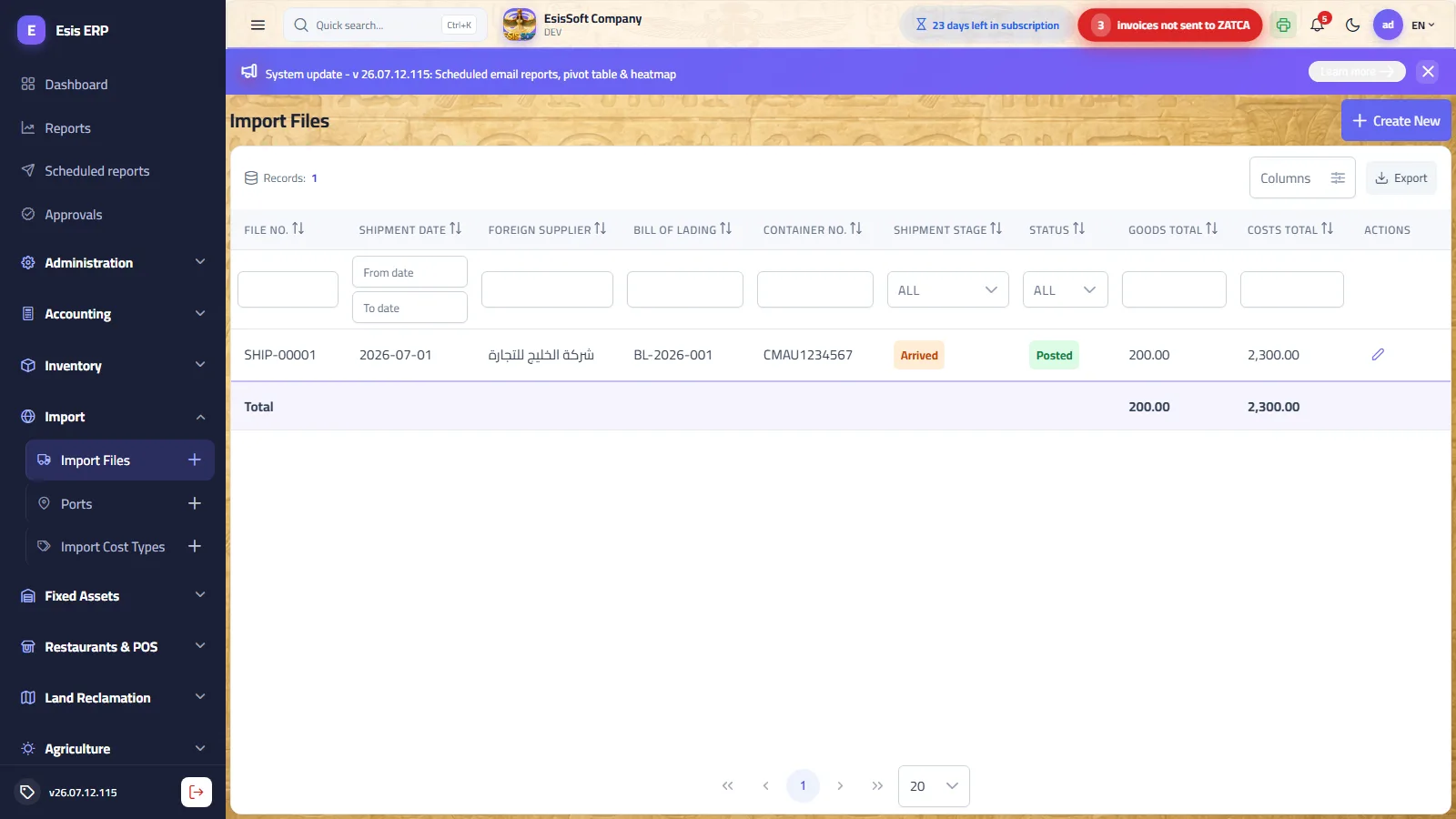
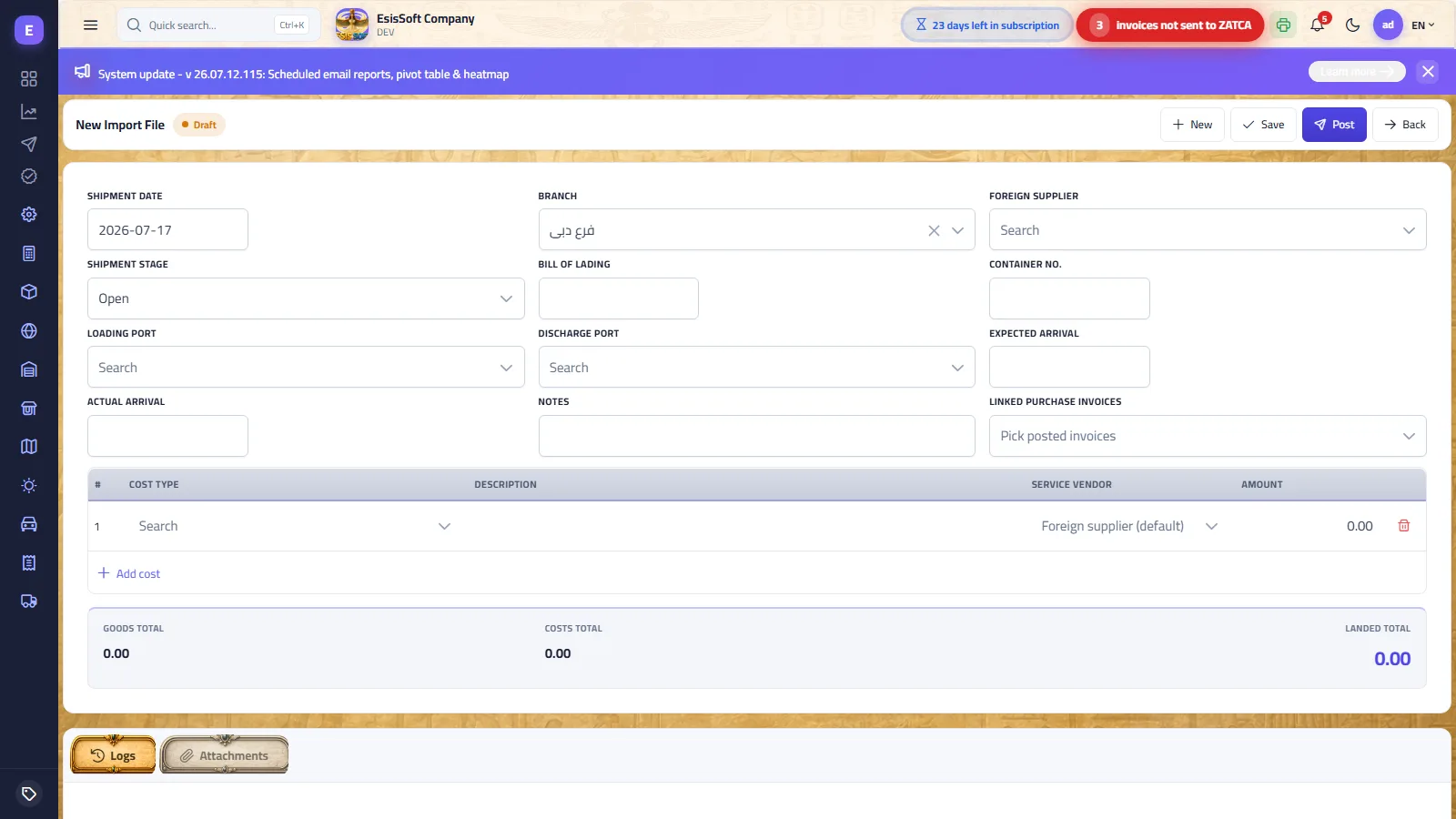
Purpose: the import file is the shipment's container from contract to warehouse: it collects the goods (via linked purchase invoices) and every extra cost of bringing them in, then spreads those costs over the items so each one carries its true landed unit cost.
When to use: for every overseas purchase where the goods price is not the whole story — sea/air freight, customs duty, clearance, insurance, inland transport… If you buy locally with no extra costs, a plain purchase invoice is enough and no import file is needed.
- Record and post the purchase invoice(s): the goods themselves (items, quantities, prices — in the purchase currency if foreign) are entered as normal purchase invoices in the Purchasing module. Only posted invoices can be linked to an import file.
- Open an import file: foreign supplier, shipment date, B/L and container numbers, loading and discharge ports, expected/actual arrival dates.
- Link the purchase invoices: pick the posted invoice(s) that belong to this shipment — their subtotals become the file's Goods Total.
- Record the cost lines: each cost with its type (sea freight, customs, clearance…), the service vendor who charged it, and the amount.
- Review the allocation: after saving, the system automatically spreads all costs over the invoice lines in proportion to goods value and shows each item's landed unit cost.
- Post the file: stock value is raised by the allocated costs (weighted-average cost goes up, quantities unchanged) and the accounting entry is generated automatically.
- Settle the costs: pay each service vendor from the settlement table — every payment creates a posted payment voucher linked to the file.
List columns
| Column | Content |
|---|---|
| File No. | Automatic serial SHIP-00001, SHIP-00002… |
| Shipment Date | The file's document date. |
| Foreign Supplier | The goods supplier of the shipment. |
| Bill of Lading / Container No. | Shipping references for quick tracing. |
| Shipment Stage | Logistics stage chip (see below). |
| Status | Draft or Posted. |
| Goods Total / Costs Total | Value of linked invoices and sum of cost lines — both columns show a grand total under the list. |
Row actions: edit always; delete only while the file is a Draft.
Shipment stage vs. document status
Two separate indicators live on every file. The stage is a logistics tracker you set manually; the status is the accounting state the system controls:
| Shipment stage | Meaning |
|---|---|
| Open | File being prepared — contract signed, goods not shipped yet. |
| In Transit | Goods on the vessel/plane — awaiting arrival. |
| Arrived | Goods at the discharge port. |
| Cleared | Customs clearance finished. |
| Closed | Shipment completed and archived. |
| Document status | Meaning |
|---|---|
| Draft | Editable — costs and invoices can still change; no accounting or stock effect yet. |
| Posted | Landed cost capitalized into stock and the journal entry created — the file becomes read-only. |
Header fields
| Field | Required | Description |
|---|---|---|
| Shipment Date | Yes | Document date (defaults to today). Determines the fiscal year of the file. |
| Branch | Yes | Pre-filled with your default branch; locked if your permissions allow only one branch. The journal entry is stamped with it. |
| Foreign Supplier | Yes | The goods supplier. Also the default vendor for any cost line left without a service vendor. |
| Shipment Stage | Yes | Open / In Transit / Arrived / Cleared / Closed (default Open). |
| Bill of Lading | No | B/L reference from the shipping line. |
| Container No. | No | Container reference. |
| Loading Port / Discharge Port | No | Picked from the Ports master (active ports only). |
| Expected Arrival / Actual Arrival | No | Planning dates. Actual Arrival, when filled, becomes the posting date of the journal entry and stock adjustment; otherwise the shipment date is used. |
| Notes | No | Free text printed on the document. |
| Linked Purchase Invoices | Yes (to post) | Multi-select of posted purchase invoices, shown as “number (total)”. Their subtotals form the Goods Total. |
Cost lines grid
| Column | Required | Description |
|---|---|---|
| Cost Type | Yes | Picked from the Import Cost Types master (active types only). |
| Description | No | Free text, up to 300 characters — e.g. the vendor's invoice number. |
| Service Vendor | No | The supplier who charged this cost (shipping line, clearance office…). Left empty = the file's foreign supplier. Used later to group the settlement table. |
| Amount | Yes (> 0) | Cost amount in the company base currency, 2 decimals. |
Toolbar actions
| Button | Visible when | Effect |
|---|---|---|
| New | Always | Clears the editor and starts a fresh file with the next number. |
| Save | Draft | Saves the draft and refreshes the allocation table. |
| Post | Draft | Saves, then capitalizes the landed cost into stock and creates the journal entry. |
| Unpost | Posted | Reverses the stock uplift and the journal entry; the file returns to Draft. |
| View Journal Entry | Posted | Opens the automatic JV generated by posting. |
| Print preview / Download | Posted | Prints the file (header references + cost lines) or downloads it as PDF. |
| Back | Always | Returns to the list. |
Landed-cost allocation — how it works
The allocation table appears under the cost grid as soon as the file is saved with linked invoices. The system spreads the Costs Total over every line of every linked invoice in proportion to the line's goods value (line subtotal, before VAT):
- Share % = line subtotal ÷ goods total of all linked lines.
- Allocated Cost = costs total × share, rounded to 2 decimals — the last line absorbs the rounding remainder so the sum always equals the costs total exactly.
- Landed Unit Cost = (line subtotal + allocated cost) ÷ base quantity, shown with 4 decimals. Quantities are converted to the item's base unit (packs × unit factor).
| Allocation column | Content |
|---|---|
| Invoice | The purchase invoice number the line comes from. |
| Code / Item | Item code and name. |
| Qty | Base-unit quantity of the line. |
| Goods Value | Line subtotal (base currency, before VAT). |
| Share | The line's percentage of the goods total. |
| Allocated Cost | The line's slice of the costs total. |
| Landed Unit Cost | Final cost of one base unit including its cost share. |
Allocation bases compared
ERPs allocate landed costs on different bases. KEMTOVA ERP allocates by value automatically — here is how the bases compare so you know what the numbers mean and when the value basis fits best:
| Basis | How it splits costs | Best when |
|---|---|---|
| By value (used by KEMTOVA ERP) | Proportional to each line's goods value. | Costs scale with value: ad-valorem customs duty, insurance, finance charges — and the fair default for mixed shipments. |
| By quantity | Equal cost per unit. | Per-piece handling dominates and the items are similar in size and value. |
| By weight / volume | Proportional to kg or m³. | Freight is the dominant cost and the mix combines heavy-cheap with light-expensive goods. |
Totals strip
| Total | Computed as |
|---|---|
| Goods Total | Σ subtotals of the linked posted purchase invoices (server-computed, base currency). |
| Costs Total | Σ amounts of the cost lines. |
| Landed Total | Goods Total + Costs Total — the full cost of the shipment. |
What posting does
- Validates: at least one cost line, at least one linked posted invoice, and no linked invoice already costed on another posted file.
- Determines the posting date: Actual Arrival if filled, otherwise the shipment date.
- Raises stock value: for each allocated line the item's weighted-average cost in the invoice's warehouse goes up by the allocated cost — quantities never change.
- Handles what stock cannot absorb: if an item is not inventory-tracked, or its quantity was already sold before posting, that slice books to Cost of Goods Sold instead — the GL and stock ledger always agree.
- Creates the journal entry: Dr Inventory (absorbed) + Dr COGS (unabsorbed) / Cr Accrued import costs for the full costs total.
Import costs settlement (paying the vendors)
On a posted file a settlement table appears, grouping the cost lines by service vendor (lines without a vendor fall to the foreign supplier):
| Column | Content |
|---|---|
| Service Vendor | Each vendor with at least one cost line. |
| Costs Total | Sum of that vendor's cost lines on this file. |
| Paid | Posted settlement vouchers already issued from this file for the vendor. |
| Remaining | Costs Total − Paid (red while > 0, green at zero). |
| Pay | Opens the payment dialog (shown only while something remains). |
The Pay dialog asks for: the amount (pre-filled with the remaining, capped at it), the instrument (Cash or Bank transfer) and the cash box / bank account. One click creates and posts a supplier payment voucher linked to the file, with the entry: Dr Accrued import costs / Cr Cash-Bank.
Multi-currency handling
- The purchase invoice can be entered in the supplier's currency with its exchange rate; on posting its amounts are converted to the company base currency (the JV lines carry both currencies).
- The import file's Goods Total, allocation and totals are always in base currency — the converted invoice subtotals.
- Cost lines are entered in base currency: if the freight bill is in USD, convert it at the rate you paid and enter the base amount (put the original amount and rate in the Description).
- The shipment's journal entry is posted in base currency.
Validation errors & common mistakes
| Message / symptom | Cause | Fix |
|---|---|---|
| “Supplier” required warning on save | No foreign supplier picked. | Pick the supplier — it is the only hard-required header field at save time. |
| “Only POSTED purchase invoices can be linked…” | A linked invoice is still a draft. | Post the purchase invoice first, then link it. |
| “The same purchase invoice is linked more than once.” | Duplicate pick in the invoice multi-select. | Remove the duplicate. |
| “At least one cost line is required to post…” | Posting a file whose cost rows were all empty (no type or amount 0 — such rows are dropped at save). | Enter at least one complete cost line. |
| “At least one posted purchase invoice must be linked before posting.” | No invoices linked. | Link the shipment's invoice(s). |
| “A linked purchase invoice is already costed on posted shipment SHIP-…” | The invoice already carries landed costs on another posted file — double-costing is blocked. | Unlink it here, or unpost the other file if it is the wrong one. |
| “Only a draft shipment can be edited.” / “A posted shipment cannot be deleted.” | The file is posted. | Unpost first, then edit or delete. |
| “Import costs can be paid on a POSTED shipment only.” | Trying to settle a draft. | Post the file, then pay. |
| “Payment exceeds the vendor's remaining import costs (…)” | Amount above the remaining. | Enter at most the remaining shown in the table. |
| Allocation table is empty | File not saved yet, or no invoices linked. | Link posted invoices and click Save. |
| Goods Total is 0 | Only unposted invoices were available, so nothing was linked. | Post the invoices, re-open the file, link them and save. |
FAQ
| Question | Answer |
|---|---|
| The goods already entered stock when I posted the purchase invoice — is posting the file late a problem? | No. Posting the file raises the weighted-average cost of whatever is still on hand; any quantity already sold has its cost share sent to COGS automatically, so nothing is lost. |
| Can one import file cover several purchase invoices? | Yes — link as many posted invoices as belong to the shipment; the allocation spreads costs over all their lines together. But each invoice can be costed on only one posted file. |
| How do I pay the foreign supplier for the goods themselves? | Through the normal supplier payments screen against the purchase invoice. The file's settlement table covers the cost lines only (freight, customs…) — including cost lines assigned to the foreign supplier. |
| Where do I see the accounting entry of the file? | On a posted file, click View Journal Entry in the toolbar, or find the automatic entry (source “IMP”) in Accounting › Journal Entries. |
Complete worked example — from FOB invoice to landed cost
Scenario: you import ceramic tiles from a Chinese supplier. The goods are invoiced FOB in US dollars; freight, customs and clearance are billed locally in riyals. Company base currency: SAR.
Step 1 — the posted purchase invoice (goods)
Invoice PINV-00042 is entered in USD at exchange rate 3.75:
| Item | Qty | Unit price USD | Line USD | Line SAR (×3.75) |
|---|---|---|---|---|
| Ceramic tiles 60×60 | 200 | 80.00 | 16,000.00 | 60,000.00 |
| Porcelain tiles 30×30 | 500 | 21.3334 | 10,666.67 | 40,000.00 |
| Total (FOB) | 26,666.67 | 100,000.00 |
Posting the invoice books the goods (VAT left aside for clarity):
| Account | Debit | Credit |
|---|---|---|
| Inventory | 100,000.00 | |
| Supplier — China Ceramics Co. | 100,000.00 |
Step 2 — the import file and its cost lines
Open file SHIP-00007, pick the foreign supplier, link PINV-00042, and record the
costs (all in SAR):
| Cost type | Service vendor | Amount SAR |
|---|---|---|
| Sea freight | Global Shipping Line | 8,000.00 |
| Customs duty | Customs broker | 5,500.00 |
| Clearance fees | Port Clearance Office | 1,200.00 |
| Costs Total | 14,700.00 |
Step 3 — the automatic allocation (by value)
| Item | Qty | Goods value | Share | Allocated cost | Landed unit cost |
|---|---|---|---|---|---|
| Ceramic tiles 60×60 | 200 | 60,000.00 | 60.00% | 8,820.00 | 344.1000 |
| Porcelain tiles 30×30 | 500 | 40,000.00 | 40.00% | 5,880.00 | 91.7600 |
| Total | 100,000.00 | 100% | 14,700.00 |
The math, line by line:
- Ceramic: share = 60,000 ÷ 100,000 = 60% → cost = 14,700 × 60% = 8,820.00 → landed unit = (60,000 + 8,820) ÷ 200 = 344.10 SAR (was 300.00 before costs).
- Porcelain: the last line absorbs the remainder = 14,700 − 8,820 = 5,880.00 → landed unit = (40,000 + 5,880) ÷ 500 = 91.76 SAR (was 80.00).
Totals strip: Goods Total 100,000.00 · Costs Total 14,700.00 · Landed Total 114,700.00.
Step 4 — posting the file
On Post (posting date = Actual Arrival), the weighted-average cost of both items rises in the invoice's warehouse (quantities unchanged) and this entry is generated:
| Account | Debit | Credit |
|---|---|---|
| Inventory (landed-cost uplift) | 14,700.00 | |
| Accrued import costs | 14,700.00 |
Step 5 — settling the costs
The settlement table now lists the three vendors. Paying Global Shipping Line 8,000.00 by bank transfer creates and posts a payment voucher with:
| Account | Debit | Credit |
|---|---|---|
| Accrued import costs | 8,000.00 | |
| Bank | 8,000.00 |
Repeat for the broker (5,500.00) and the clearance office (1,200.00). When all rows show Remaining = 0, the accrual account is fully cleared and the file's lifecycle is complete — set the stage to Closed.
Ports
Route: Imports › Ports — /import/ports
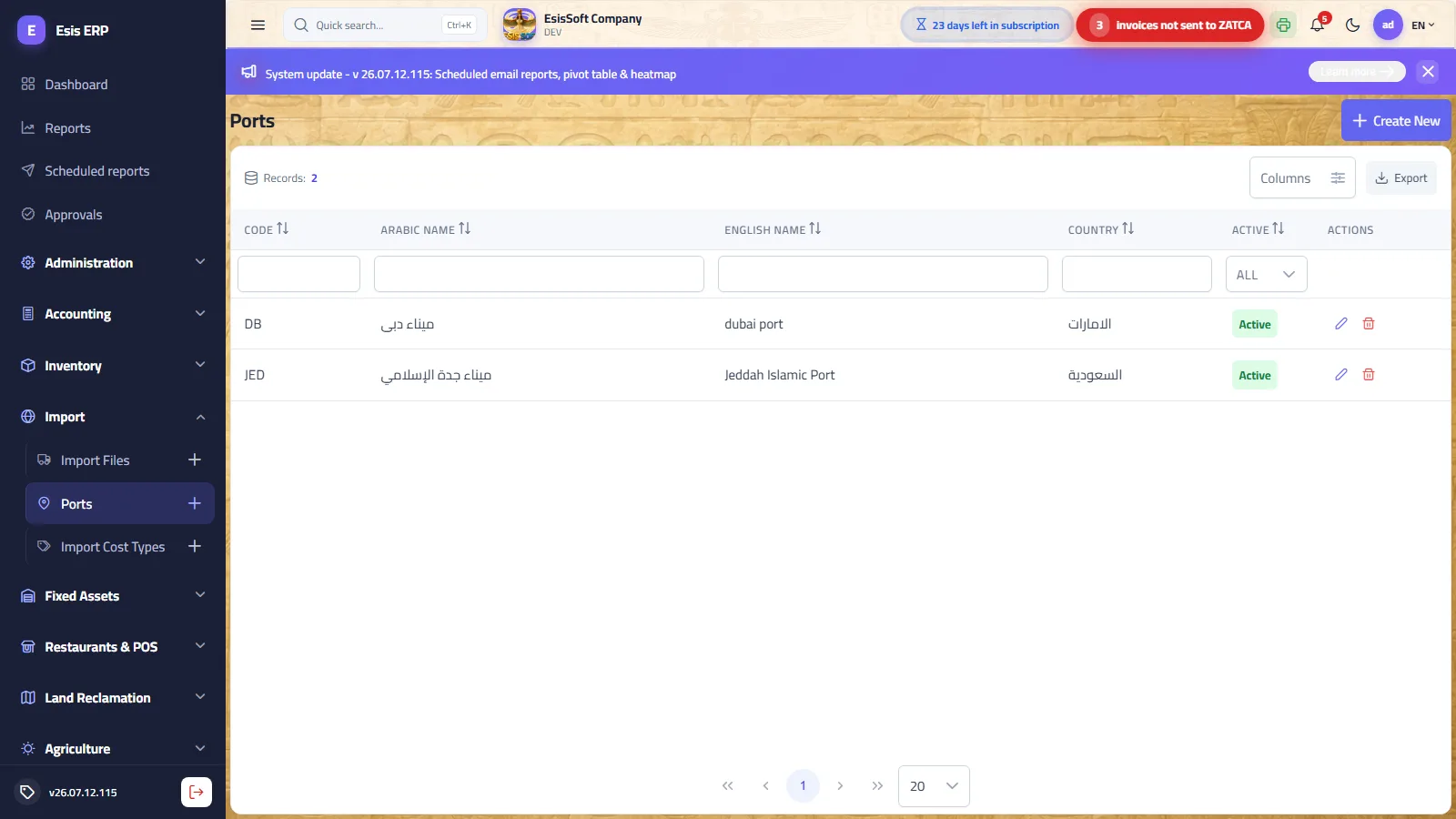
Purpose: master data of shipping and arrival ports, offered in the Loading Port / Discharge Port fields of import files. Set it up once before opening your first file.
Fields
| Field | Required | Description |
|---|---|---|
| Code | Automatic | Generated by the system; read-only. |
| Arabic Name / English Name | Yes | Bilingual port name — e.g. “ميناء جدة الإسلامي / Jeddah Islamic Port”. |
| Country | No | Free-text country, useful in lists and reports. |
| Active | — | Inactive ports disappear from the pickers on import files but remain on historical documents. |
- Open Imports › Ports and click Create.
- Enter the bilingual name and the country.
- Save, or Save & New to keep adding ports in one session.
FAQ
| Question | Answer |
|---|---|
| Can I type a port directly on the import file? | No — the file's port fields are pickers over this master. Add the port here first. |
| Do I need both loading and discharge ports? | No, both are optional on the file — fill what you know; they are references for tracking and printing. |
| Why is the code read-only? | Codes are generated sequentially by the system to stay unique — you only maintain the names. |
Import cost types
Route: Imports › Cost Types — /import/cost-types
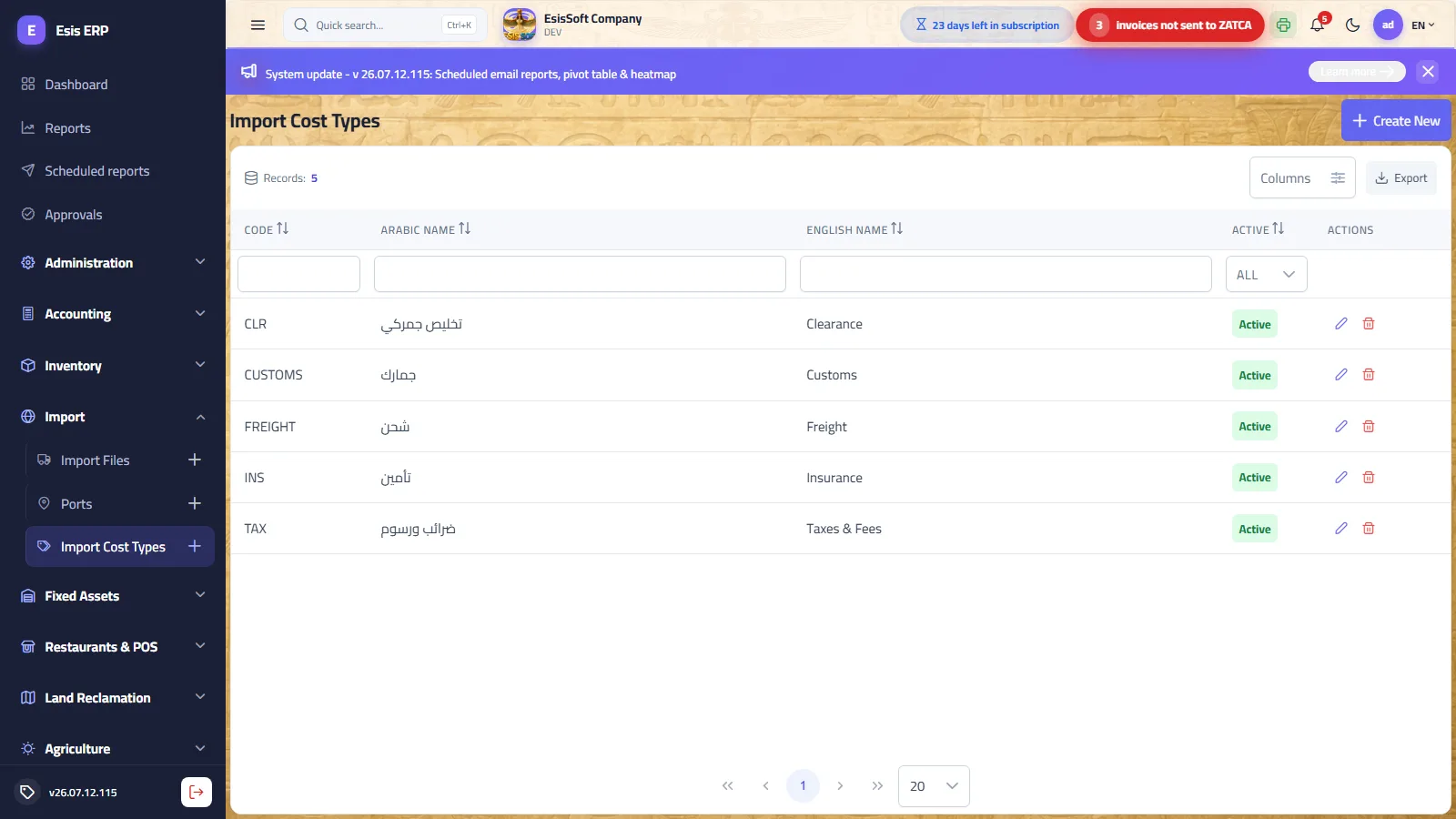
Purpose: the catalogue of cost categories offered in the file's cost-line grid — typically: sea/air freight, insurance, customs duty, clearance, handling, demurrage, inland transport. A clean list lets you analyse later where your import money actually goes.
Fields
| Field | Required | Description |
|---|---|---|
| Code | Automatic | Generated by the system; read-only. |
| Arabic Name / English Name | Yes | Bilingual category name shown in the cost grid. |
| Active | — | Inactive types are hidden from the cost-line picker; existing lines keep them. |
FAQ
| Question | Answer |
|---|---|
| How detailed should the list be? | Detailed enough to answer “what did clearance cost us this year?” — one type per distinct service is usually right; avoid one generic “import costs” type. |
| Does the cost type change the allocation? | No — all cost lines are pooled and spread by goods value regardless of type. The type is for classification and reporting. |
| Can I delete a type that was used? | No — deletion is blocked once referenced. Deactivate it instead; history keeps the name. |
Frequently asked questions
How do I create an import shipment?
Open Imports › Shipments › New, add the supplier and goods, then record landed-cost items (freight, customs, clearance) so the true cost is distributed across the goods.
What is landed cost?
Landed cost is the total real cost of imported goods — the purchase price plus freight, insurance, customs and clearance — which KEMTOVA ERP distributes onto item costs automatically.
How are customs and freight allocated?
You add each cost on the shipment; the system allocates it across the goods (by value or quantity) so each item carries its correct landed cost into inventory.
When does the shipment affect stock?
When you post the shipment/receipt, the goods enter inventory at their landed cost and the payable to the supplier is recorded.