Restaurant & POS
A complete restaurant system: fast touch cashier, kitchen display, pickup and delivery boards, floor and table management, menu with modifiers, and routed printing to station printers.
POS (cashier screen)
Route: Restaurant › POS — /rest/pos (full-screen kiosk)
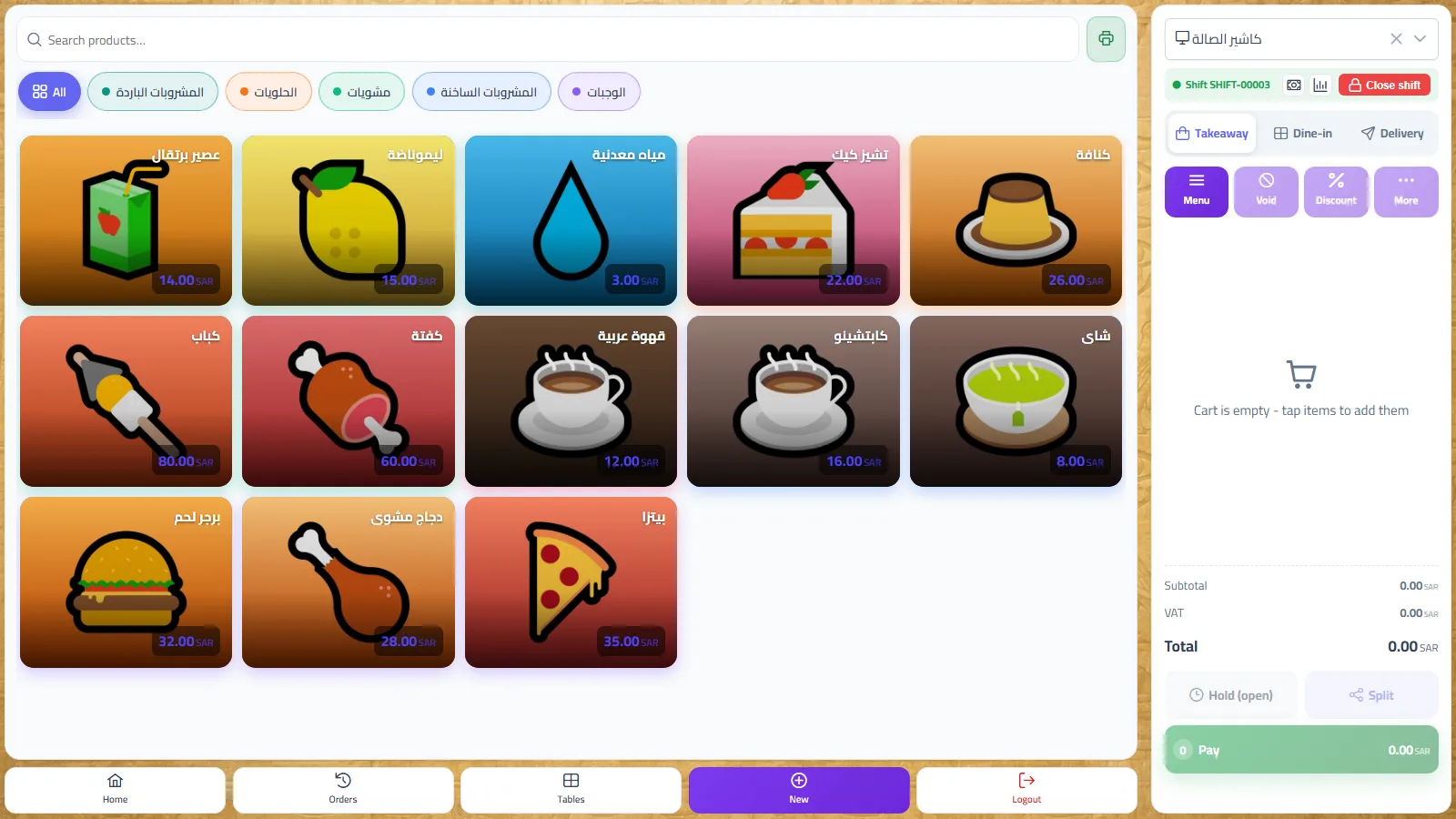
Purpose: the main order-taking screen, built for fast touch. Use it for every sale: dine-in tickets sent to the kitchen, takeaway sales paid on the spot, and delivery orders tied to a customer. It runs full-screen (kiosk); the cashier leaves only via the Logout button on the bottom bar. A pure seller — a user holding nothing but the selling permissions — lands here straight after login instead of the dashboard, and is returned here whenever they aim at the dashboard; users with wider permissions land on the dashboard as usual and reach the POS from the menu.
Screen layout
| Element | What it does |
|---|---|
| Search products… | Free-text filter over the item tiles (name Arabic/English or code). The × clears it. |
| Printer icon (next to search) | Local print-agent status: green = network printing live, grey = agent offline, printing falls back to the browser dialog. |
| Category chips | All plus one colored chip per active category, in the category display order. Tap to filter the tiles. |
| Item tiles | Item photo/color, name and price. A badge shows how many of that item are already in the cart. A greyed tile marked Unavailable is “86’d” and cannot be added. |
| Pager (‹ 1 / 2 ›) | Appears when a category has more than 18 tiles. |
| Station selector | Which POS station this terminal is (remembered per browser; a default station on the user profile wins). Picking a station sets the terminal’s cash box automatically. |
| Shift bar | Shift status + Open shift / Close shift, plus two icons: Cash movement and X-Report. Shown once a station is selected. |
| Order-type buttons | Takeaway (default) / Dine-in / Delivery. |
| Order toolbar | Menu (clear the category filter and search), Void (clear the whole unsent ticket), Discount, More. |
| Cart lines | Item, chosen modifiers, unit price, − / + quantity buttons, line total, and a trash button to remove the line. |
| Totals strip | Subtotal, discount, VAT, service charge, extra charge, tip, and the grand total. |
| Action buttons | Depend on the order type — see the table below. |
| Bottom bar | Back office (restaurant dashboard — shown only to users with permissions beyond the POS) · Orders · Tables (floor plan) · New (clear and start a fresh ticket) · Logout. Each button is gated by its own permission, so a seller never sees one that refuses them. |
Order types and what each one needs
| Type | Extra fields | Action buttons |
|---|---|---|
| Takeaway | None. | Hold (open) — save the ticket unpaid · Split — split payment across tenders · Pay — settle now. |
| Dine-in | Table + waiter (dropdowns with search). | Send to kitchen only — the ticket stays Open and is settled later (recall → Pay, or the pay icon on the Orders screen). |
| Delivery | Delivery customer button → phone (searches the customer book as you type, min 3 digits), name and address. Phone + name are mandatory. | Hold (open) (typical for cash-on-delivery) · Split · Pay. |
The modifiers dialog
Tapping an item that has modifier groups opens a chooser before it lands in the cart:
- A group marked Required (min ≥ 1) must have a selection — Add to order refuses otherwise.
- A group showing Choose up to N caps the selections; in a single-choice group, tapping another option replaces the previous one.
- Options with a surcharge show +amount; the button’s price updates live (item price + selected surcharges).
- The same item with different modifier combinations makes separate cart lines.
Discounts (permission-governed)
- With items in the cart, tap Discount on the toolbar.
- Pick a preset chip: 5% · 10% · 15% · 25% · Comp 100% (Comp = free of charge).
- A discount / comp reason becomes mandatory — pick a preset (hospitality, staff, customer complaint, marketing offer, management comp) or type your own. The order cannot be placed without it.
- If your user lacks the discount authority, placing the order returns “Manager approval required” — a manager types their username and password in the dialog and the order goes through. The approval is recorded with the order.
VAT is scaled down in proportion to the discount, so tax is charged on what is actually paid.
The “More” menu (order attributes)
| Action | Effect |
|---|---|
| Add notes | Free-text note stored on the order (e.g. “no onions, allergy”). Also printed context for the kitchen. |
| Add tags | Keywords for filtering/reporting (type + Enter, several allowed). |
| Set guests | Number of guests on the ticket. |
| Add charge | An extra amount with its own description (e.g. “Delivery”). Added on top of the total, not taxed. |
| Add tip | Gratuity — added to what the customer pays and posted to the tips-payable account (a liability, not revenue). |
| Add call name | The name called out when the order is ready — it also shows on the pickup board under the order number. |
Hold, recall, and adding items to an open ticket
An order saved without payment (Hold or Send to kitchen) keeps status Open. Recall it into the POS from the Orders screen (recall icon), or by tapping its table on the floor plan. The recall dialog shows the ticket and offers actions by status:
| Status | Available actions |
|---|---|
| Open | Cancel (governed void — reason mandatory, manager approval if needed) · Add items · Pay. |
| Paid | Print receipt (reprint) · Close. |
| Cancelled / Refunded | View only. |
Add items (append mode): a banner shows “Adding to ORD-xxxxx”, the ticket’s existing items are listed read-only with the current total, and the cart collects only the new items. The totals strip shows the new-items total and the order total after adding. Tap Add to order to save (new lines also print to the kitchen), or the × on the banner to leave without saving. Order-level discount and “More” attributes are hidden while appending — they belong to the whole ticket, not to an append.
Split payment (several tenders, one ticket)
- Tap Split (takeaway/delivery ticket with items in the cart).
- Tap a payment method (the station cash box, banks/cards…) — it becomes the active tender.
- Key its amount on the numpad. C clears, ⌫ backspaces, and the Remaining key fills the tender with everything still unpaid.
- Repeat for the next method. Each tender can be removed with its ×. Amounts are capped so tenders never exceed the total.
- Pay enables only when Remaining = 0.00 — the order is settled and posted with all tenders recorded.
Example — total 115.00: tap Card, key 80 → tap Cash, press Remaining → 35.00 fills in, remaining shows 0.00 → Pay.
The payment receipt dialog
After Pay, a thermal-style preview of the Simplified Tax Invoice opens. The preview scrolls while the buttons stay pinned at the bottom of the dialog. It shows: company logo and name, VAT No., city, order number/date/type, table, delivery customer (name, phone, address), waiter, guests, call name, every line as qty × unit price — modifiers, then subtotal, discount, service charge, extra charge, VAT, tip and the total, and the configurable footer line.
- Amount tendered — a cashier aid under the preview: type what the customer handed over and the change due is computed (tendered − total). It is not printed.
- When the print agent is up and the station has a network printer, the receipt prints automatically and the dialog notes “Printing to: <printer> (network printer)”. The Print button reprints; without an agent it opens the browser print dialog (80 mm layout).
Shifts: open, X-Report, cash movements, close
- Open shift: with a station selected, tap Open shift and enter the opening float (cash). While a station is selected and no shift is open, selling is blocked — the open-shift dialog appears instead.
- Cash movement (money-bill icon): record a Paid in (drawer top-up) or Paid out (supplies, bank deposit, petty expense) with an amount and a mandatory reason. Presets are offered.
- X-Report (chart icon): the same shift summary read mid-shift, without closing — sales so far, payments breakdown and drawer expectation.
- Close shift: requires the
REST.Shifts.Closepermission (otherwise the bar shows “Closing is a supervisor action”). Enter the counted cash physically in the drawer — the Z-report opens (and auto-prints to the network printer when the agent is up).
Offline mode
- The menu, tables, waiters and tenders are cached locally — the POS keeps rendering and selling if the server drops.
- Orders placed while disconnected are queued locally: a red badge shows “Offline — selling continues locally”; once the connection returns the badge turns amber (“Awaiting sync (n)”) and the queue sends automatically.
- Tap the badge to open the queue: each parked order shows type, items count, time and total, with Sync now and a per-order discard button. A client reference guarantees a replay never duplicates an order.
Worked example — a dine-in table, start to finish
- Station CASH-01 selected, shift open. Tap Dine-in, choose table T-05 and waiter Ahmed.
- Tap Grilled Chicken (27.00). The modifiers dialog opens — in the “Sauces” group pick Hot sauce +3.00 → Add to order. The line lands at 30.00; press + on the cart line → qty 2, line total 60.00.
- Tap Family Salad (28.00) — no modifiers, added directly.
- Totals: subtotal 88.00 · VAT 15% 13.20 · total 101.20. Tap Send to kitchen (the button shows 3 items and 101.20).
- Order ORD-00045 is created with status Open: table T-05 turns red on the floor plan, the card appears on the kitchen display, and kitchen tickets print on the category printers.
- The guests order a juice later: on the floor plan tap T-05 (or Orders → recall icon) → Add items → tap Orange Juice (12.00) → Add to order. New items 12.00 + 1.80 VAT = 13.80; order total after adding: 115.00.
- The guests want to pay 60/40: Orders screen → split-bill icon on ORD-00045 → checks: 2 → assign the two chickens to check 1, the salad and juice to check 2. Live totals: check 1 69.00 (60%), check 2 46.00 (40%) → confirm. Check 1 stays as ORD-00045; check 2 becomes a new open order (e.g. ORD-00046).
- Settle check 1: recall ORD-00045 → Pay → 69.00 goes to the station cash box and the receipt opens. The guest hands 70.00 — type it in Amount tendered → Change due 1.00.
- Settle check 2 the same way: total 46.00, tendered 50.00 → change 4.00. Table T-05 turns green again.
Worked example — a shift day with a 500 float
- 09:00 — pick station CASH-01 → Open shift → opening float 500.00. Shift SH-00012 shows in the shift bar.
- 11:30 — buy kitchen supplies from the drawer: Cash movement → Paid out · 150.00 · reason “Buy supplies”.
- 15:00 — X-Report to see sales so far. The drawer stays open.
- 23:00 — the day ends with 42 orders: net sales 3,000.00 + VAT 450.00 = gross 3,450.00; payments: cash 2,150.00, card 1,300.00.
- A supervisor taps Close shift and counts the drawer: 2,495.00.
- The Z-report opens: expected cash = 500.00 (float) + 2,150.00 (cash sales) − 150.00 (paid out) = 2,500.00; counted 2,495.00 → variance −5.00 shown in red (a shortage). The report lists the payments breakdown and every cash movement with its reason, and auto-prints when the agent is connected.
| Z-report line | Meaning |
|---|---|
| Orders | Number of orders settled during the shift. |
| Net sales | Sales after discounts, before VAT. |
| VAT / Total | Tax collected and the gross total. |
| Payments breakdown | Amount received per tender (cash box, each bank/card account). |
| Opening float / Paid in / Paid out | The drawer’s starting cash and in-shift movements. |
| Expected cash | Float + cash sales + paid-in − paid-out. |
| Counted cash / Variance | What was physically counted, and counted − expected (negative = shortage, shown red). |
FAQ
| Question | Answer |
|---|---|
| Why is the Pay button missing on a dine-in ticket? | By design a dine-in order is sent to the kitchen first and stays Open; it is paid later via recall → Pay or the pay icon on the Orders screen. |
| Why does the open-shift dialog appear when I press Pay? | A station is selected but no shift is open — selling is blocked until you open one (enter the float, 0 is allowed). |
| Can I change the payment account? | With a station selected the cash box comes from the station definition. Use Split to receive on other tenders (cards/banks), or clear the station to reveal a manual account picker. |
| How do I remove one wrong line before sending? | Use the trash button on the cart line (any quantity), or − to reduce. Void on the toolbar clears the whole unsent ticket. |
Kitchen display
Route: Restaurant › Kitchen — /rest/kitchen
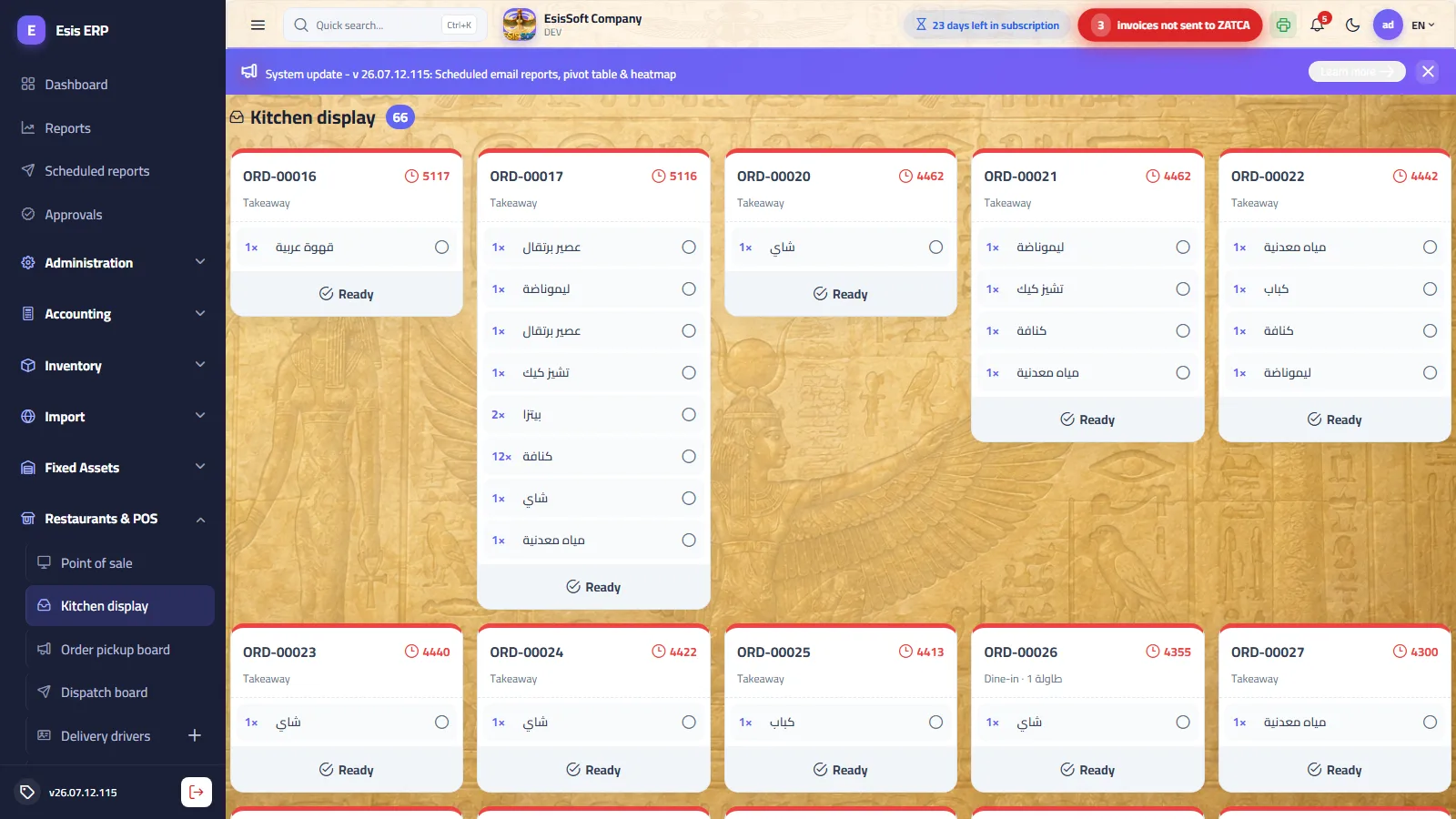
Purpose: the cooks’ live queue. Every open order sent from the POS appears as a card; the kitchen works it, ticks lines off, and bumps the order when done. Runs on any networked screen or tablet — no printer needed. Refreshes itself every 15 seconds.
| Element | Meaning |
|---|---|
| Card header | Order number + a live minutes counter since the order was placed. |
| Card color | Waiting age: green < 5 min · amber 5–10 min · red ≥ 10 min. |
| Sub-line | Order type (Dine-in / Takeaway) and the table when there is one. |
| Item rows | qty × item. Tap a row to tick it prepared (✓) — tap again to untick. |
| Ready button | Bumps the whole order off the board. It highlights once every line is ticked, but can be pressed at any time. |
- A new card appears (within at most 15 seconds of the POS sending it).
- The cook ticks each line as it is plated.
- Ready → the card disappears; the order number moves to the pickup board’s “Ready” column, and a delivery order shows the Ready badge on the dispatch board.
FAQ
| Question | Answer |
|---|---|
| I pressed Ready by mistake — can I bring the card back? | Not from the KDS. The order itself is untouched (still Open in Orders) — re-check its lines there and keep cooking; only the board card is bumped. |
| Do delivery orders show here? | Yes — every open order’s lines reach the kitchen; bumping one flips its “Preparing” badge to “Ready” on the dispatch board. |
| Does ticking lines print anything? | No. Kitchen tickets print at order time (per category printer); the KDS ticks are on-screen workflow only. |
Pickup board
Route: Restaurant › Pickup Board — /rest/pickup (customer-facing)
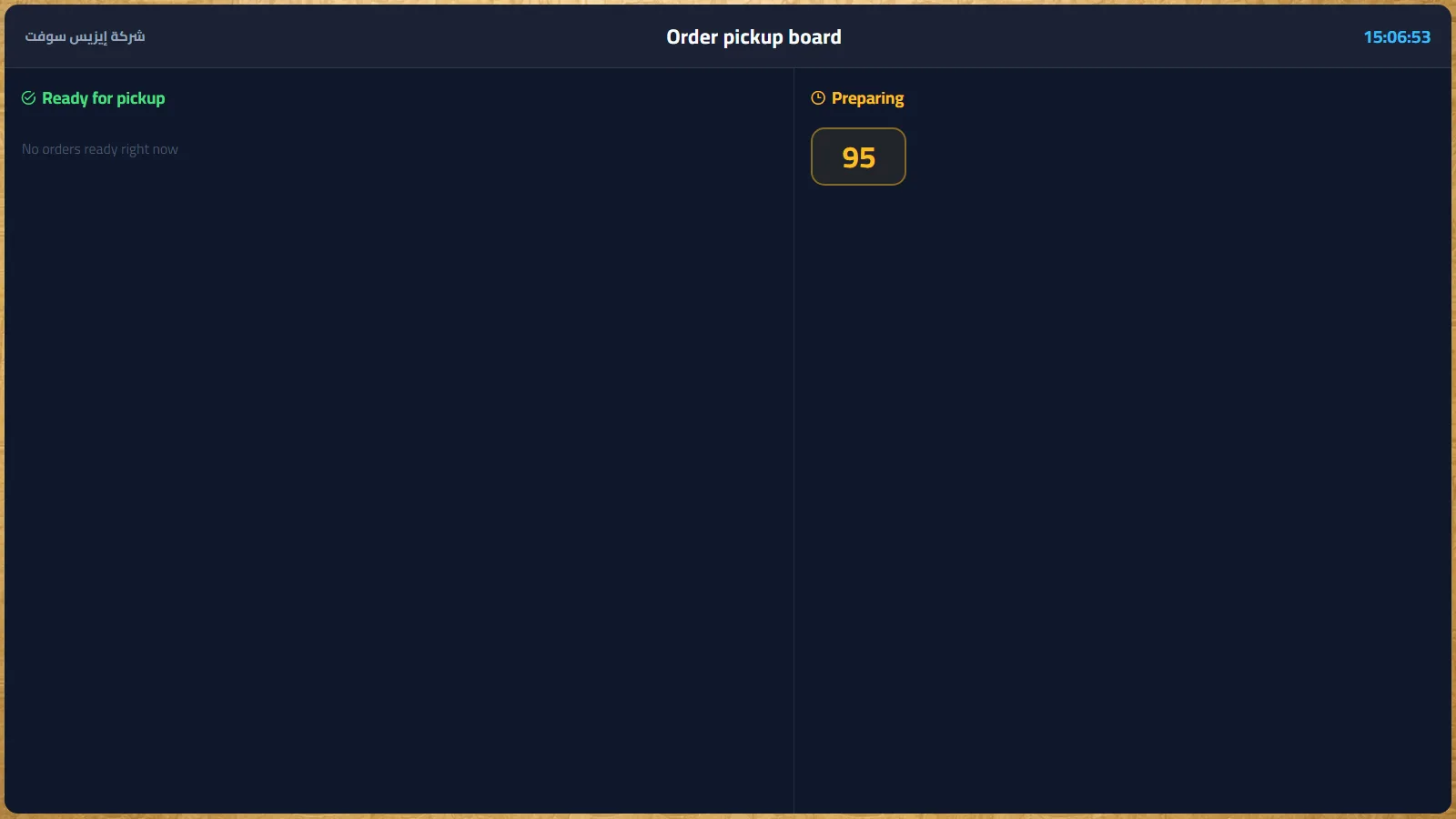
Purpose: a wall/kiosk screen customers watch while waiting. Two columns of big order numbers: Ready for pickup (green) and Preparing (amber), with the company name and a live clock in the header. Refreshes every 10 seconds; a number that just turned ready pulses to catch the eye.
- The big number is the numeric tail of the order number (ORD-00091 shows as 91).
- If a call name was set on the order, it shows under the number.
- “Ready” lists the orders the kitchen bumped in the last 30 minutes — collected orders drop off by themselves, no extra taps.
FAQ
| Question | Answer |
|---|---|
| How does a number move from Preparing to Ready? | The kitchen presses Ready on the order’s KDS card — nothing needs doing on the board itself. |
| A ready number disappeared — why? | Ready numbers auto-expire 30 minutes after the kitchen bump so the board cleans itself. |
| Can I show customer names instead of numbers? | Set a call name on the order (POS → More → Add call name); it appears under the number. |
Dispatch board (delivery)
Route: Restaurant › Dispatch Board — /rest/delivery
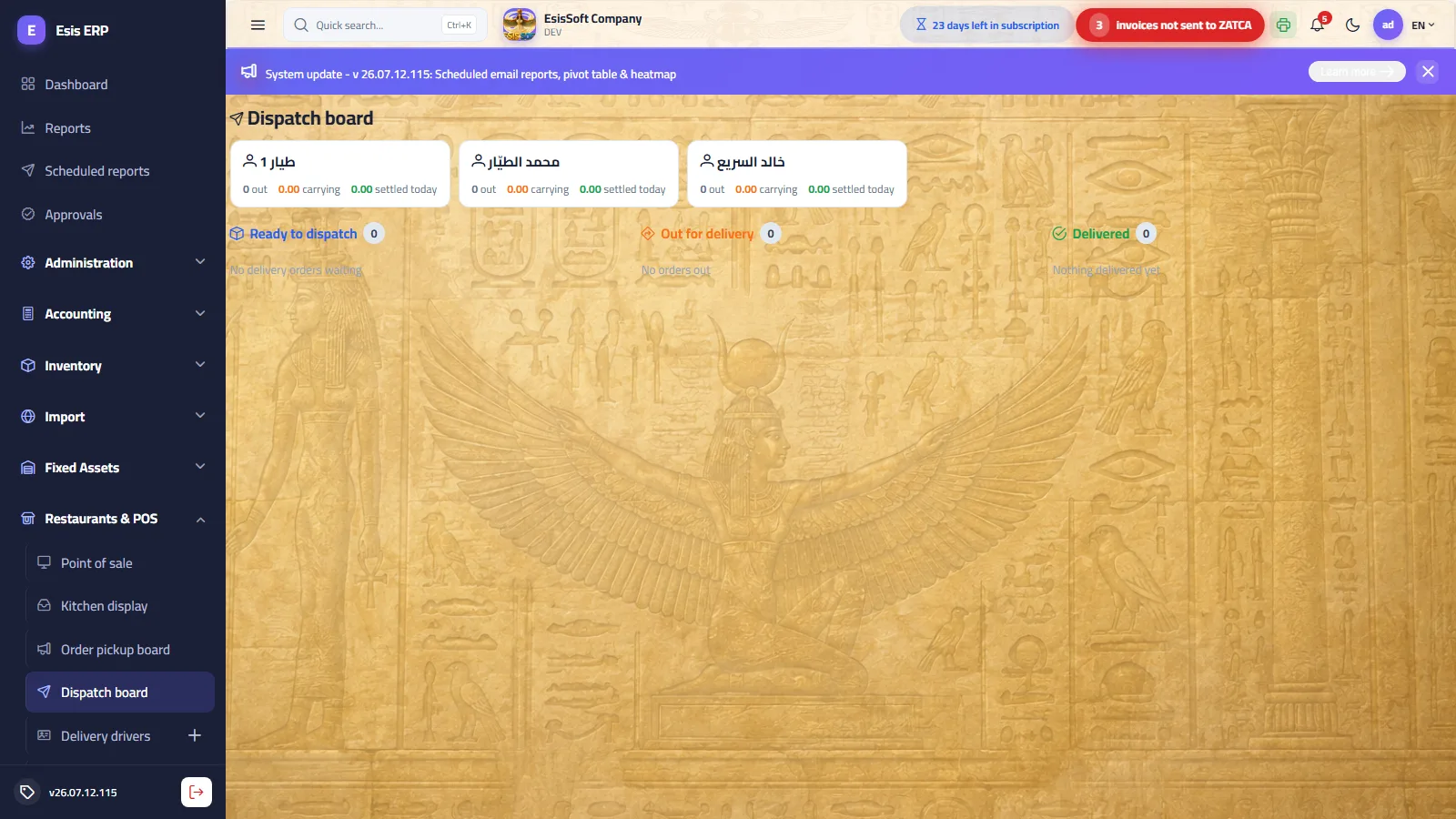
Purpose: the dispatcher’s screen. Three columns follow each delivery order’s life —
Ready to dispatch → Out for delivery → Delivered — plus a driver strip on top that tracks each
rider’s cash accountability in real time. Refreshes every 15 seconds. Driver records (code, name, phone,
active) are managed in Delivery Drivers — /rest/drivers.
| Area | Contents / actions |
|---|---|
| Driver strip | Per driver: out (orders currently with him) · carrying (COD cash physically in his pocket — dispatched and still unpaid) · settled today. A card highlights while the driver carries cash. |
| Ready to dispatch | Delivery orders with customer name/phone/address and total. Badges: Ready (kitchen done) or Preparing, and Paid if settled in advance. Button: Dispatch with driver → pick from the active drivers. |
| Out for delivery | Trip timer per card (amber ≥ 25 min, red ≥ 45 min), the driver’s name, and buttons: Delivered and an undo arrow (Return from driver — back to Ready, e.g. wrong driver picked). |
| Delivered | Trip duration and, for cash-on-delivery orders, the Settle cash button until the rider hands the money over; then the Paid badge. |
Worked example — a COD delivery, end to end
- POS: order type Delivery → Delivery customer → type phone 0551234567; no match, so enter name “Mohammed Al-Harbi” and address “Al-Nakheel district, King Fahd St.” → Done (the customer is saved to the book with the order).
- Add Margherita Pizza 35.00 and Cola 5.00 → subtotal 40.00 + VAT 6.00 = 46.00.
- Cash on delivery → tap Hold (open). The order stays Open (unpaid) and its kitchen tickets print. (If the customer had already paid by card, you would tap Pay instead.)
- The card appears in Ready to dispatch with the Preparing badge; when the kitchen bumps it, the badge flips to Ready.
- Dispatch with driver → pick Saad. The card moves to Out for delivery; the strip shows Saad: 1 out, carrying 46.00.
- The customer confirms receipt → tap Delivered. The card moves to Delivered showing the trip minutes; it is still unpaid, so Settle cash stays on it.
- Saad returns and hands over 46.00 → tap Settle cash. The payment is booked at the till (journal posted), the badge turns Paid, and the strip shows Saad: carrying 0.00 · settled today 46.00.
FAQ
| Question | Answer |
|---|---|
| Can I dispatch before the kitchen finishes? | Yes — “Preparing” is informational; Dispatch is not blocked. Most restaurants wait for the Ready badge. |
| I picked the wrong driver. | Use the undo arrow (Return from driver) on the out-for-delivery card — the order returns to Ready and the cash leaves the driver’s “carrying”. |
| The picker says “No active drivers”. | Create/activate drivers in Delivery Drivers — only active drivers are offered. |
| Where does Settle cash put the money? | It runs the normal pay flow into the till — the order becomes Paid and its journal entry posts, same as a counter sale. |
Orders
Route: Restaurant › Orders — /rest/orders
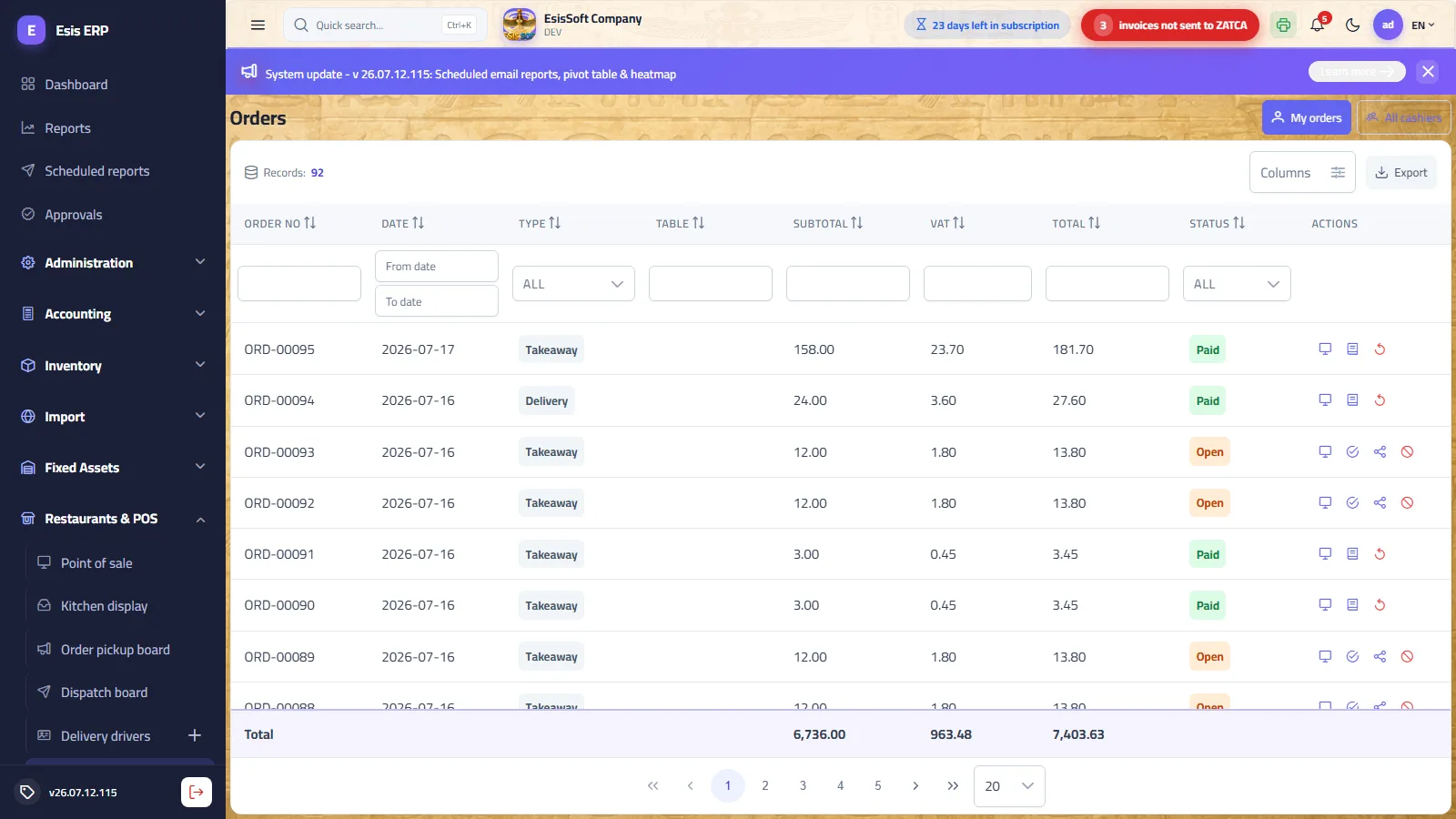
Purpose: the central log of every ticket. Columns: order no, date, type (Dine-in / Takeaway / Delivery),
table, subtotal, VAT and total (with column sums), and status. Use the table’s filters to search by any column.
Holders of REST.Orders.ViewAll get a My orders / All cashiers toggle; the all-cashiers view
adds a Cashier column showing who created each ticket.
| Status | Meaning |
|---|---|
| Open | Saved/sent but not paid yet (held ticket, dine-in at the table, COD delivery on the road). |
| Paid | Settled and posted — a journal entry exists and recipe stock is deducted. |
| Cancelled | Voided with a recorded reason (and approver, when one was required). |
| Refunded | A paid ticket that was refunded — journal reversed, stock returned. |
Row actions (by status)
| Icon | Available for | What it does |
|---|---|---|
| Recall in cashier | Any status | Opens the ticket in the POS recall dialog (actions per status). |
| Pay | Open | Opens the POS and settles the ticket at once — the cashier receipt shows/prints there. |
| Split bill | Open | Split the ticket into separate checks by item — see below. |
| Cancel | Open | Governed void: reason mandatory (presets: order mistake, duplicate, customer left, item out, order changed). If you lack the void authority, manager username + password fields appear. |
| Journal entry | Paid | Shows the posted journal entry of the sale. |
| Refund | Paid, with REST.Orders.Refund | After a confirmation: reverses the journal entry and returns depleted stock. Cannot be undone. |
Split bill (separate checks by item)
- Tap the split-bill icon on an Open order.
- Set the number of checks (2–6) with − / +.
- Every line starts on check 1 — tap a check number next to each line to assign it. Live per-check totals show at the bottom.
- Confirm (enabled once at least one line sits on a check other than 1). Check 1 stays on the original order; each other check becomes a new open order, each payable separately.
FAQ
| Question | Answer |
|---|---|
| Why can’t I see my colleague’s orders? | The default scope is “My orders”. The all-cashiers view needs the REST.Orders.ViewAll permission. |
| Can I edit a paid order? | No — a paid order is posted. Refund it (permission required) and re-ring the correct one. |
| Can a split check be re-merged? | Yes — each check is a normal open order; use Merge/Move items on the floor plan, or just pay them separately. |
Floor plan
Route: Restaurant › Floor Plan — /rest/floor
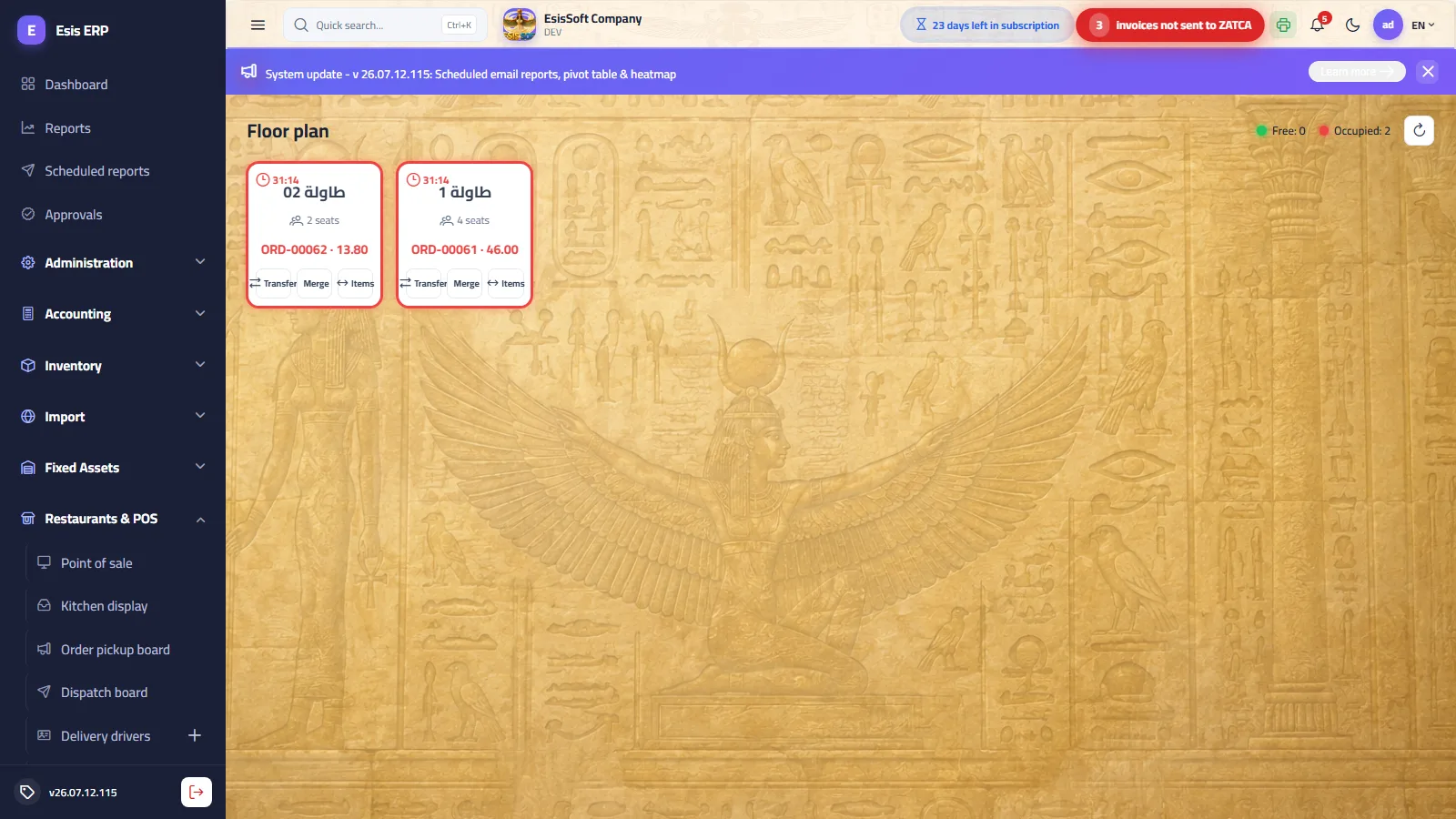
Purpose: the live state of the dining room. The header counts Free and Occupied tables (with a manual refresh button). Each tile shows the table name and seats; an occupied tile adds a running occupancy timer, the open order’s number and its current total.
- Tap a free (green) table → the POS opens with a new dine-in ticket pre-selected on that table.
- Tap an occupied (red) table → the POS opens with that table’s order recalled (add items / pay / cancel).
Table operations (buttons on an occupied tile)
| Button | What it does |
|---|---|
| Transfer | Move the open order to a free table (guests changed seats). Pick the target from the list. |
| Merge | Merge this table’s order into another occupied table’s order: the items move to the target and this order is closed. One combined bill. |
| Items (Move items) | Tick specific lines of this order and move them to another occupied table’s order — both orders’ totals recompute. |
FAQ
| Question | Answer |
|---|---|
| Transfer shows “No free tables”. | Transfer targets only free tables. Free one first, or use Merge into an occupied table. |
| A table stays red after the guests left. | Its order is still Open — recall it and Pay (or Cancel with a reason). Paying returns the table to green. |
| Where do I define the tables? | Dining Tables — /rest/tables: code, name and seats (1–40); deactivate ones no longer in use. |
Menu (items, categories, modifiers)
Route: Restaurant › Menu Items / Categories / Modifier Groups
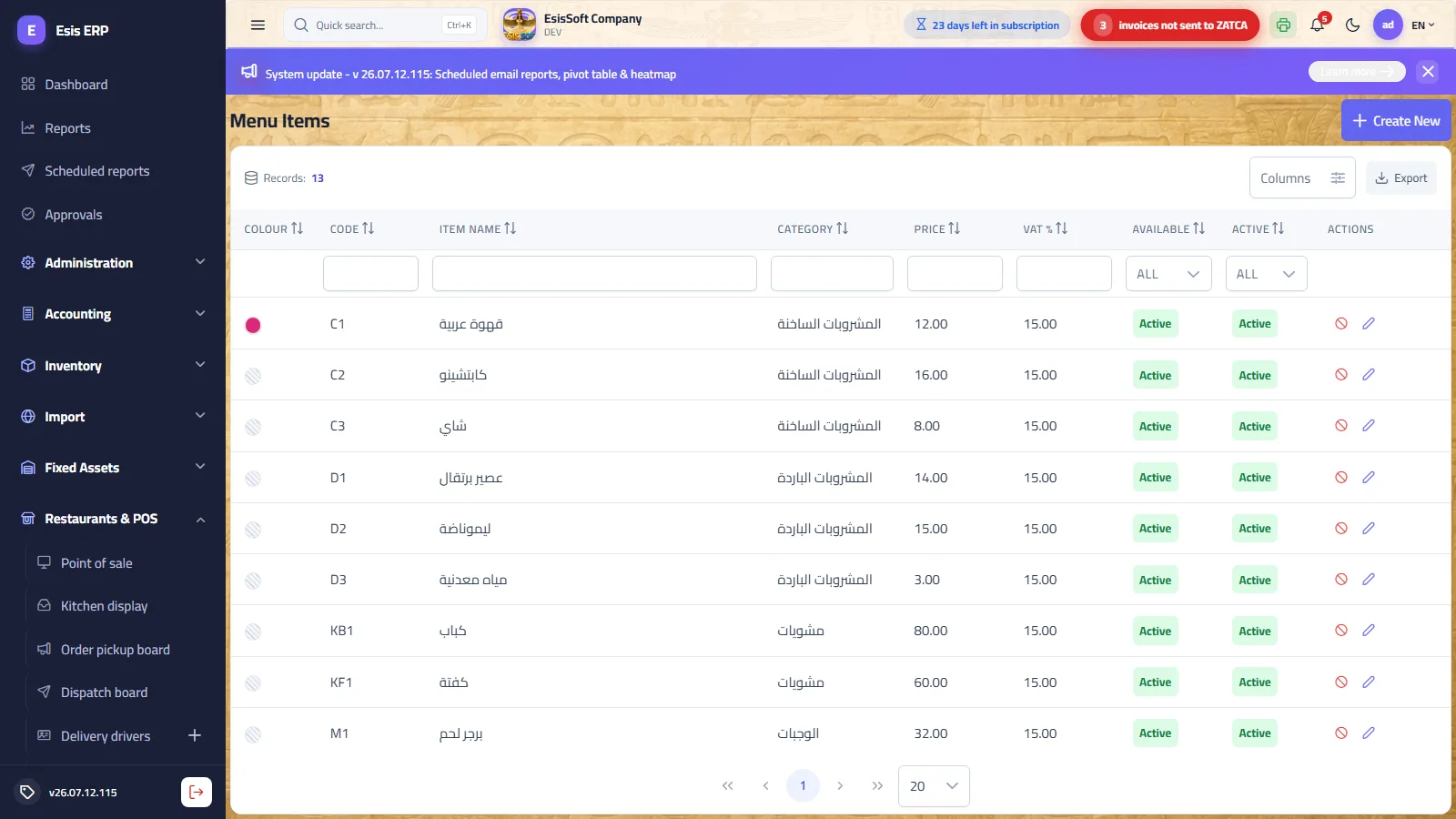
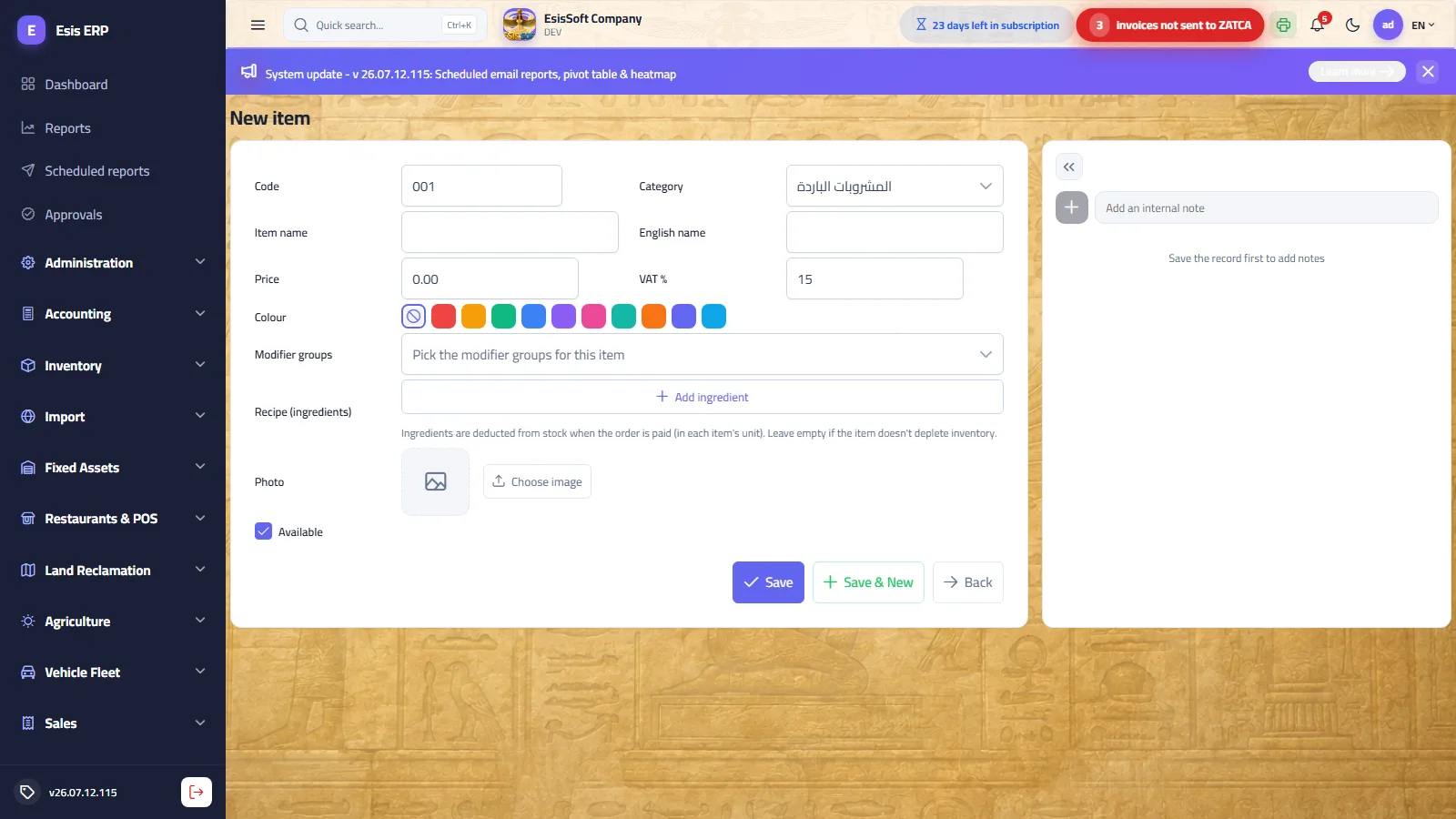
Purpose: everything the cashier sells is defined here — sections, dishes, and the option sets (modifiers) that pop up when ordering.
Menu categories — /rest/categories
| Field | Meaning |
|---|---|
| Code | Assigned automatically. |
| Display order | Position of the category chip on the POS (and the grouping order of tiles). |
| Name (AR/EN) | The chip label. |
| Colour | The chip/tile colour for this section. |
| Kitchen printer | This is where station routing is set: order lines of this category print on this printer (grill, cold kitchen, bar…). If empty, the default kitchen printer from Restaurant settings is used. |
| Active | Inactive categories disappear from the POS. |
Menu items — /rest/menu
| Field | Meaning |
|---|---|
| Code / Category / Name (AR/EN) | The dish and the section it appears under. |
| Price / VAT % | Selling price and the tax rate applied per line. |
| Colour / Photo | The POS tile look — a photo tile if uploaded, else the colour (falls back to the category colour). |
| Modifier groups | Which option sets open when the item is tapped (multi-select). |
| Recipe (ingredients) | Inventory items + quantity (in each ingredient’s unit) deducted from stock when the order is paid. Leave empty for items that don’t deplete inventory. |
| Available | Untick to “86” the item (temporarily out). The list also has a quick toggle: Mark 86 (out) / Mark available — the tile stays visible but greyed and cannot be added. |
| Active | Inactive items leave the POS entirely. |
Modifier groups — /rest/modifiers
| Field | Meaning |
|---|---|
| Group name | e.g. “Size”, “Extras”, “Remove…”. |
| Min select | ≥ 1 makes the group Required in the POS dialog. |
| Max select | 1 = single choice (a new tap replaces the old); > 1 shows “Choose up to N”. |
| Options | Inline rows: option name, price +/− (surcharge added to the item price), active. |
FAQ
| Question | Answer |
|---|---|
| Where do I set an item’s station printer? | On its category (Kitchen printer field). Items inherit the category routing; the settings-level default kitchen printer is the fallback. |
| When does the recipe deduct stock? | On payment. A refund returns the deducted quantities. |
| What is the difference between Available and Active? | Available = temporary (86) — the greyed tile stays visible; Active = the item exists on the menu at all. |
| An item price changed — do open orders update? | No. Lines keep the price at which they were rung; new lines use the new price. |
Operations setup: waiters, stations, printers
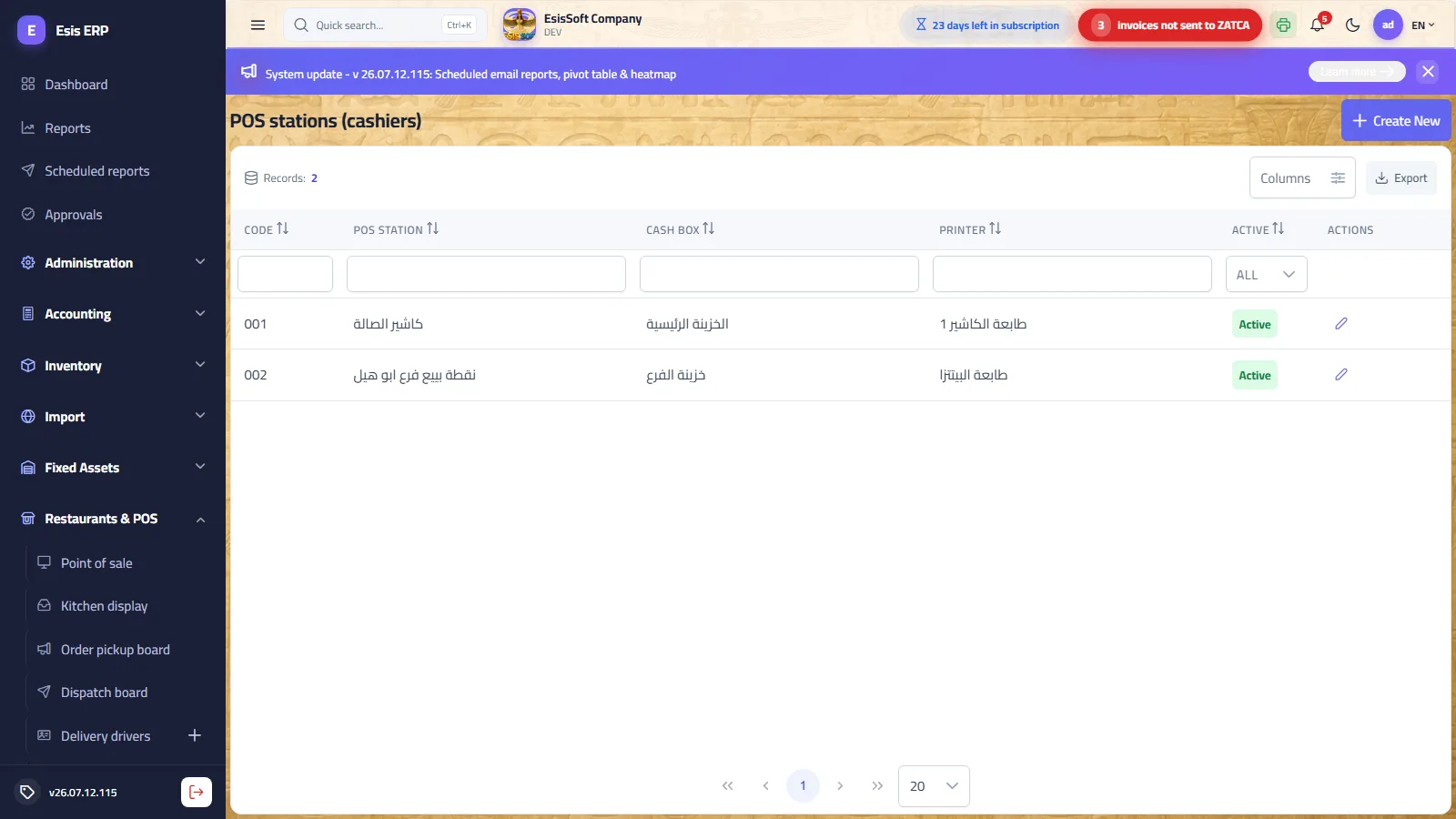
| Screen | Fields & purpose |
|---|---|
Waiters /rest/waiters | Code (auto) + name + active. Dine-in orders attribute to their waiter (shown on the ticket and receipt) for performance follow-up. |
POS stations /rest/pos-stations | Code + name + cash box (the till account this terminal’s cash lands in) + receipt printer + active. The cashier picks the station once on the POS; the choice is remembered per browser, a default station on the user profile takes precedence, and a lone station is picked automatically. On creation: an empty cash box creates a till account named after the station under the main cash parent, and an empty printer links the default kitchen printer — or creates a Bluetooth printer named after the station. A new restaurant company is born with a POS station and a Bluetooth cashier printer ready. |
Printers /rest/printers | Code + name + connection + active. Network: shows IP address and port (usually 9100) and prints automatically through the local print agent. Bluetooth: paired with the cashier device itself, so it has no address and prints through the browser dialog to the paired printer. Referenced by stations (receipts) and categories (kitchen tickets). |
FAQ
| Question | Answer |
|---|---|
| Two cashier terminals — how? | Create two stations, each with its own cash box and receipt printer. Each terminal picks its own station; shifts and Z-reports are per station. |
| Do waiters log in? | No — the waiter is a dropdown attribution on the dine-in ticket, not a login. |
| What port do thermal printers use? | Almost always 9100 (raw TCP). Give each printer a fixed IP on the LAN. |
How printing works
Purpose: understand which paper comes out of which printer, and why — before blaming the hardware.
Two printer roles
| Role | Assigned where | Prints |
|---|---|---|
| Cashier (receipt) printer | On the POS station. | The customer receipt (Simplified Tax Invoice) and the shift Z-report. |
| Station (kitchen) printers | On each menu category; a settings-level default kitchen printer is the fallback. | Kitchen tickets — the order’s lines grouped per printer (grill lines to the grill, drinks to the bar…), each ticket headed by order no, type, table and waiter, with modifiers under each line. |
What prints when
| Event | Output |
|---|---|
| Pay (or Split pay) | Receipt auto-prints to the station printer (agent connected) + kitchen tickets for the lines. |
| Send to kitchen / Hold | Kitchen tickets only — no receipt (nothing was paid yet). |
| Add items to an open ticket | Kitchen tickets for the new lines. |
| Recall a paid order → Print receipt | Receipt reprint. |
| Close shift | Z-report auto-prints (agent connected); the dialog’s Print button reprints anytime. |
The local print agent
- Browsers cannot open raw TCP connections, so a tiny KEMTOVA ERP Print Agent runs on the cashier PC
(local address
127.0.0.1:18731) and relays print jobs straight to the network printers (IP:port) — no Windows print dialogs. - The POS probes the agent about every 20 seconds — the printer icon next to the search box is green when connected.
- Agent down or no printer configured → receipts fall back to the browser print dialog (80 mm layout). Kitchen tickets require the agent — lines whose category resolves to no printer are skipped silently.
- One kitchen printer failing never blocks the other printers or the sale.
Permission-gated operations
Purpose: the sensitive POS actions and who may perform them. Anything money-negative (discounts, voids, refunds) is either permission-gated or requires an on-the-spot manager approval.
| Operation | Requirement | Notes |
|---|---|---|
| Open shift | Any cashier | Enter the opening float. |
| Close shift (Z) | REST.Shifts.Close | Without it the shift bar shows “Closing is a supervisor action”. |
| Discount / Comp 100% | Discount authority, else manager approval | Reason always mandatory. Lacking the authority, the “Manager approval required” dialog collects a manager’s username + password and retries. |
| Void / cancel an open order | Void authority, else manager approval | Reason always mandatory (presets offered); the reason and approver are stored on the order. |
| Refund a paid order | REST.Orders.Refund | Confirmed dialog; reverses the journal entry and returns stock. |
| View all cashiers’ orders | REST.Orders.ViewAll | Enables the “All cashiers” toggle + Cashier column on the Orders screen. |
Troubleshooting
| Symptom | Likely cause | Fix |
|---|---|---|
| Order doesn’t appear on the kitchen display | The KDS refreshes every 15 s — or the card was bumped Ready by mistake — or the order was placed offline and is still queued. | Wait one refresh; check the order is still Open in Orders; check the POS offline badge and press Sync now. |
| Kitchen ticket didn’t print | Agent offline (grey icon), or the item’s category has no kitchen printer and no default is set, or wrong printer IP. Kitchen print failures are silent by design. | Start the agent (icon turns green); set the category’s kitchen printer or the settings default; verify IP:port (9100) and that the printer is on the LAN. |
| Receipt didn’t come out / “Network printer failed” | Printer off, unreachable IP, or agent stopped. | The POS already fell back to the browser dialog so the customer gets a receipt. Then check the printer power/IP and the agent; reprint via recall → Print receipt. |
| Shift won’t close | Missing REST.Shifts.Close. | Ask a supervisor — the bar itself says “Closing is a supervisor action”. |
| Every Pay attempt opens the open-shift dialog | A station is selected with no open shift — selling is deliberately blocked. | Open the shift (float may be 0), or clear the station selection for stationless selling. |
| An item can’t be added (“currently unavailable”) | The item is 86’d. | Menu items list → Mark available on the item. |
| Delivery order won’t place | Customer phone + name are mandatory for delivery. | The customer dialog opens by itself — fill phone (≥ 5 digits) and name. |
| Discount refuses with “Manager approval required” | The cashier lacks the discount authority. | A manager enters their credentials in the dialog — or grant the authority via role permissions. |
| Red “Offline” badge on the cart | The server is unreachable; orders queue locally. | Keep selling. When the badge turns amber, tap it → Sync now. Never clear browser site data while orders are queued. |
| Z-report variance is negative | Counted cash < expected (float + cash sales + paid-ins − paid-outs). | Recount; verify every drawer movement was recorded as a cash movement with a reason. |
Frequently asked questions
How do I set up the menu?
Create menu categories and menu items with prices; add modifier groups (e.g. size, extras) so cashiers can customize orders at the point of sale.
How does the POS order flow work?
Open an order (dine-in table, takeaway or delivery), add menu items and modifiers, then send to the kitchen and settle payment when the order is complete.
Can I manage dining tables and waiters?
Yes. Tables, waiters and delivery drivers are master data; orders are linked to a table/waiter so you can track service and turnover.
Does the restaurant module affect inventory?
Menu items can be backed by stock items so that selling a dish deducts its ingredients, keeping food inventory accurate.