Signing in and exploring the interface
Everything you need to log in and move around the system efficiently.
Login screen
Route: /auth/login
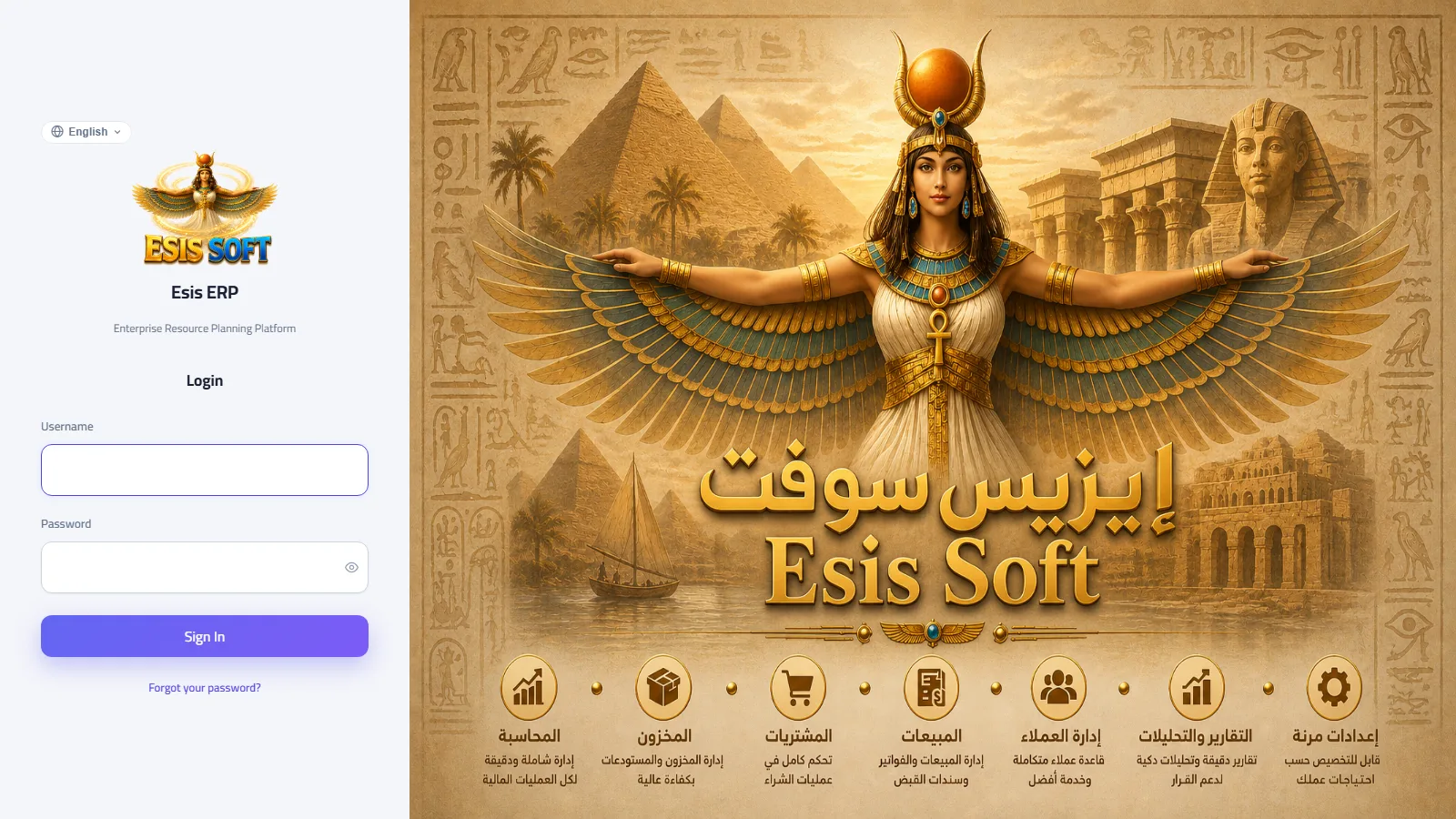
Purpose: the login screen is the single entry point to the system. It verifies your identity, applies your preferred interface language, and — when your account belongs to more than one company — lets you choose which company to work in for this session.
Elements on the screen
| Element | Purpose |
|---|---|
| Language button (globe icon) | At the top of the card. Opens a dropdown listing all interface languages — العربية / English / Indonesia. Your pick applies instantly, before you even sign in. |
| Username | Your login ID, assigned by the system administrator when your account was created. It is not necessarily an email address. |
| Password | Case-sensitive. The eye icon inside the field temporarily reveals what you typed so you can check it. |
| Sign In | Submits your credentials. The button shows a spinner while the server responds. |
| Forgot your password? | Switches the same card to the password recovery flow (details below). |
| Company selection | Appears after your credentials are accepted, only when your account belongs to more than one company: a button per company — click the one you want to work in. |
Worked example: signing in
- Open the system address in your browser — you land on /auth/login.
- In Username type your login ID, e.g. ahmed.s.
- In Password type your password, e.g. Str0ng-Pass-2026, and check it with the eye icon if unsure.
- Click Sign In.
- If your account has access to several companies, a list of company buttons appears — click, say, Al-Noor Trading Co..
- You land on the dashboard. The interface switches to the preferred language saved on your account, and the sidebar is built from your permissions and your company's subscribed modules.
Messages you may see
| Message | Meaning & what to do |
|---|---|
| “Invalid username or password” | Credentials don't match. Check keyboard language and Caps Lock; use “Forgot your password?” if needed. |
| “Could not connect to the server…” | The request never reached the server — check your internet connection, then try again. |
| “All of your company's concurrent-user licenses are in use” | The number of users signed in at the same time reached your company's license limit. Wait for a colleague to sign out, or ask the administrator to increase seats. |
| “This company's free trial has ended” | The trial period expired — the subscription must be activated before you can continue. |
Forgot your password? — the full recovery flow
- On the login screen click Forgot your password? — the card switches to the recovery form.
- Enter your username (e.g. ahmed.s) and click Send Reset Link.
- A confirmation appears: “If the account exists, a reset link has been sent to your email. The link is valid for one hour.” (The wording is deliberately neutral — it never reveals whether a username exists.)
- Open the email and click the link — it opens the Set a New Password page (/auth/reset-password).
- Type a new password of at least 10 characters, retype it in Confirm Password, then click Set Password.
- On success you get a confirmation and a Back to Login button — sign in with the new password.
Common problems
| Problem | Resolution |
|---|---|
| I don't remember my username | Usernames are assigned by the administrator — ask them; the recovery flow needs the username, not the email. |
| The reset email never arrives | Check the junk/spam folder; make sure you typed the username exactly; verify with the administrator that an email address is recorded on your account. The administrator can also set a new password directly from the Users screen. |
| The reset link says “invalid or expired” | More than an hour passed, or the link was already used, or it was truncated by the mail client. Request a fresh link. |
| I keep being thrown back to the login screen | Your session expired after inactivity, or the same account signed in elsewhere and consumed the seat. Sign in again. |
| Password rejected when resetting | The new password must be at least 10 characters, and both fields must match exactly. |
FAQ
| Question | Answer |
|---|---|
| Can I sign in from two devices at once? | Yes, as long as your company's concurrent-user license limit is not exceeded — each active session counts as one seat. |
| Why did the interface open in a different language than I chose on the login screen? | Signing in applies the preferred language saved on your account. Change it any time from the language dropdown in the top bar — that choice is remembered on this device. |
| Do I choose a company every time? | Only if your account belongs to more than one company. Single-company accounts go straight to the dashboard. |
| Can I change my password without the email flow? | Yes — the administrator can set a new password for you from the Users screen; the email flow is for self-service recovery. |
Main layout
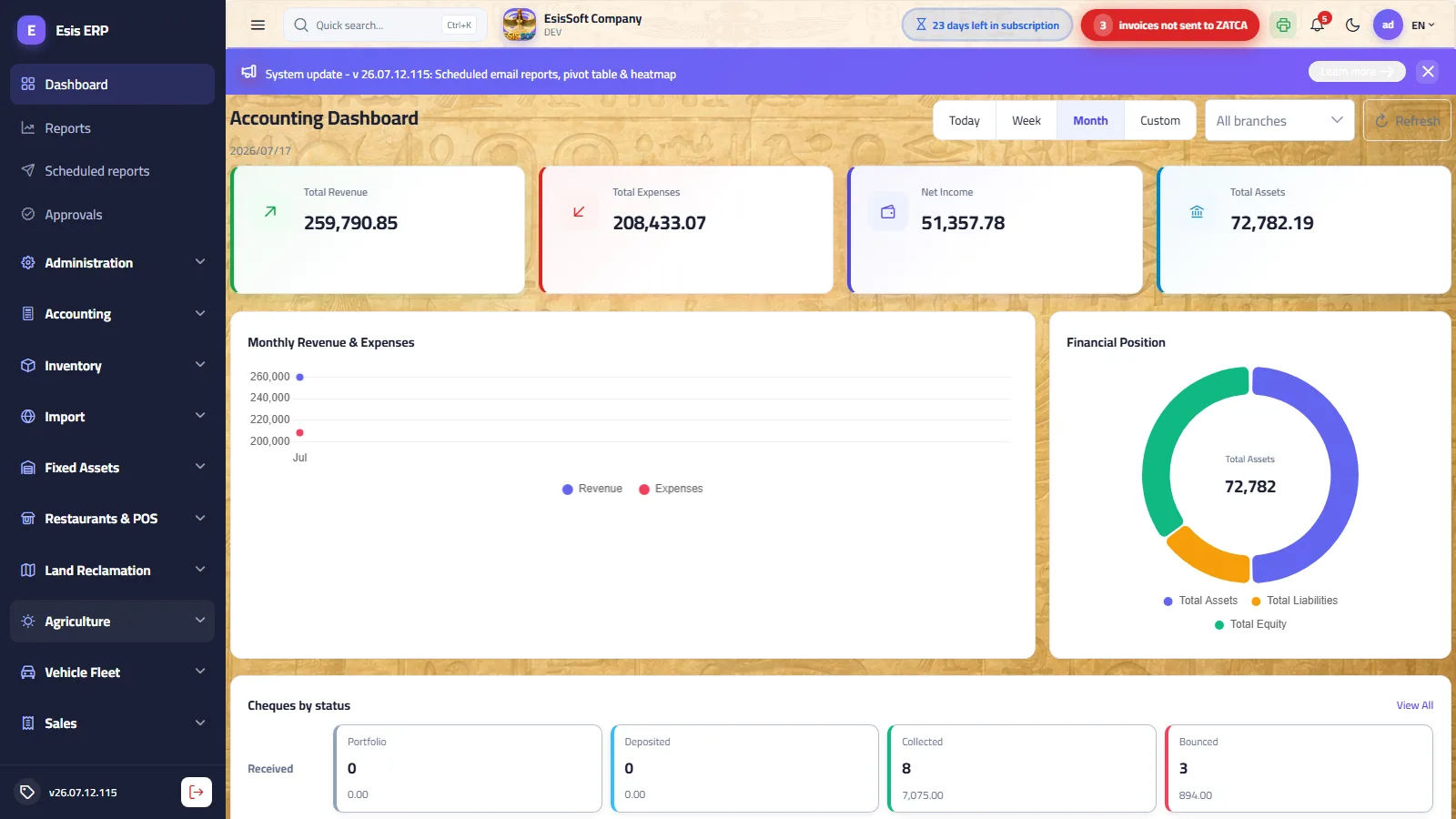
Purpose: everything in the system lives inside one shell: a sidebar for navigation, a top bar for global tools, and the content area where screens open. Knowing the shell well makes every later chapter faster.
Top bar — every element, left to right
| Element | Description |
|---|---|
| Menu button (☰) | On a desktop it folds the sidebar down to a narrow icons rail and back — the preference is remembered. On a phone it slides the sidebar over the content as a drawer. |
| Quick search box | Clicking it opens the command palette — same as pressing Ctrl+K (next section). |
| Company block | Your company's logo (or an initials chip), its name and its code — so you always know which company you are working in. |
| Trial / subscription pill | A pulsing counter such as “12 days left in trial” or “30 days left in subscription”. It turns into “Trial ended / Subscription ended” at expiry. |
| ZATCA alert pill | Appears only when the company is linked to e-invoicing and posted sales invoices have not yet been sent to ZATCA; shows the count and clicking it opens the sending screen. |
| Printer icon | Shown when the local print agent is connected — network receipt/kitchen printing is ready. |
| Bell (notifications) | Opens the notifications inbox; a red badge shows the unread count (details below). |
| Moon / sun icon | Toggles between the light and dark theme instantly. |
| User avatar | Your photo or initials; opens the user menu (details below). |
| Language button (ع / EN / ID) | Opens the language dropdown listing العربية / English / Indonesia, with a check mark next to the active one. |
Sidebar in detail
| Part | Behavior |
|---|---|
| Favorites | If you starred screens in the command palette, they appear as a Favorites group at the very top of the sidebar for one-click access. |
| Module headers | One per module your company subscribes to and you have permission for. Modules always start collapsed; clicking a header opens that module's own dashboard and expands its screen list. Clicking only the small chevron expands/collapses without navigating. |
| Screen links | Grouped under their module. The screen you are on is highlighted, and its module section auto-expands so your location is never hidden. |
| “+” quick-create | Screens that support creating records show a small + on their sidebar row — it jumps straight into a new, empty entry form. |
| Footer | Shows the running version number of the system and a sign-out button. |
User menu
Click your avatar (top bar) to open it. Items are permission-gated — you only see what you are allowed to open:
| Item | Opens |
|---|---|
| Branches | Company branches management. |
| Users | User accounts of your company. |
| Roles & Permissions | Role definitions and the permission grid. |
| Settings | The shared company settings screen (all module tabs). |
| Counters | Document numbering sequences. |
| Print Template Designer | Design of printed document templates. |
| E-Invoicing (ZATCA) | The e-invoicing console. Protected by a daily access code — ask your system administrator or support for it. |
| Cost Maintenance / Entries Maintenance / Fiscal Year Rollover | Accounting maintenance screens (visible with the Accounting module). |
| Lock Screen | Locks the whole application until you re-enter your password (see below). |
| Logout | Ends the session and returns to the login screen. |
Notifications
When you need it: the system notifies you about events addressed to you — the bell badge shows how many are unread, and new notifications arrive live with a toast and a chime, without refreshing the page.
- Click the bell in the top bar — the inbox panel opens with your latest notifications (unread ones are highlighted with a dot).
- Click a notification: it is marked as read, and if it relates to a specific screen you are taken straight to it.
- Use Mark all as read in the panel header to clear the badge in one click.
News / update banner
After a system update, a colored banner appears above the content: “System update – vX: headline”. Click Learn more to open a dialog listing the highlights of that release. The × hides the banner for the current session only — it returns after a refresh until the announcement expires or a newer version replaces it. The same version number is shown permanently in the sidebar footer.
Lock screen
When you need it: stepping away from your desk without losing your open work or your session.
- Open the user menu and click Lock Screen — a full-screen lock overlay covers the application.
- To resume, enter your own password (the same account) and click Unlock or press Enter.
- You are back exactly where you left off.
Common problems
| Problem | Resolution |
|---|---|
| A screen or menu item I expect is missing | Either your role lacks the View permission for it, or the module is not part of your company's subscription. Ask the administrator to check Roles & Permissions. |
| The sidebar shows icons only | It is collapsed — click the ☰ button to expand it. Note that document screens collapse it automatically while you are on them. |
| The bell badge doesn't clear | Open the panel and click Mark all as read; clicking an individual notification clears only that one. |
| The update banner keeps coming back | By design: the × hides it for the session only. It disappears permanently when the announcement expires or a newer release replaces it. |
| “Wrong password” on the lock screen | The unlock accepts only the password of the account that locked it. If that user is unavailable, use Logout on the lock screen and sign in as yourself. |
FAQ
| Question | Answer |
|---|---|
| Does locking the screen sign me out? | No — the session and your open work stay intact; only the display is blocked until your password is re-entered. |
| Why does the trial/subscription pill pulse? | To keep the remaining days visible; it is informational until expiry, when the system requires activation. |
| Is dark mode per user? | The theme choice is saved on the device you set it on, so each workstation keeps its own preference. |
Quick navigation Ctrl + K
Purpose: the command palette is the fastest way to any screen — no mouse, no menu digging. It also hosts your Favorites and Recent Screens.
| Element | Behavior |
|---|---|
| Search field | Auto-focused when the palette opens. Type part of a screen name — matching works in Arabic or English regardless of the current interface language. |
| Favorites | Screens you starred; shown first when the search box is empty. They also appear at the top of the sidebar. |
| Recent Screens | The last 5 screens you actually visited, most recent first — the quickest way back to what you were doing. |
| All Screens | The complete list of screens you have permission to open — the palette never offers a screen that would be blocked. |
| Star (☆ / ★) | Click the star on any row to pin it to Favorites, or click again to unpin. |
| ↑ ↓ Enter Esc | Arrows move the highlight, Enter opens the highlighted screen, Esc closes the palette. |
Worked example
- Press Ctrl+K anywhere (or click the search box in the top bar).
- Type jour — “Journal Entries” appears under Results instantly.
- Press Enter to open it — or click its ★ first so it is pinned to Favorites from now on.
Common problems
| Problem | Resolution |
|---|---|
| Ctrl+K does not open the palette | Some browsers or extensions capture Ctrl+K for their own search. Click the quick-search box in the top bar instead — it opens the same palette. |
| A screen doesn't show up in the search | The palette only lists screens you have permission for — ask the administrator to grant View on it. |
| My favorites/recents vanished on another computer | Favorites and recent screens are saved per device in the browser; star them again on the new machine. |
Language & direction
The interface is available in three languages: العربية (right-to-left), English and Bahasa Indonesia (left-to-right). The switcher is a dropdown, not a two-way toggle:
- In the top bar click the language button (it shows the current language code — ع, EN or ID).
- The dropdown lists all three languages with a check mark on the active one — click your choice.
- The whole interface switches instantly, including text direction (RTL for Arabic), with no reload.
The same dropdown exists on the login screen (globe button at the top of the card), so you can pick your language before signing in. Your choice is remembered on the device; additionally, signing in applies the preferred language saved on your account. All screens and reports are fully multilingual; item and account names are entered in both Arabic and English so they display and print correctly everywhere.
FAQ
| Question | Answer |
|---|---|
| Does switching language affect other users? | No — the language is your personal display setting; data is untouched. |
| Will my documents print in the language I'm using? | Printouts follow the print template design; since master data carries both Arabic and English names, either can be used on templates. |
Working with list screens
Purpose: every module's list screens (invoices, journals, items, customers…) share one toolkit. Learn it once, use it everywhere.
The toolbar above the table
| Element | How it works |
|---|---|
| Records count | At the start of the toolbar: the total number of records on the server for this list. |
| Columns chooser | A dropdown (sliders icon) listing every available column with checkboxes — untick to hide, tick to show. Hidden columns are excluded from the export too. |
| Export | Downloads the list as an Excel-compatible file containing exactly the visible columns and the currently filtered rows, with translated headers. The file is named after the screen. |
| “New” button | Above the list, opens the entry screen for a new record. |
The filter row — one filter under each column header
There is no single global search box; instead a dedicated filter sits directly under every column header, matched to the column's type. Filters apply live, per keystroke, and combine — all active filters must match:
| Column type | Filter control |
|---|---|
| Text | A text box — “contains” matching as you type. |
| Number | A numeric box — Excel-like: typing 15 matches 15, 150, 3,150… |
| Date | Two date pickers, From and To — either side may stay empty for an open-ended range. |
| Status / Active | A multi-select dropdown listing the values actually present in the data — tick one or several; results update on every tick. |
Sorting, paging and totals
| Tool | How it works |
|---|---|
| Sorting | Click a column header to sort ascending/descending; documents default to newest first. |
| Paging | Page controls under the table; choose 10, 20 or 50 rows per page. |
| Totals row | On lists with amount columns, a footer row shows their sums, recomputed over the filtered rows — filter first, read the total of exactly what you filtered. |
| Row actions | View/edit, delete (drafts), print & PDF download for documents — per your permissions. |
| Row selection | Screens with bulk actions show a checkbox column — tick rows (or the header checkbox for all) then run the bulk action. |
Make the table yours — layout that follows you
- Reorder: drag a column header left/right to move the column.
- Resize: drag the edge of a header to widen or narrow the column.
- Show/hide: use the columns chooser in the toolbar.
Worked example: find last month's invoices for one customer
- Open the sales invoices list.
- In the filter under Customer, type Noor — the list narrows as you type.
- In the filter under Date, set From = 2026-06-01 and To = 2026-06-30.
- In the filter under Status, tick Posted only.
- Read the filtered total in the footer row, then click Export to hand the exact result to Excel.
Common problems
| Problem | Resolution |
|---|---|
| The list looks empty although data exists | Almost always a leftover filter — clear the filter row (empty the text boxes, the date pickers' ×, the multi-selects' ×) or reload the screen. |
| A column disappeared | You (or a saved layout) hid it — open the columns chooser and tick it back. |
| The export doesn't include a column I need | The export mirrors the visible columns — show the column first, then export. |
| The footer total doesn't match my expectation | It sums the filtered rows only — check which filters are active. |
FAQ
| Question | Answer |
|---|---|
| Does customizing columns affect my colleagues? | No — the layout is saved per user; everyone has their own. |
| Can I reset to the default layout? | Re-tick all columns in the chooser and drag them back; the layout saves automatically as you adjust. |
| What format is the export? | An Excel-compatible file that opens directly in Excel with Arabic text intact. |
Working with entry screens
Document editors (invoices, journals, vouchers…) share one design:
- Toolbar with Save Save & New Post Print Back and a status pill (Draft/Posted).
- Document header: auto number, date, party (customer/supplier), warehouse, currency… in a tidy 3-column layout.
- Lines grid: add items row by row — Enter walks cell → cell → new row for rapid entry.
- Totals strip: subtotal, discounts, VAT and net — recalculated live.
- Lookup fields (customer, item, account…) support type-to-search, and many offer “+ Create new” to add a missing record without leaving the screen.
Common problems
| Problem | Resolution |
|---|---|
| The customer/item I need is not in the dropdown | Type part of the name to search; if it truly doesn't exist, use “+ Create new” inside the dropdown (when available) or add it from its master screen. |
| Enter submits the form instead of moving to the next cell | Enter navigation is active inside the lines grid; in header fields use Tab to move between fields. |
| The document number field is read-only | Numbers are assigned automatically from the counters — this prevents gaps and duplicates. |
Document lifecycle: Draft → Posted
- Create & save: fill the document and click Save — it is stored as a Draft with no accounting effect; edit or delete freely.
- Post: the system validates (balance, stock, open fiscal period) then generates the journal entry and updates stock and balances.
- After posting: a “View journal entry” button shows the generated entry. Posted documents cannot be edited or deleted — correct via returns or reversing entries.
Common problems
| Problem | Resolution |
|---|---|
| Posting is rejected | Read the validation message: typical causes are an unbalanced entry, insufficient stock, or a date falling in a closed fiscal period. Fix the cause and post again. |
| I need to change a posted document | Posted documents are immutable by design. Issue a return (for invoices) or a reversing/correcting entry (for journals). |
| Save works but Post is not visible | Posting is a separate permission — ask the administrator to grant it to your role. |
Tasks, Calendar & Reminders
Three personal screens available to every user with no special permission — find them at the top of the sidebar.
Tasks
A board with three columns by status: Open → In progress → Done. Click «New task» to add one with a title, priority (Low/Normal/High/Urgent) and due date. You can assign it to a colleague (they get notified) or keep it for yourself, with an optional reminder fired ahead of the due time.
- The tabs set the scope: My tasks / Assigned by me / All, and «Show closed» reveals finished ones too.
- Card buttons: ▶ start, ✓ complete, ↺ reopen, ✎ edit, 🗑 delete (confirmed).
- A task past its due date is flagged with a red edge and an alert-coloured date.
Calendar
A month view gathering everything with a date in one place: task due dates (blue), reminders (orange) and cheque due dates (green). Move between months with the arrows or press «Today» to jump back, and click any entry to open its document.
- Drag and drop: drag a task or reminder onto another day to reschedule it — the target day highlights while you drag, and a reminder keeps its time of day, only the date changes. If the task has a companion reminder it shifts by the same number of days, keeping its lead time.
- Quick add: double-click any day to open a small dialog already set to that day; pick Task or Reminder, type a title and save without leaving the calendar.
- Cheque due dates cannot be moved (accounting data), nor can reminders that already fired or tasks that are done or cancelled.
Reminders
Schedule a reminder with a title and an exact time, and pick the channels: email and/or SMS and/or WhatsApp. A background service sends what is due and marks it «Sent»; if a channel fails, the reason is shown under the reminder instead of failing silently.
Internal notes on a record
Path: Beside the master screens → Notes — —
What it does: A side panel on master cards — customer, supplier, item — where colleagues write what concerns that record: “only receives in the mornings”, “an old claim still being settled”. Knowledge that lives with the record instead of in one employee’s head.
| Field | Description |
|---|---|
| Add a note | Free text attributed to its writer and dated. |
| Today / yesterday / this week / older | Notes are grouped in time so the newest read first. |
| System | Notes the system itself writes about events on the record. |
| Recorded changes | The field with its old and new value — beside the notes rather than on another screen. |
The KEMTOVA assistant
Path: Top bar → The KEMTOVA assistant — —
What it does: Ask about your data in your own language: “total sales this month”, “top ten items”, “who is late on instalments”. The answer comes from your own company’s live data — as a table or a chart — and it respects your permissions, so you are never shown figures you could not see on the screens themselves.
| Field | Description |
|---|---|
| The question | In Arabic, English or Indonesian. |
| Ask by voice | Dictate the question instead of typing it. |
| Table / chart | Switch the shape of the answer. |
| Suggestions | Ready questions to start from when you don’t know what to ask. |
Frequently asked questions
How do I log in to KEMTOVA ERP?
Open your system URL to reach /auth/login, enter the username and password your administrator gave you, then pick a company if your account is linked to more than one.
I forgot my password — what do I do?
Click “Forgot password?” on the login card; the system emails you a secure reset link. If email is not configured, ask your administrator to reset it.
Can I change the interface language?
Yes. Use the globe button on the login screen or in the top bar to switch between Arabic, English and Indonesian at any time.
How do I switch between companies?
If your account belongs to several companies, a company picker appears after login; you can also switch the active company later from the top bar.