Fixed Assets
The company's asset register (buildings, vehicles, equipment, furniture…) with automatic monthly straight-line depreciation and its accounting entries, through to disposal or sale.
ASSET.Categories.*, ASSET.Assets.* and
ASSET.Depreciation.View / Run permissions assigned to your role.
Asset categories
Route: Fixed Assets › Asset Categories — /assets/categories
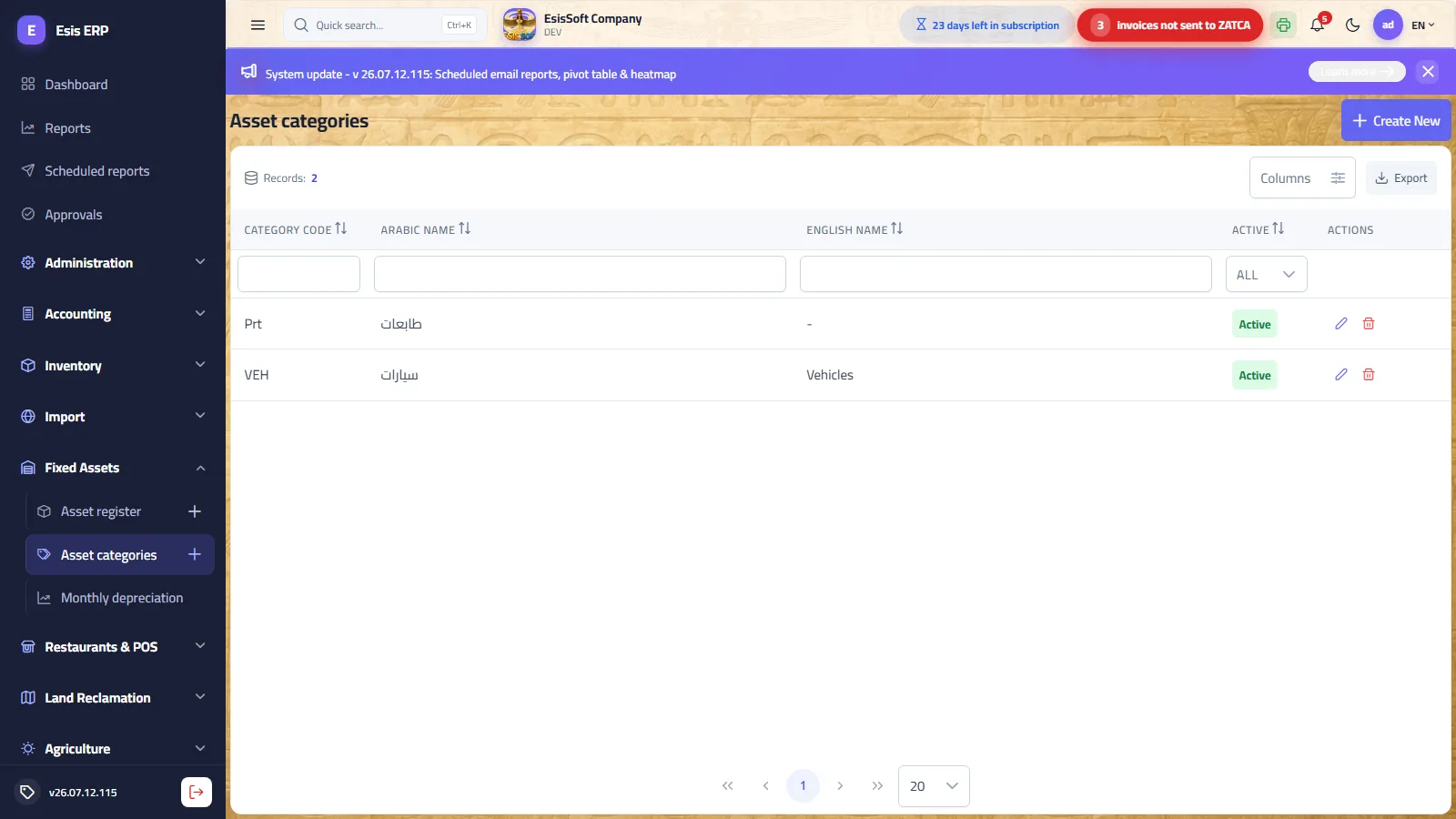
Purpose: start here — the category defines the accounting policy for every asset assigned to it: which balance-sheet account carries the cost, which contra account accumulates depreciation and which P&L account receives the monthly charge. Create one category per kind of asset that should appear as its own line on the balance sheet (Vehicles, Computers, Office furniture, Machinery…).
When: once during module setup, and again whenever a new kind of asset appears. An asset cannot be saved without a category.
Category list
The list shows: category code, Arabic name, English name and the Active flag. Each row offers Edit (pencil) and Delete (trash) actions.
Category editor fields
| Field | Required | Description |
|---|---|---|
| Category code | Auto | Assigned automatically from the master code sequence; read-only, unique (max 30 characters). |
| Arabic name | Yes | e.g. سيارات — max 200 characters. |
| English name | No | If left empty, the Arabic name is copied into it on save. |
| Asset account | Yes | Balance-sheet account where the acquisition cost is capitalized (e.g. “Vehicles at cost”). |
| Accumulated depreciation account | Yes | The contra-asset account credited by every monthly run (e.g. “Accumulated depreciation — vehicles”). |
| Depreciation expense account | Yes | P&L account debited with the monthly charge (e.g. “Depreciation expense — vehicles”). |
| Active | — | Shown when editing only. Inactive categories stay on saved assets but disappear from the category picker for new assets. |
All three account pickers list only posting (leaf) accounts from the chart of accounts, displayed as code – name, with type-ahead search. A notes side panel lets you attach remarks to the category record. Footer buttons: Save, Save & New, Back.
How the account wiring works
Every monthly depreciation run aggregates the charges of all assets per category and posts, for each category: Dr its depreciation expense account / Cr its accumulated depreciation account. The asset account itself is never touched by the run — it keeps the original cost, so the balance sheet shows cost and accumulated depreciation as two separate lines whose difference is the net book value.
Errors & common mistakes
| Situation | What happens / what to do |
|---|---|
| Saving without the Arabic name or with any of the three accounts empty | The form does not save — all three accounts are mandatory. |
| Duplicate category code | Rejected: “Category code '…' already exists.” (codes are auto-assigned, so this only occurs with imported data). |
| Deleting a category that has assets | Blocked: “Category has assets - it cannot be deleted.” Reassign or delete the assets first, or simply untick Active to retire the category. |
| Choosing the wrong account (e.g. expense account in the asset slot) | Nothing stops you — but every future run will post to the wrong account. Fix the category; the correction applies to future runs only (correct already-posted entries with a manual journal entry). |
FAQ
Q. Where do I set the useful life of a category's assets?
A. On the asset itself. The category holds only the three accounts; each asset carries its own useful life in months, so two machines in the same category can depreciate over different periods.
Q. Can I change a category's accounts after assets have depreciated?
A. Yes — the change affects future runs only. Entries already posted keep the accounts that were configured at run time.
Q. What does deactivating a category do?
A. It hides the category from the picker on new assets. Existing assets keep it and keep depreciating normally.
Asset register
Route: Fixed Assets › Asset Register — /assets/assets
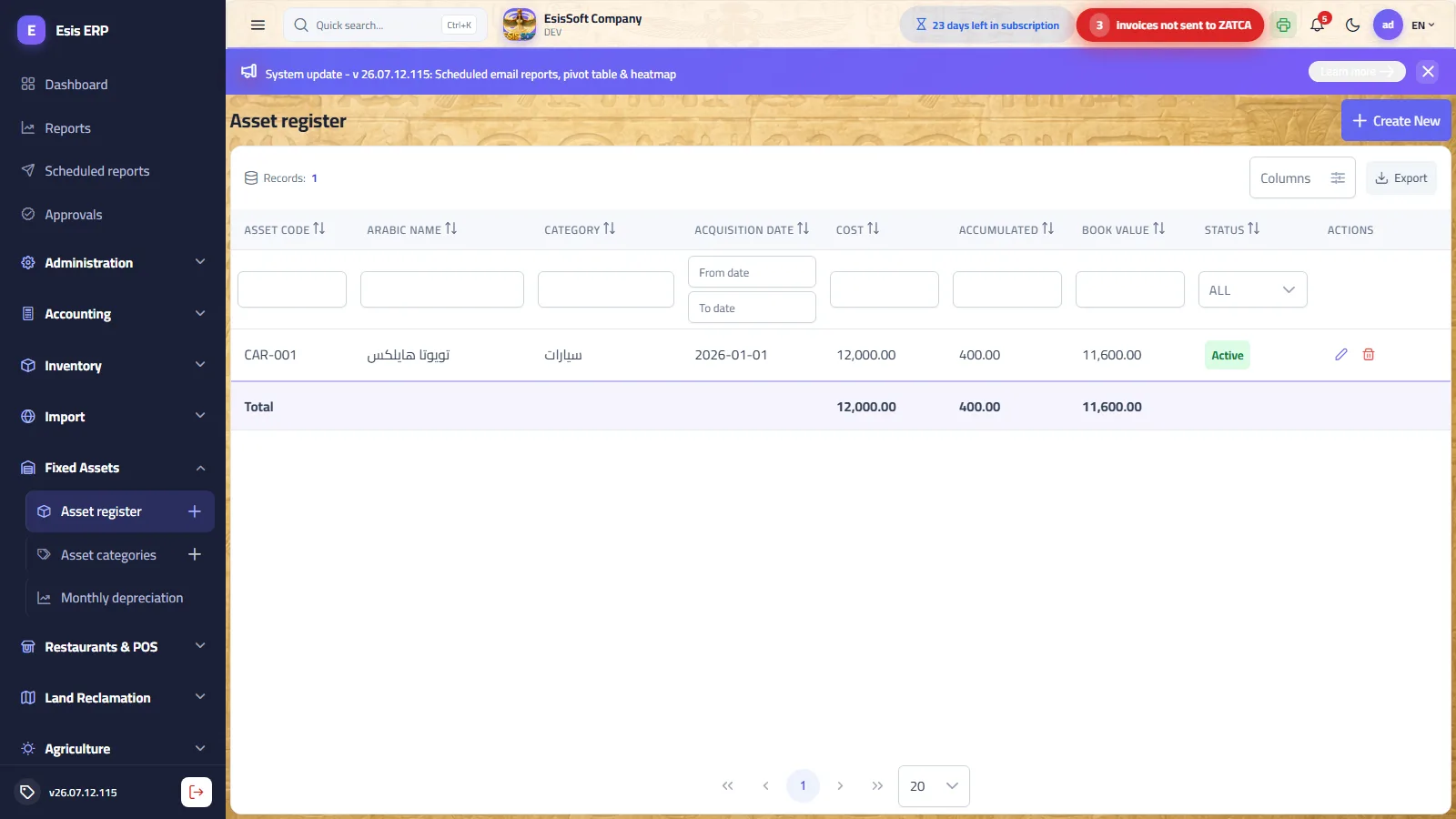
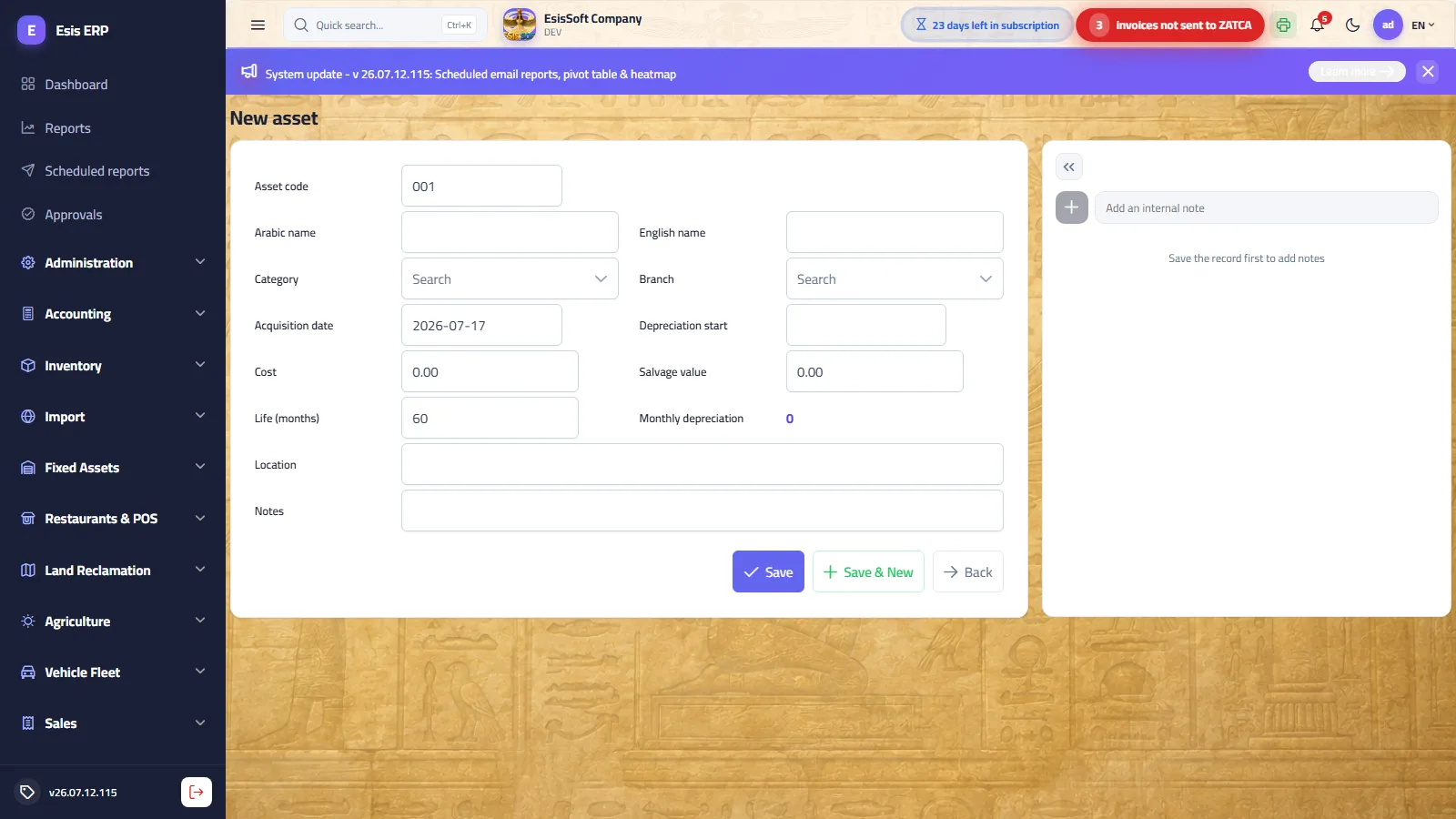
Purpose: one card per asset holding its identity, cost data and depreciation parameters. The register list is your live fixed-asset ledger: it shows each asset's cost, accumulated depreciation and net book value (cost − accumulated depreciation), with column totals at the bottom for all three amounts.
When: register an asset as soon as it is acquired — before the depreciation run of its first month — so its charge is captured on time.
Register list columns
Code, Arabic name, category, acquisition date, acquisition cost (Σ), accumulated depreciation (Σ) and book value (Σ), plus a status chip:
| Status | Meaning |
|---|---|
| Active | In use — included in every monthly depreciation run. |
| Fully depreciated | Accumulated depreciation has reached (cost − salvage). The system sets this automatically during the run; the asset is skipped from then on and its book value equals the salvage value. |
| Disposed | Removed from service. The current version has no automatic disposal action on this screen — see Disposal & sale for the manual procedure. |
Asset editor fields
| Field | Required | Description |
|---|---|---|
| Asset code | Auto | Assigned automatically from the master code sequence; read-only, unique (max 40 characters). |
| Arabic name | Yes | Max 200 characters. |
| English name | No | Falls back to the Arabic name if left empty. |
| Category | Yes | Searchable picker showing active categories only; determines the GL accounts used at posting. |
| Branch | No | Optional, clearable — records which branch owns the asset. |
| Acquisition date | Yes | Purchase date; defaults to today. |
| Depreciation start | No | First month in which the asset depreciates. If left empty it defaults to the acquisition date. Set it later than the acquisition date for assets installed or commissioned after purchase. |
| Acquisition cost | Yes | Must be greater than 0; two decimals. |
| Salvage value | No | Estimated residual value at end of life; ≥ 0 and must be below the acquisition cost. Never depreciated away. |
| Useful life (months) | Yes | 1 – 1200 months; defaults to 60 (5 years). Enter months, not years: 5 years = 60. |
| Monthly depreciation | Read-only | Live preview = (cost − salvage) ÷ life months, rounded to 2 decimals; updates as you type. |
| Location | No | Free text — site, floor, room… |
| Notes | No | Free text (serial number, supplier, warranty…). |
| Active | — | Shown when editing only. Unticking it excludes the asset from all future depreciation runs. |
The editor also has a notes side panel for attaching remarks to the asset record, and the standard Save / Save & New / Back buttons.
Worked example — setting up an asset
- A delivery truck is bought on 2026-01-15 for 60,000, expected to be resold for 6,000 after 5 years.
- Enter: acquisition cost 60,000 · salvage value 6,000 · useful life 60 months. Leave depreciation start empty (it defaults to 2026-01-15).
- Depreciable base = 60,000 − 6,000 = 54,000.
- Monthly charge = 54,000 ÷ 60 = 900.00 — shown instantly in the “Monthly depreciation” preview.
- Save. From the January 2026 run onward the truck contributes 900.00 per month.
Editing and deleting rules
| Rule | Detail |
|---|---|
| Cost is locked after depreciation starts | Once any depreciation has been posted, changing the acquisition cost is rejected: “Cost cannot change after depreciation has started.” |
| Delete is blocked after depreciation starts | “Asset already has posted depreciation - it cannot be deleted.” Untick Active instead to stop further charges. |
| Life / salvage can still be adjusted | Changing them recalculates the monthly charge for future runs; past runs are never restated. The clamp rule guarantees total depreciation never exceeds the (new) depreciable base. |
FAQ
Q. Why is the “Monthly depreciation” field not editable?
A. It is a computed preview: (cost − salvage) ÷ life months. To change the charge, change one of those three inputs.
Q. The asset was purchased in January but only put to use in March. What do I enter?
A. Acquisition date 2026-01-…, depreciation start 2026-03-01. The runs of January and February will skip it; March charges the first 900.
Q. Can two assets in the same category have different useful lives?
A. Yes — life, cost and salvage are per-asset. The category only supplies the GL accounts.
Q. What happens when an asset becomes fully depreciated?
A. The run flags it Fully depreciated automatically the moment accumulated depreciation reaches (cost − salvage). It stays in the register at a book value equal to its salvage value and is skipped by all later runs.
Monthly depreciation
Route: Fixed Assets › Monthly Depreciation — /assets/depreciation
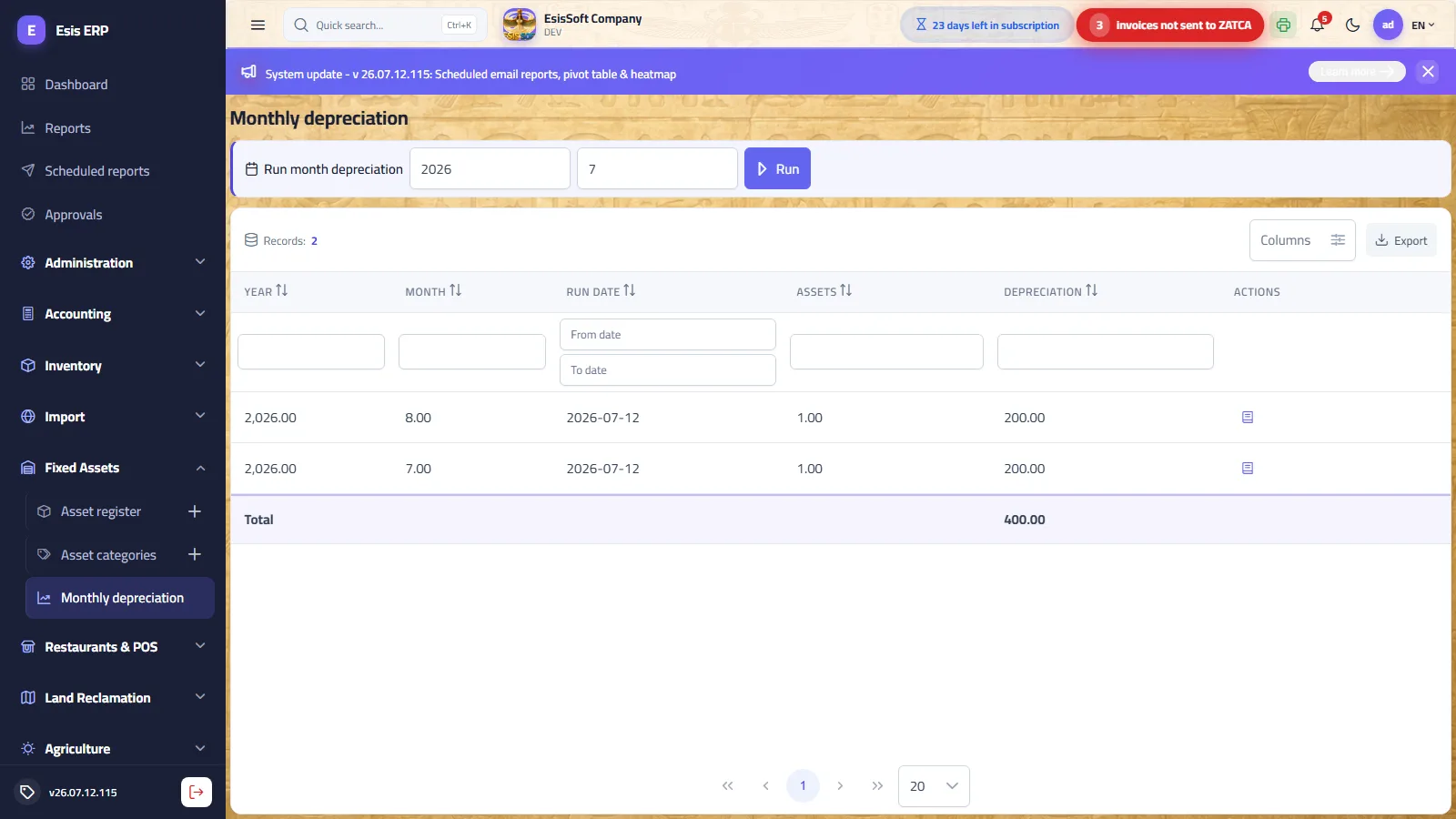
Purpose: compute and post straight-line depreciation for all eligible assets of a chosen month in one batch, producing one consolidated journal entry. The screen also lists the full run history.
When: once per month, at month end, as part of your closing checklist — and every month must be run before Year Closing.
Running a month
- Enter the year (2000–2100) and month (1–12) in the toolbar — they default to the current month.
- Press Run. The system selects every asset that is Active (status and flag) and whose depreciation start date falls on or before the month's last day.
- For each asset it charges min(monthly amount, remaining depreciable base), updates its accumulated depreciation, and flags it Fully depreciated when the base is exhausted.
- One consolidated journal entry is posted automatically, dated the last day of the month, of type “Automatic”, referenced “Depreciation YYYY-MM” — with one Dr/Cr pair per category.
- The new run appears at the top of the history list.
Run history columns
| Column | Description |
|---|---|
| Year / Month | The period the run covers (one run per year+month pair, ever). |
| Run date | Date and time the run was actually executed. |
| Asset count | Number of assets that received a charge in this run. |
| Depreciation amount | Total posted by the run (column total at the bottom). |
| Journal entry (book icon) | Opens the posted journal entry in the entry viewer dialog. |
Worked example — a full year of runs
Continuing the truck example (cost 60,000, salvage 6,000, life 60 months, monthly 900.00), assuming it is the only asset:
| Run | Charge | Accumulated after | Book value after |
|---|---|---|---|
| 2026-01 | 900.00 | 900.00 | 59,100.00 |
| 2026-02 | 900.00 | 1,800.00 | 58,200.00 |
| 2026-03 | 900.00 | 2,700.00 | 57,300.00 |
| 2026-04 | 900.00 | 3,600.00 | 56,400.00 |
| 2026-05 | 900.00 | 4,500.00 | 55,500.00 |
| 2026-06 | 900.00 | 5,400.00 | 54,600.00 |
| 2026-07 | 900.00 | 6,300.00 | 53,700.00 |
| 2026-08 | 900.00 | 7,200.00 | 52,800.00 |
| 2026-09 | 900.00 | 8,100.00 | 51,900.00 |
| 2026-10 | 900.00 | 9,000.00 | 51,000.00 |
| 2026-11 | 900.00 | 9,900.00 | 50,100.00 |
| 2026-12 | 900.00 | 10,800.00 | 49,200.00 |
After 60 runs the accumulated depreciation reaches the full base of 54,000, the status flips to Fully depreciated, and the book value rests at the salvage value of 6,000. The 61st run simply skips the truck.
The consolidated journal entry
Charges are aggregated per category. Example for a month where Vehicles depreciate 1,350.00 (two trucks) and Computers 300.00:
| Account | Debit | Credit |
|---|---|---|
| Depreciation expense — Vehicles | 1,350.00 | |
| Depreciation expense — Computers | 300.00 | |
| Accumulated depreciation — Vehicles | 1,350.00 | |
| Accumulated depreciation — Computers | 300.00 | |
| Total | 1,650.00 | 1,650.00 |
Being an automatic entry, it is never edited directly — corrections go through the asset cards or a manual adjusting entry.
Errors & common mistakes
| Situation | What happens / what to do |
|---|---|
| Running the same month twice | Blocked: “Depreciation for YYYY-MM has already been run.” One run per year+month pair — there is no undo/re-run on this screen. |
| No eligible assets | “No depreciable assets for this month.” — nothing to charge (no active assets, all fully depreciated, or every start date is after this month). |
| Wrong year/month typed | The run posts for whatever period you entered — the fields are free, and months are not forced into order. Double-check the toolbar before pressing Run, and run months chronologically as a working rule. |
| Asset registered after its month was run | No catch-up charge is created; the asset starts contributing from the next executed run and finishes its schedule correspondingly later (see the warning in the register section). |
| Category accounts mis-configured | The entry posts to whatever accounts the category holds. Fix the category before running; already-posted runs need a manual reclassification entry. |
FAQ
Q. Can I see the journal entry a run produced?
A. Yes — the book icon on the run's row opens the posted entry with all its lines.
Q. I ran a month by mistake — how do I reverse it?
A. There is no reversal button on this screen. Post a manual reversing journal entry (Dr accumulated depreciation / Cr depreciation expense) and correct the asset positions with your accountant. The period itself remains marked as run.
Q. Does the run prorate the first month for assets acquired mid-month?
A. No — any asset whose depreciation start falls on or before the month's last day receives the full monthly charge for that month.
Q. Who can run depreciation?
A. Only users whose role has the ASSET.Depreciation.Run permission; viewing the history needs ASSET.Depreciation.View.
Selling and disposing of an asset
Path: Fixed assets → Transactions → Asset sale & disposal — /assets/disposals
What it does: takes an asset out of service on a single document that works out the book value, recognises the capital gain or loss and posts the entry — whether it is sold, scrapped or donated.
Fields
| Field | Description |
|---|---|
| Asset and disposal date | Which asset, and when it left service. |
| Disposal type | Sale, scrap or donation — the last two carry no proceeds. |
| Sale price | The proceeds, and the account they came into. |
| Expected gain or loss | Computed for you before saving: proceeds less the book value after the month of sale is depreciated. |
| Gain and loss accounts | They come from the asset’s category — and saving is refused if the one this case needs is not set. |
| Cancel disposal | Posts a reversing entry and returns the asset to service — a mistake is corrected, never erased. |
Worked example — gain on sale
The entry the document posts:
The truck is sold for 40,000 after 24 monthly runs: accumulated depreciation = 24 × 900 = 21,600; book value = 60,000 − 21,600 = 38,400; gain = 40,000 − 38,400 = 1,600.
| Account | Debit | Credit |
|---|---|---|
| Bank | 40,000.00 | |
| Accumulated depreciation — Vehicles | 21,600.00 | |
| Vehicles at cost | 60,000.00 | |
| Gain on asset disposal | 1,600.00 | |
| Total | 61,600.00 | 61,600.00 |
Worked example — loss on sale
Same truck sold for 35,000 instead: loss = 38,400 − 35,000 = 3,400.
| Account | Debit | Credit |
|---|---|---|
| Bank | 35,000.00 | |
| Accumulated depreciation — Vehicles | 21,600.00 | |
| Loss on asset disposal | 3,400.00 | |
| Vehicles at cost | 60,000.00 | |
| Total | 60,000.00 | 60,000.00 |
FAQ
Q. An asset was scrapped with no proceeds — what is the entry?
A. Pick disposal type “scrap” and leave the price at zero: the bank line disappears and the whole remaining book value becomes the loss on disposal.
Q. Do I untick “Active” after the sale?
A. No — the disposal document does it, and a disposed asset is not charged by later runs.
Q. Can I delete the asset instead?
A. Not once it has posted depreciation — deletion is blocked to protect the ledger. Deactivate it and keep it as history.
Frequently asked questions
How do I register a fixed asset?
Open Fixed Assets › Assets › New, enter the asset, its category, acquisition cost and date, and the depreciation method; the code is generated automatically.
How does depreciation work?
Run monthly depreciation from the depreciation screen; KEMTOVA ERP calculates and posts the depreciation expense per asset based on its method and useful life.
Can I dispose of or sell an asset?
Yes. Record a disposal to remove the asset, post any gain or loss versus its book value, and stop further depreciation.
How is book value calculated?
Book value = acquisition cost − accumulated depreciation, updated automatically each time a depreciation run is posted.